Seller Developer Onboarding Onepager
Part 1: Onboarding Overall
Seller developer onboarding guide
TikTok Shop business flow
Learn about what TikTok Shop API can do - user journey
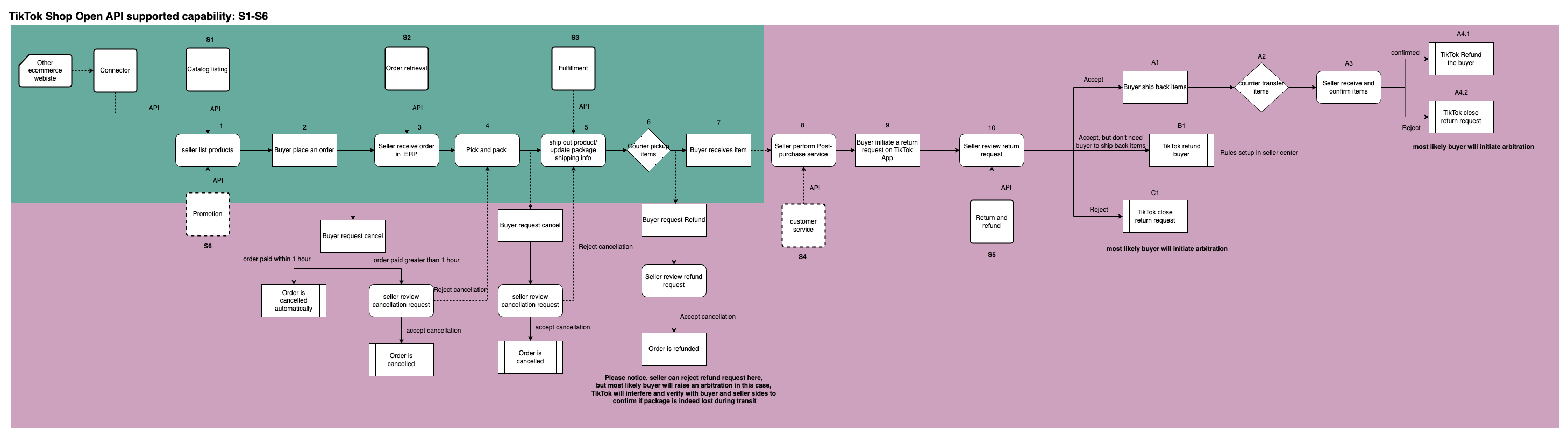
Onboarding Process

Definition and basic business introductions
- TikTok Shop: TikTok Shop is an innovative new shopping feature that enables sellers, brands, and creators to showcase and sell products directly on TikTok through in-feed videos, LIVEs, the product showcase tab, and the Shop Tab (2nd tab of the TikTok app) in some of the markets.
- TikTok Shop Partner Center (TTSPC): Build software integrations and applications using TikTok Shop APIs to help you to manage, automate, and grow your businesses on TikTok Shop. As a seller, you can also directly integrate your TikTok Shop with your app to manage your business.
- TikTok Shop seller developers: Choose this type if you are a TikTok Shop seller who intends to only develop custom apps and services that integrate directly with TikTok Shop to support your own operations.
Business flow of TikTok Shop
Create a private App only if you have a TikTok Shop seller account.
You should have a TikTok Shop seller account first.
Step 1: Create an account on TikTok Shop Partner Center
Access to TTSPC: https://partner.tiktokshop.com/
- If you have a US business license, and the target seller type is US local, please access to US TikTok Shop Partner Center(TTSPC) https://partner.us.tiktokshop.com/
- For other situations, please refer to https://partner.tiktokshop.com/
- Set up an account on Partner Center. Provide your email address and, optionally, your phone number. Ensure your email address on Partner Center is current, as it is essential for receiving crucial updates from the Partner Center platform.
- ⚠️ Please note that email addresses of seller center and TTSPC are the same.
Step 2: Register as TikTok Shop seller developer
| Description | Screenshot | |
|---|---|---|
| 1 | After creating an account, you'll find a business guide tailored to different partner types. Pick "For TikTok Shop Seller" as your partner type from this guide, click on 'Start Business,' and it will lead you to the 'Get Started' page to initiate your application for your selected category. | 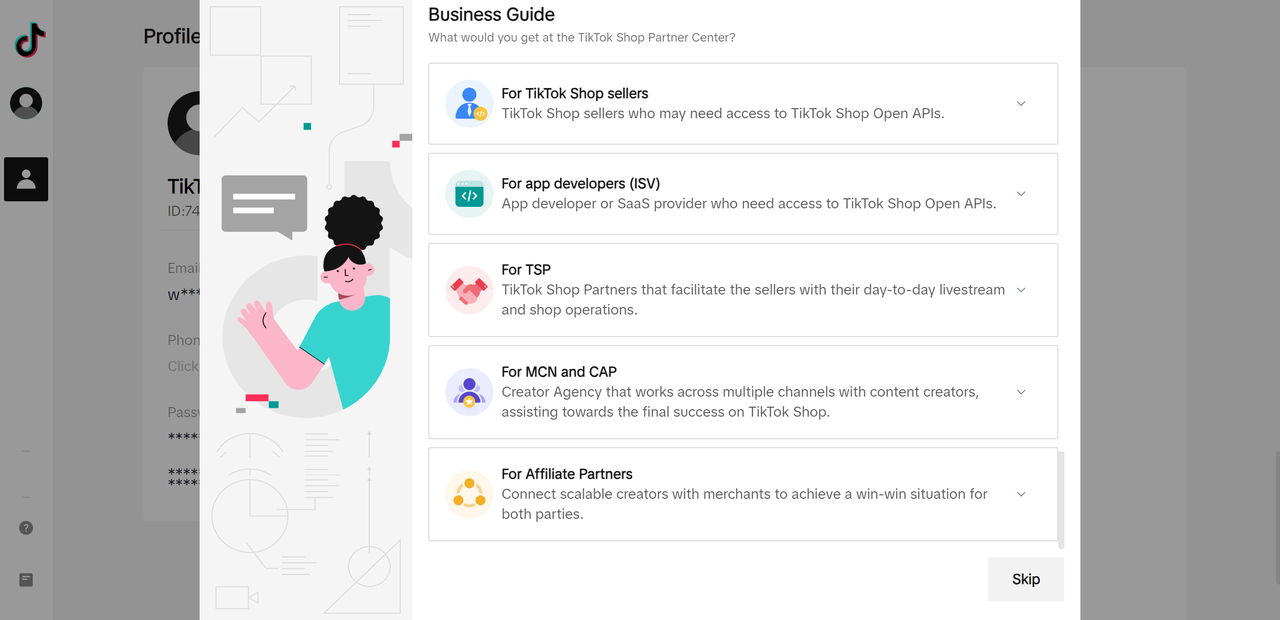 |
| 2 | Click on " Start Business" to start your partner application. | 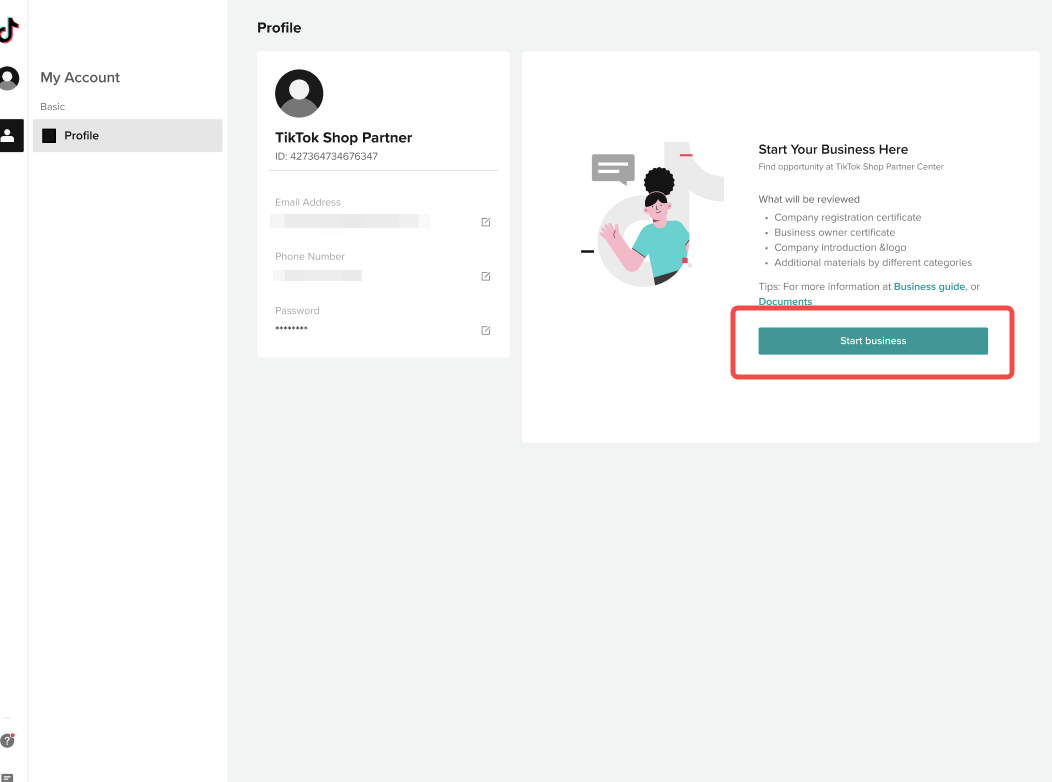 |
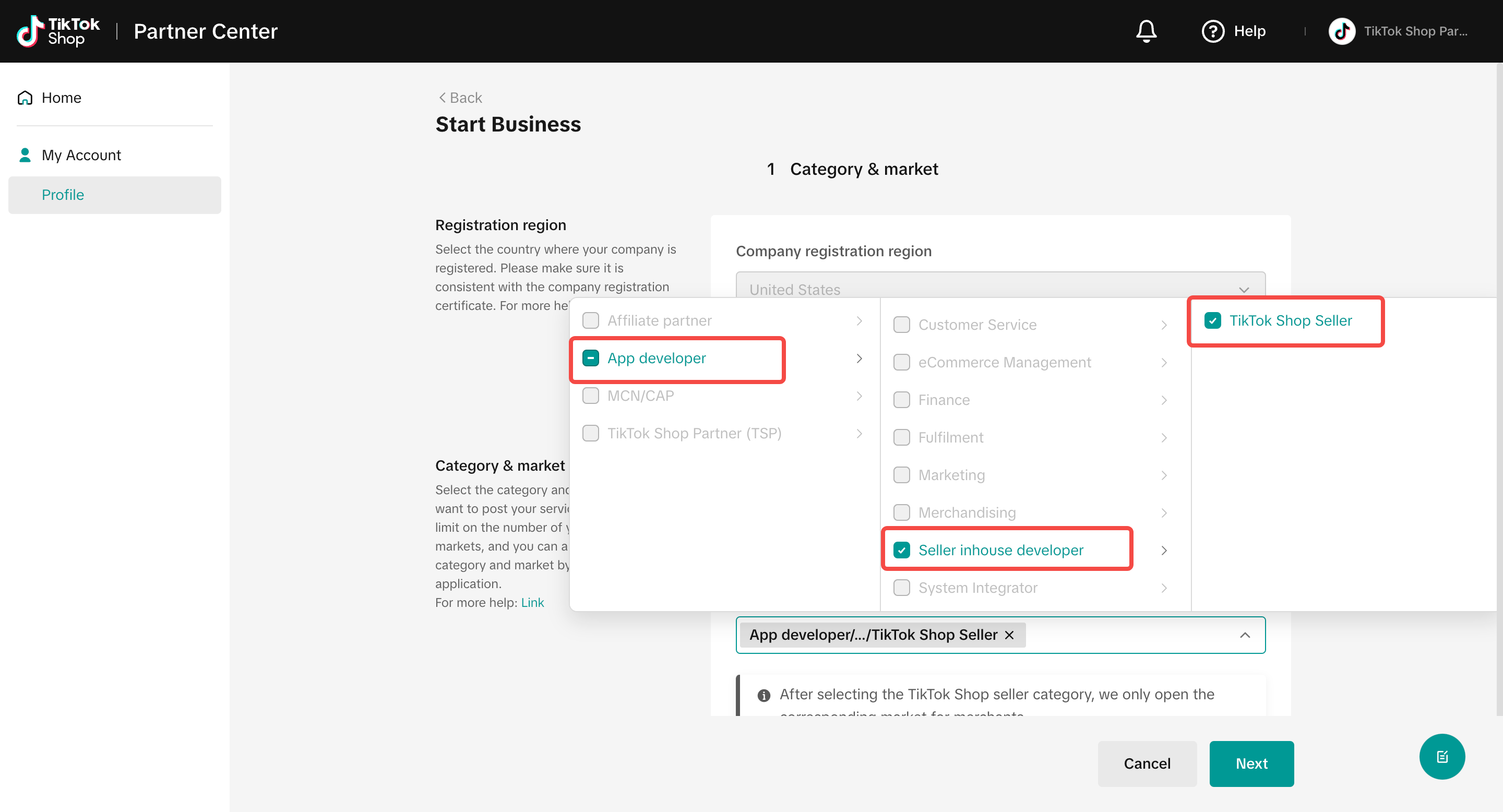
| 3 | As a first step, TikTok Shop needs to know what type of Apps you plan to build for sellers. Please choose the target seller market and category. Please choose 「TikTok Shop Seller」as the business category. | 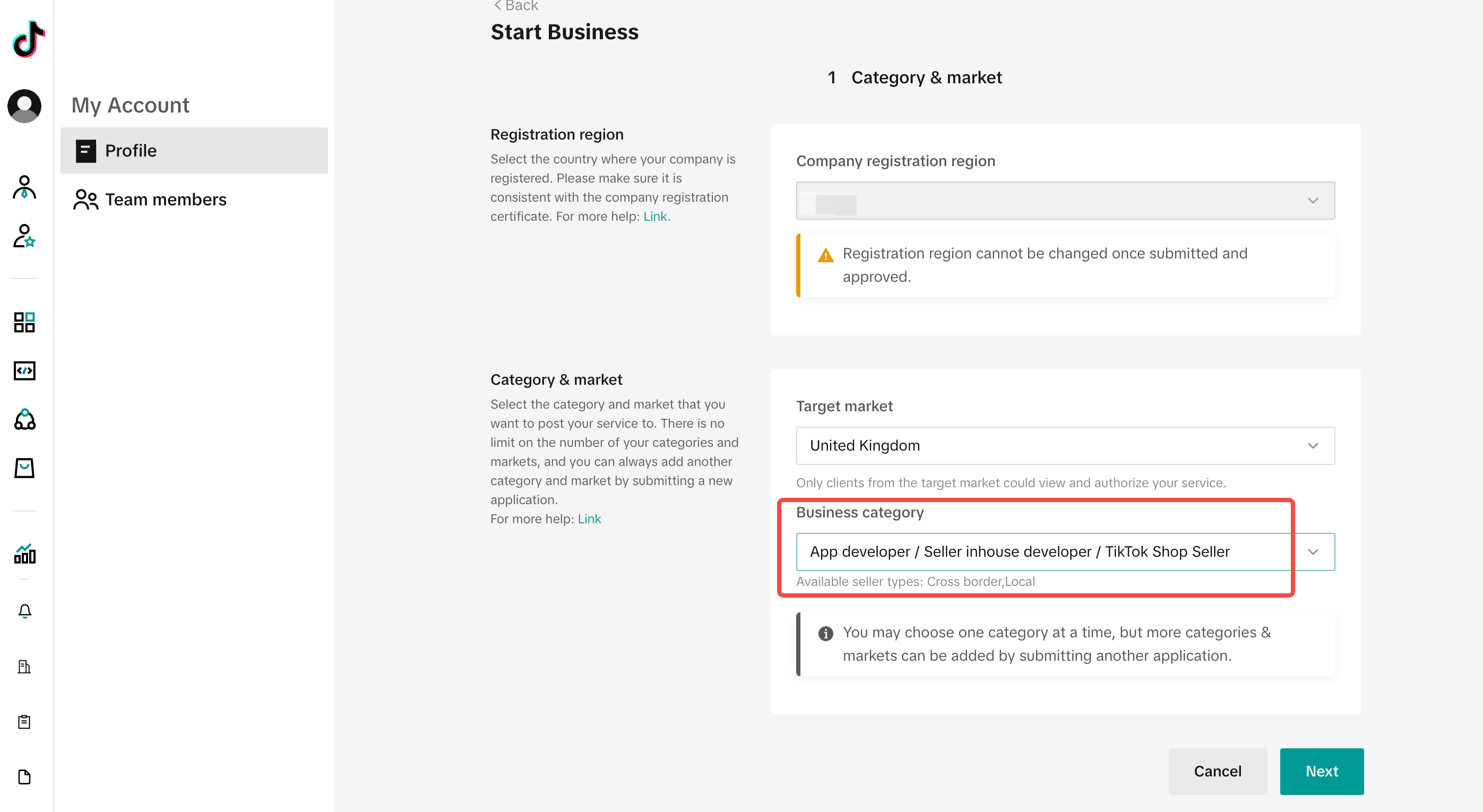 |
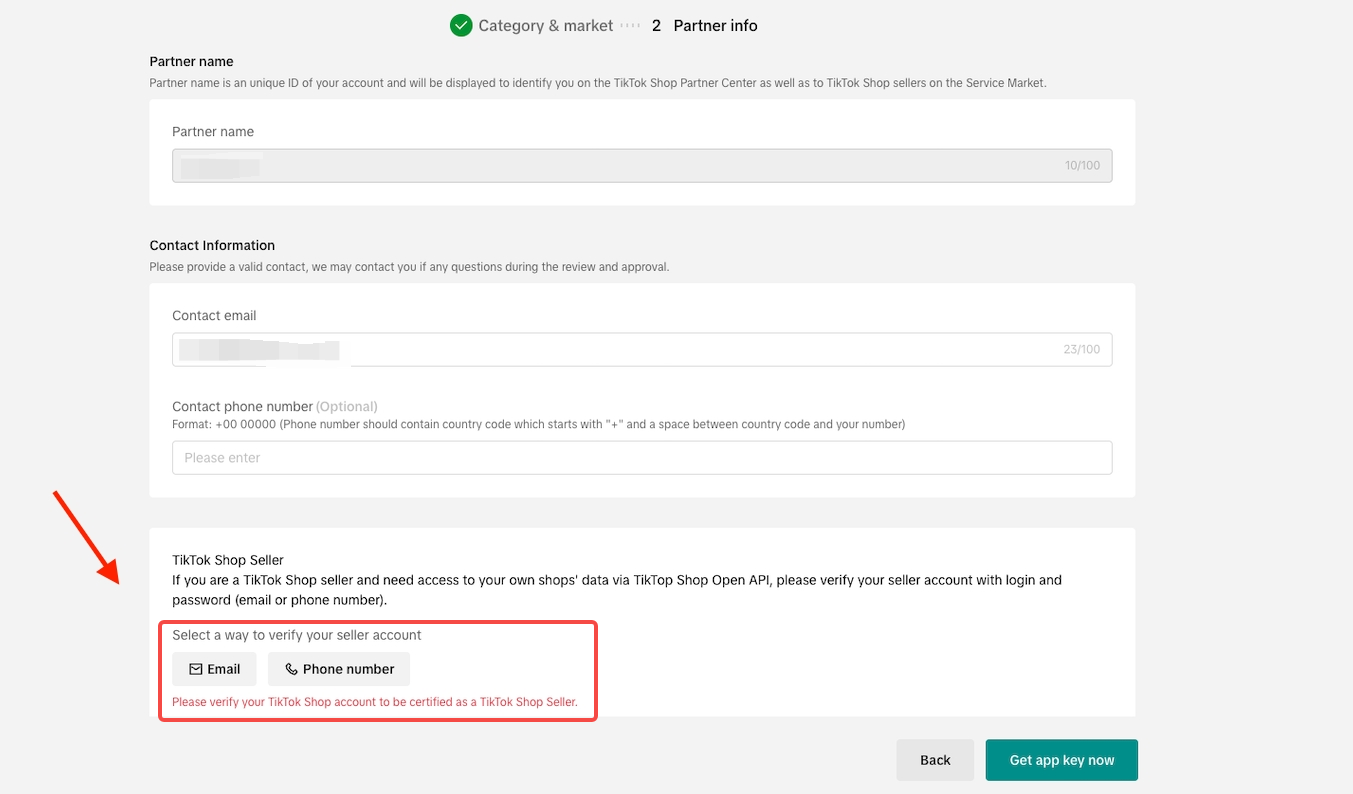
| 4 | Please verify your seller account with login and password (email or phone number). TikTok Shop Partner Center will verify the account automatically. | 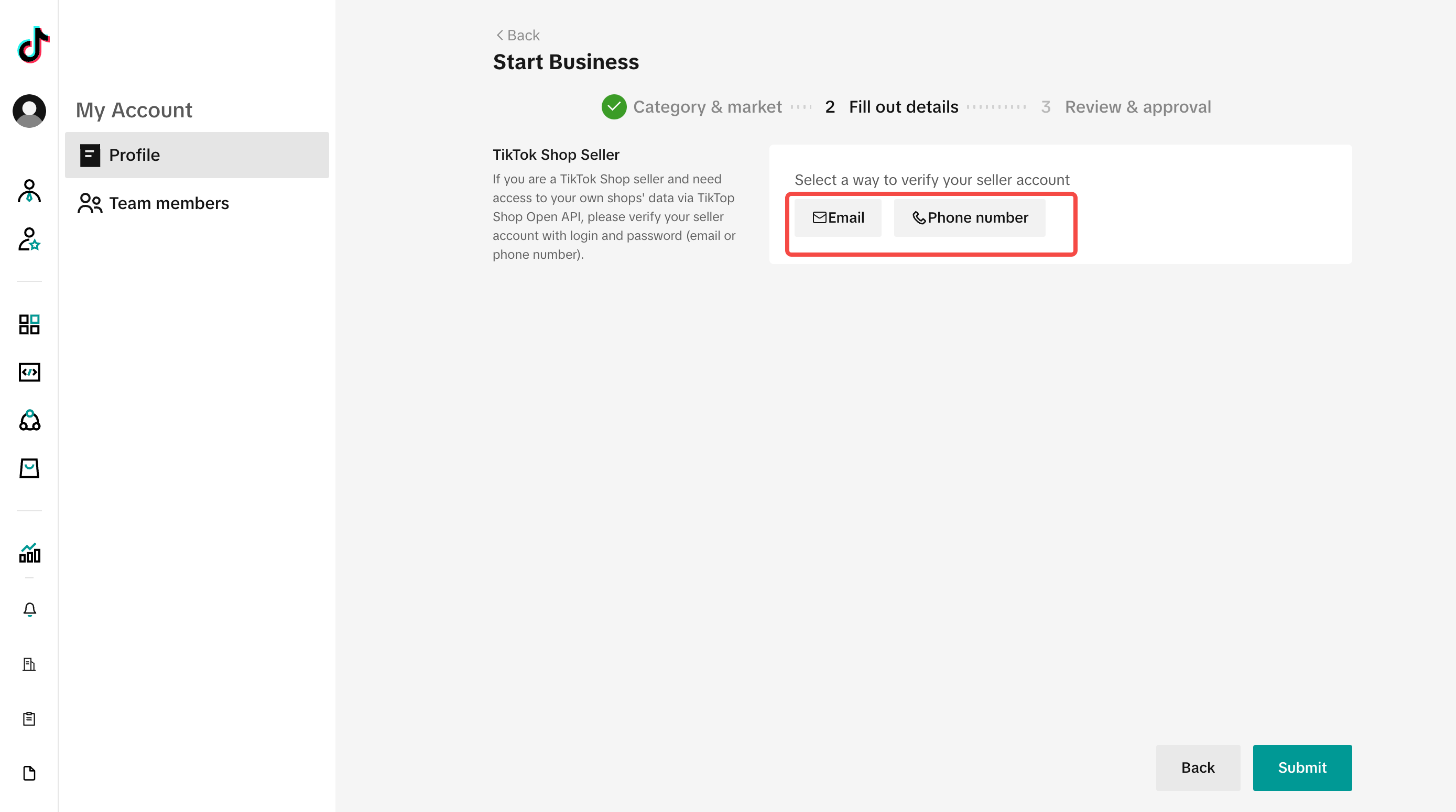 |
| 5 | When you are verified, you will see the tag of "TikTok Shop seller" under My Account page. You should have a TikTok Shop seller account first | 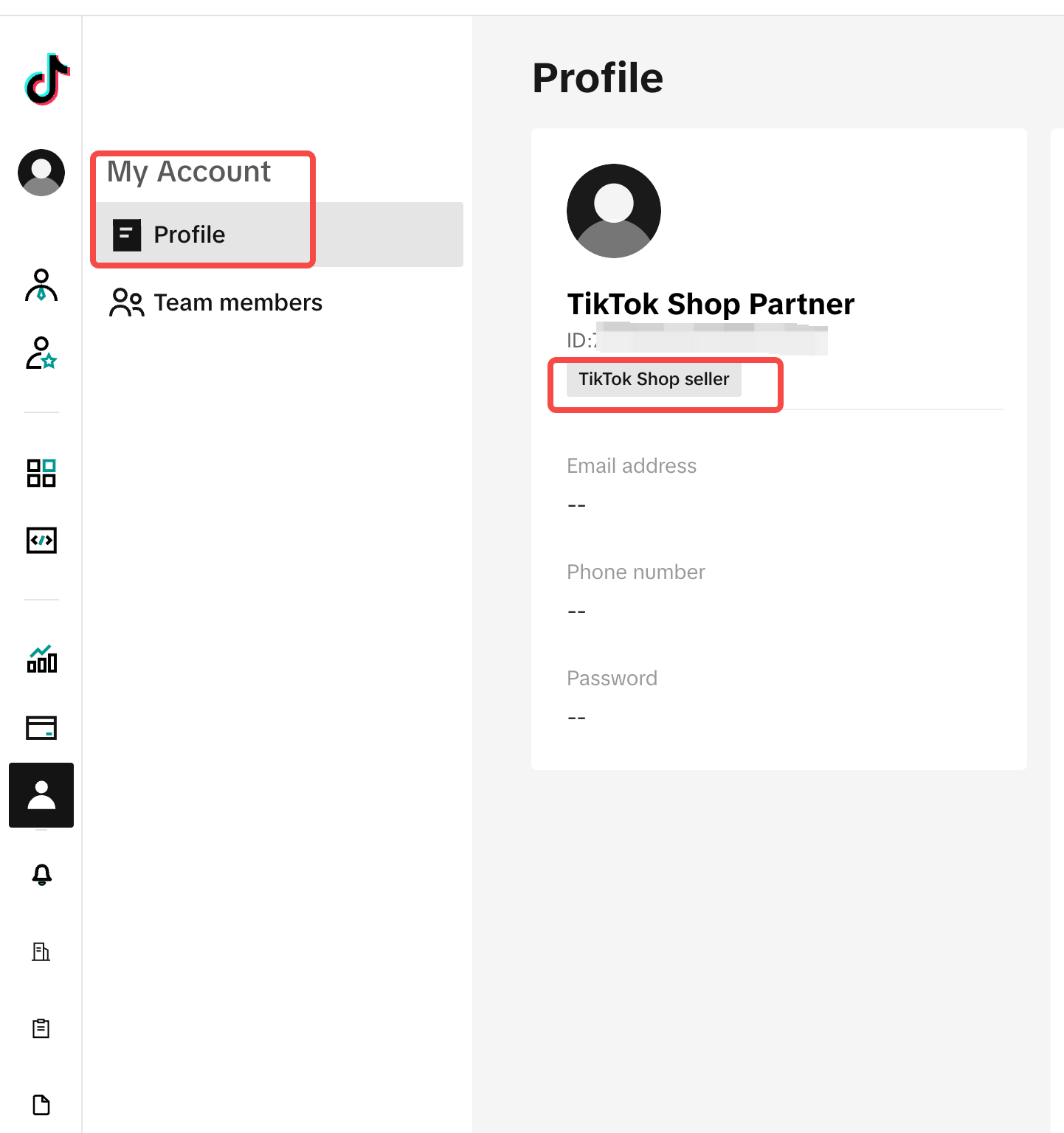 |
Step 3: Verify seller account
- Fill the basic info and verify seller account
- ⚠️ You can only verify the TikTok Shop seller account which passes the KYB/KYC review
- 1 seller account can only be bound with 1 TTSPC account.
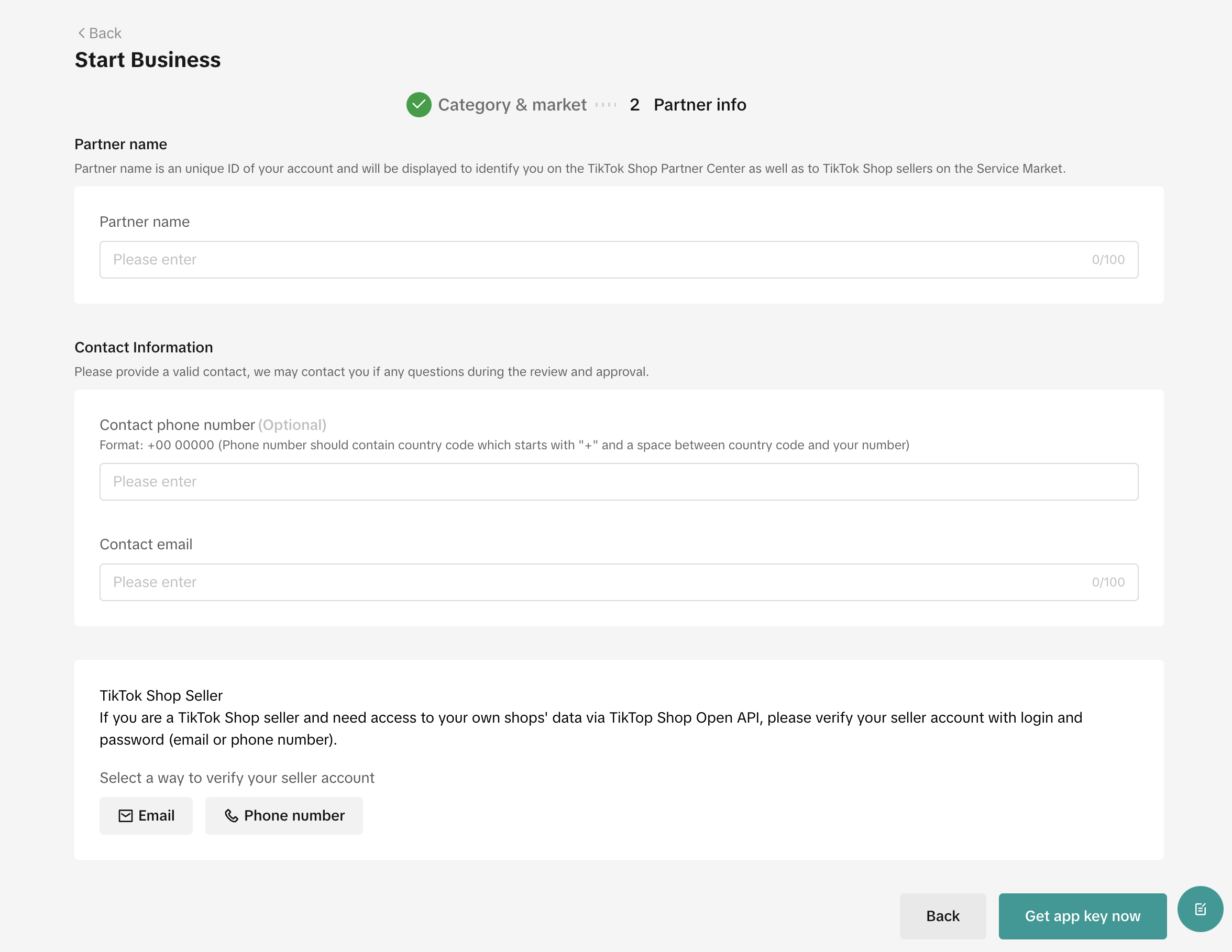
- It is essential for us to know your business. Fill in the partner information
| Business information | Screenshot | |
|---|---|---|
| Company introduction | Partner logo | |
| Business Description: It is suggested to indicate your company's core competence, business experience, operation cases, etc. | ||
| Website | 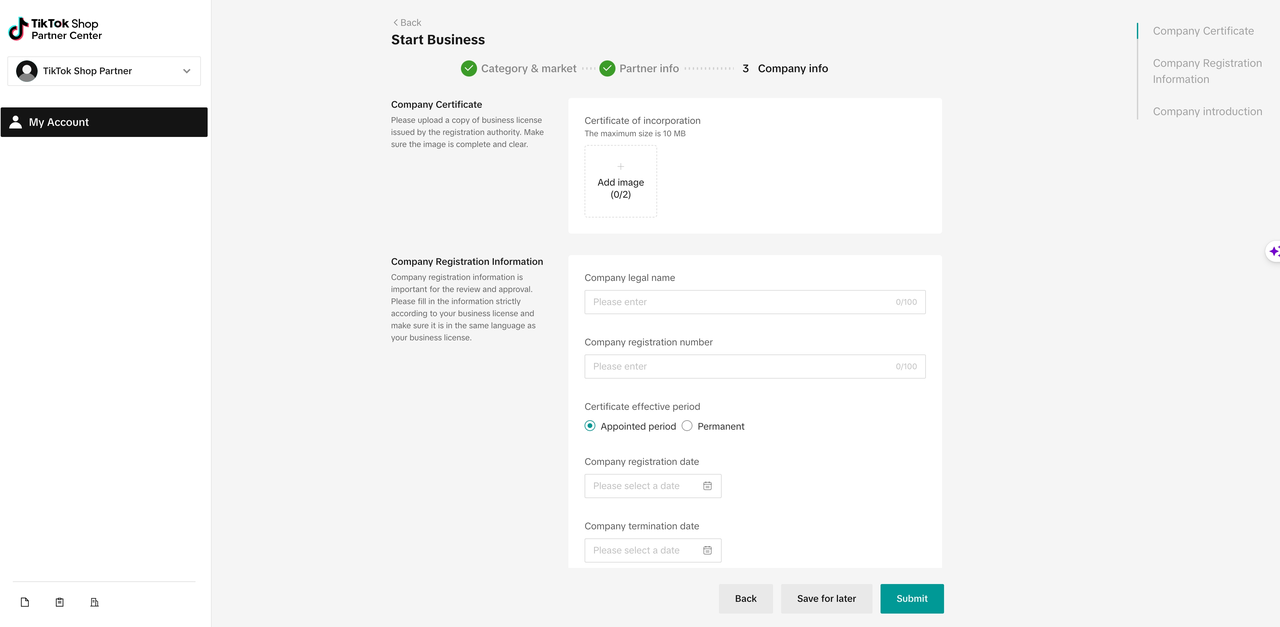 | |
| Contact Information | Contact email | |
| Contact phone number | 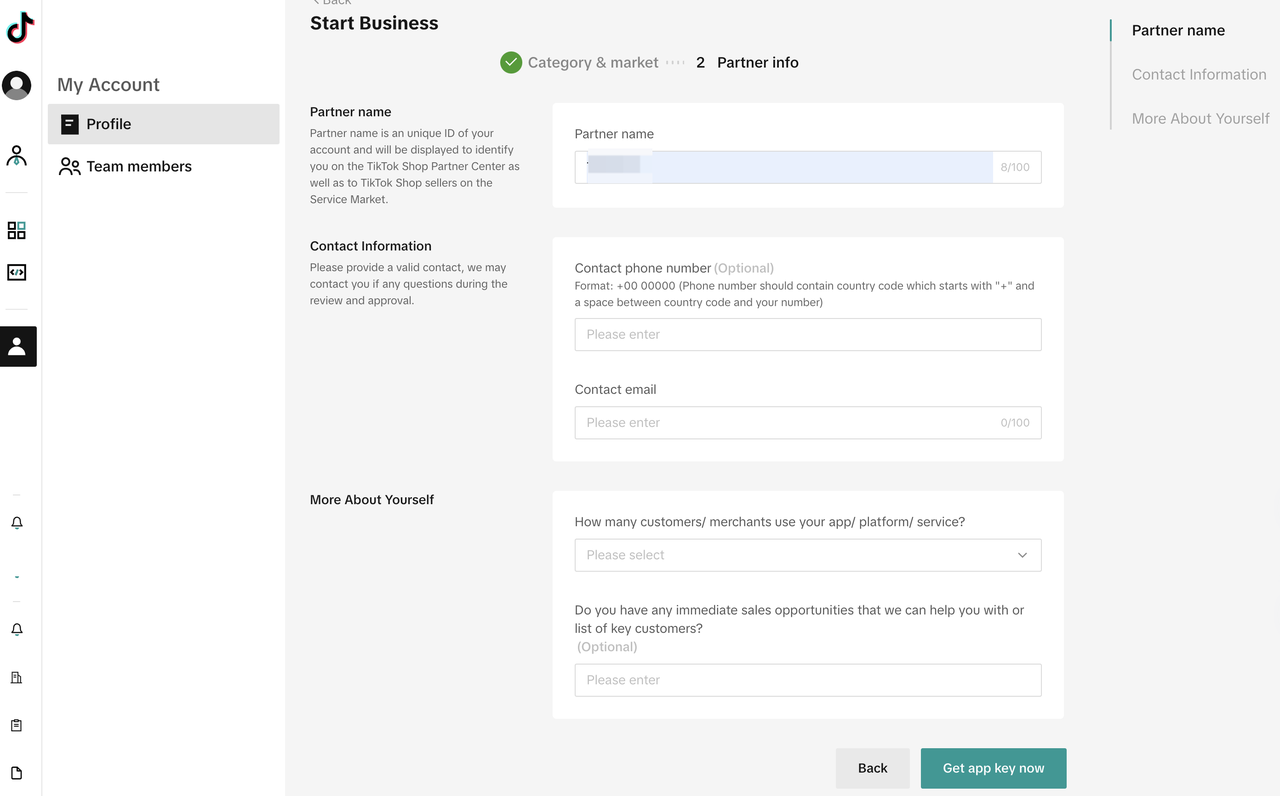 | |
| More About Yourself | How many customers/ merchants use your app/ platform/service? | |
| Do you have any immediate sales opportunities that we can help you with or list of key customers? | ||
| Which ecommerce platforms have you worked with? | 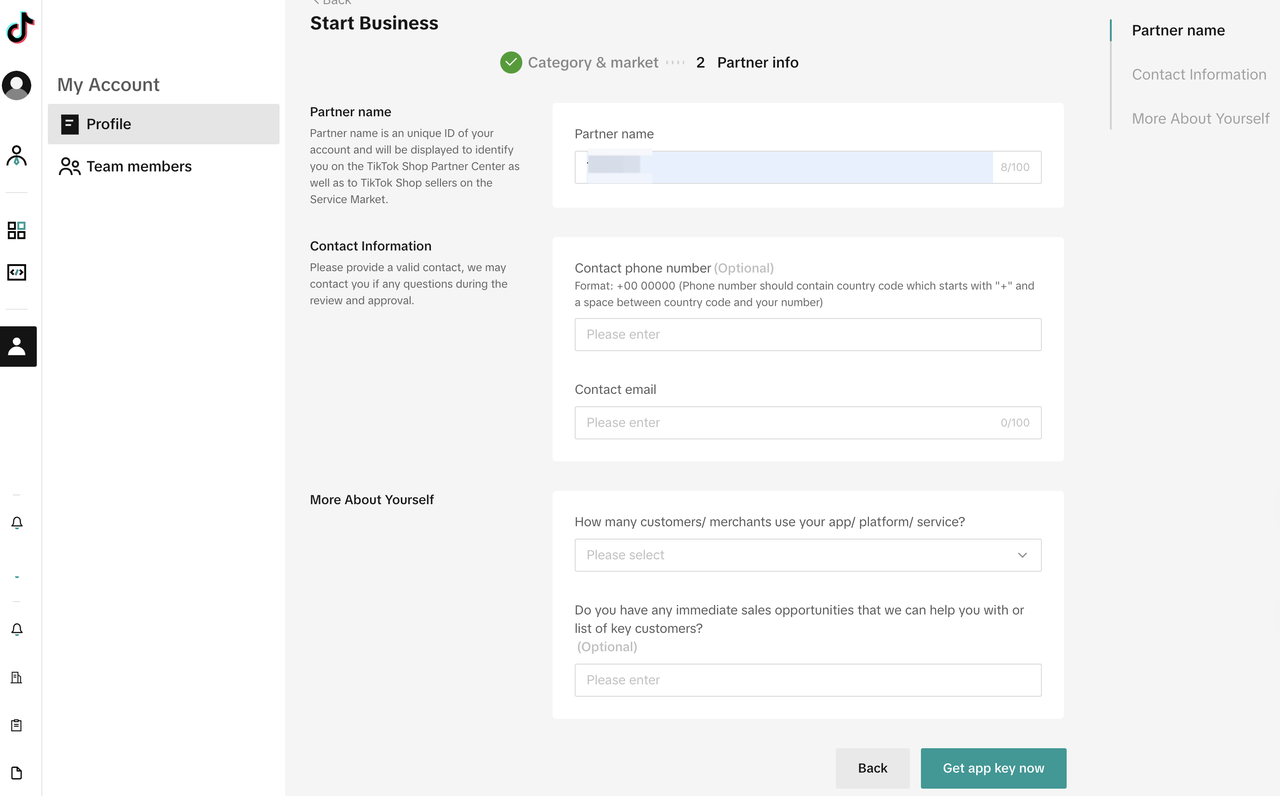 |
- Fill in the onboarding review form, including business license and other certification before the App publish.
Step 4: Fill in the certification-related form
- Seller Developers need to finalize their selection of the new category and submit the required documents for the new role.
- Certification-related information will not be editable later. Seller Developers should fill the carefully
- Note: The required qualifications vary from country to country, and shall be subject to the onboarding review on the "my account" page.
| Fields | Is it a required field | Rules | |
|---|---|---|---|
| Business Information | Certificate of Incorporation copy | Required | 1. 1. A valid and genuine business license |
-
- The business license requires a color scanned copy with clear images and complete borders, and must be affixed with the official seal
-
- The applicant must be of enterprise type
-
- The CN Mainland business license must include "technical services" or "technical development" or "software development" | | company legal name | Required | It needs to be consistent with the information on the business license. | | Certificate of Incorporation No. | Required | | Certificate effective period | Required | | company register date | Required | | company termination date | Certificate effective period = Appointed period, required Certificate effective period = Permanent, N/A | | Identity Documents | Identity card copy | Required (Select any one of the three) | 1. A valid and genuine personal identification document
- Require a color scanned copy | | Identity card copy | | Passport copy | | Name and Logo | partner name | Required | 1. Names related to TikTok/TikTok Shop such as TT/TK/TikTok/TikTik/TokTok/TikTok Shop/TTS/TKS, etc. are not allowed.
- It cannot be a long string of numbers/characters, or random numbers/characters that ordinary people cannot understand.
- It cannot involve words related to pornography, gambling, drugs, violence, or illegal activities. | | Work Environment | work environment nonstandard | Required | 1. Genuine office environment: The photo should not look obviously fake or show traces of photo editing.
- The photos must include at least the company's main entrance (reception area) and key functional zones.
- The company name displayed on the main entrance or key areas must match the legal entity name. |
Step 5: Create an App
| Description | Screenshot | |
|---|---|---|
| 1 | Select App & Service from the navigation panel. The Partner Center displays the 「App & service」 page. | 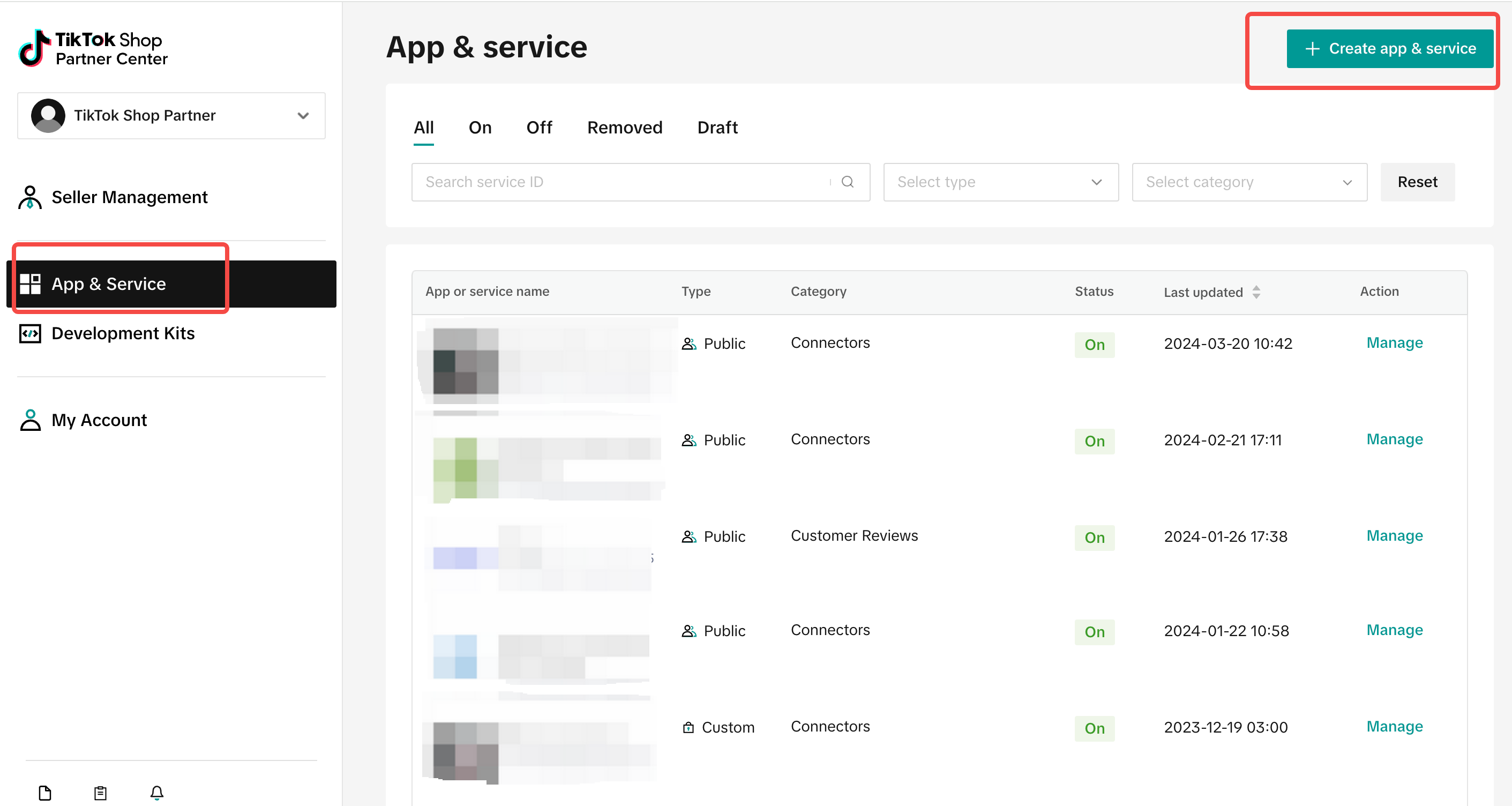 |
| 2 | Click the「**Create app & service」**button in the top right corner of the page. The Partner Center displays the「Create app & service」page. | |
| 3 | Build a Custom App: Custom App This type of App is typically developed for a particular seller. It is tailored to meet the specific business needs, requirements, or preferences of a seller. The App is not listed on TikTok Shop App Store. You can distribute this App to individual sellers by sharing the App's authorization link. | 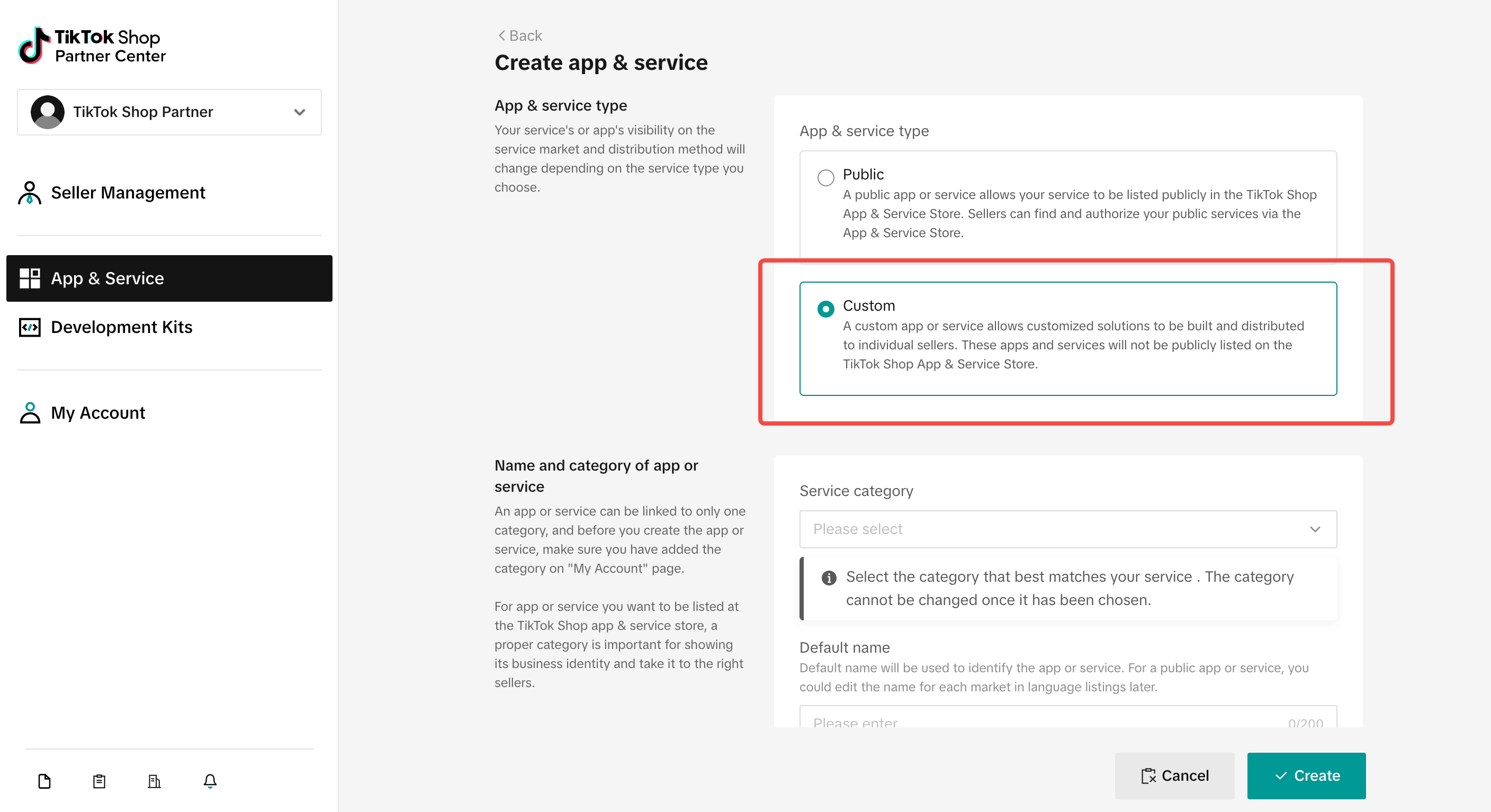 |
| 4 | Select the Service category and set the default name of your App. Optionally, upload a logo for your App. Please choose 「TikTok Shop Seller」as the business category. | 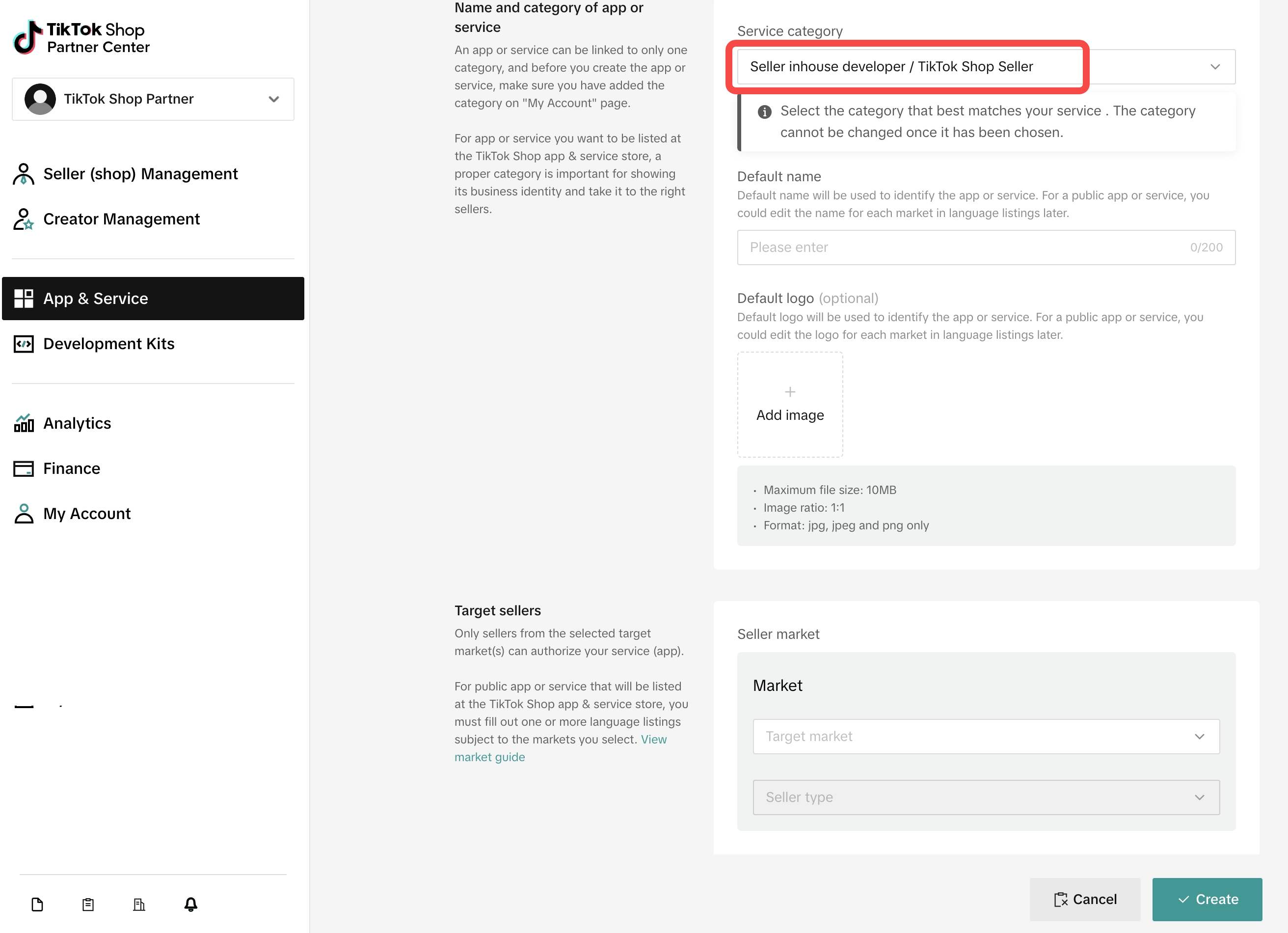 |
| 5 | Select the Market and set the seller type for your App. | |
| 6 | Toggle the Enable API switch on and complete the following fields. Otherwise, skip to the next step. | |
Redirect URL Enter the URL at which to receive your authorization code. After the seller authorize the App, it will jump to this URL (it can be the URL of your system's web page) and transmit the auth_code, which you can use to get the access_token. | ||
| Webhook URL Optionally, enter the URL to receive push notifications (it can be the URL of your system). | 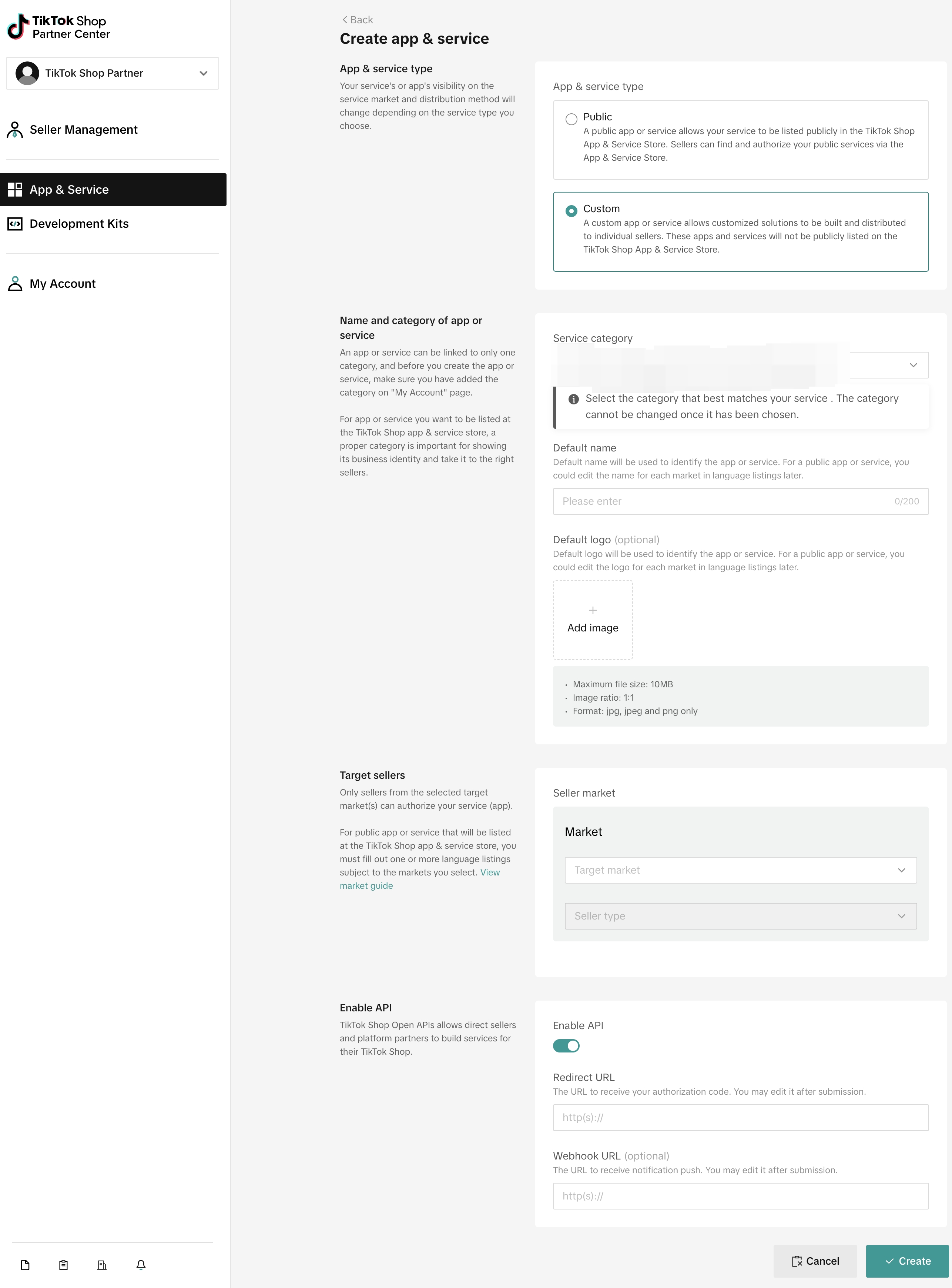 | |
| 7 | Click Create to complete the process. After you create your App, Partner Center displays the App and service detail page. Here you can access your App's unique App key and secret, which allow you to complete seller authorization and API calls. | |
| App Key - The unique identification of the service. |
- App Secret - The application key generated by the platform when you create an App. You can use this secret to obtain the API access token. |
Step 6: Test your App
Before you can launch your App, you must test it thoroughly with TikTok Shop's Seller Center functionality. We offer the following developer tools that you can use to test your App's functionality with Seller Center.
- Development Shop (previously known as Sandbox)
- API Testing Tool
The Development Shop (previously known as Sandbox) tools in the Partner Center allow you to build and test your apps by simulating various seller workflows without impacting real shop data, while the API Testing Tool allows you to access API request and response parameters.
Set up Development Shop
The following configuration on a web browser or system host files will enable you to connect to the testing environment of TikTok Shop, so that you can create test shops, test API integrations before general availability.
Custom App
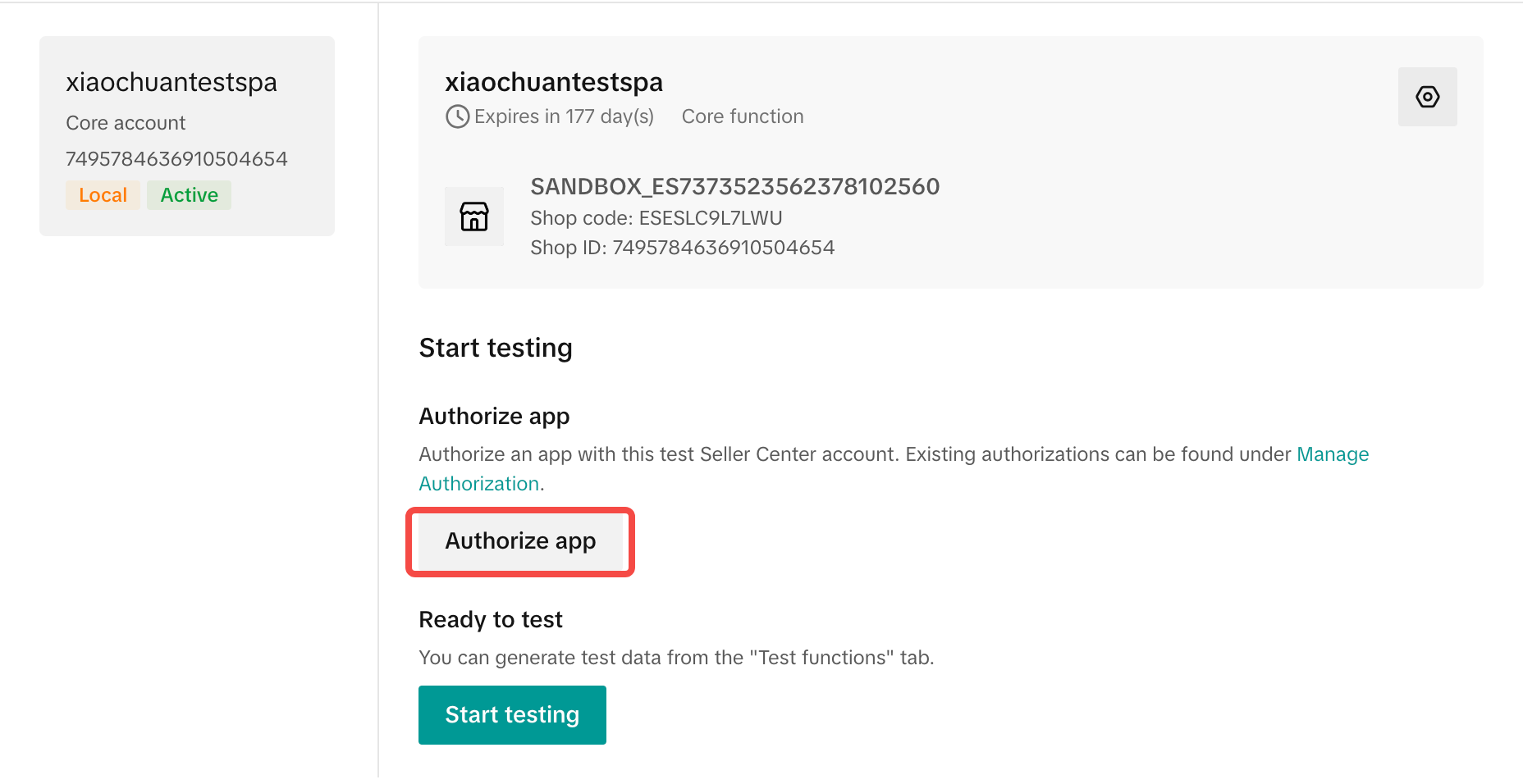
With Development Shop, developers can gain access to all production environment features, including returns, refunds, promotions, and customer support functionality.
Learn more: [Seller Center development shops](https://partner.tiktokshop.com/docv2/page/seller-center-development-shops#Back To Top)
How to test API Testing your app's integration with TikTok Shop involves properly calling our APIs. We recommend consulting our detailed guides to learn how you can call and test APIs: - API Testing Tool - This guide provides information on how to use our API Testing Tool to efficiently access the exact request and response parameters directly on Partner Center. - How to call TikTok Shop Open API - This guide covers endpoint URIs and parameters, etc for calling our APIs. - How to call APIs using Postman - Use Postman to simplify API testing. This guide shows how to set up scripts, environments, and requests in Postman for testing TikTok Shop APIs.
How to get help with testing your app If you have questions about testing your app, you can connect with the Partner Center Support team in the following ways: - Contact us through email - Submit a ticket through Partner Console (login required)
Step 7: Publish App
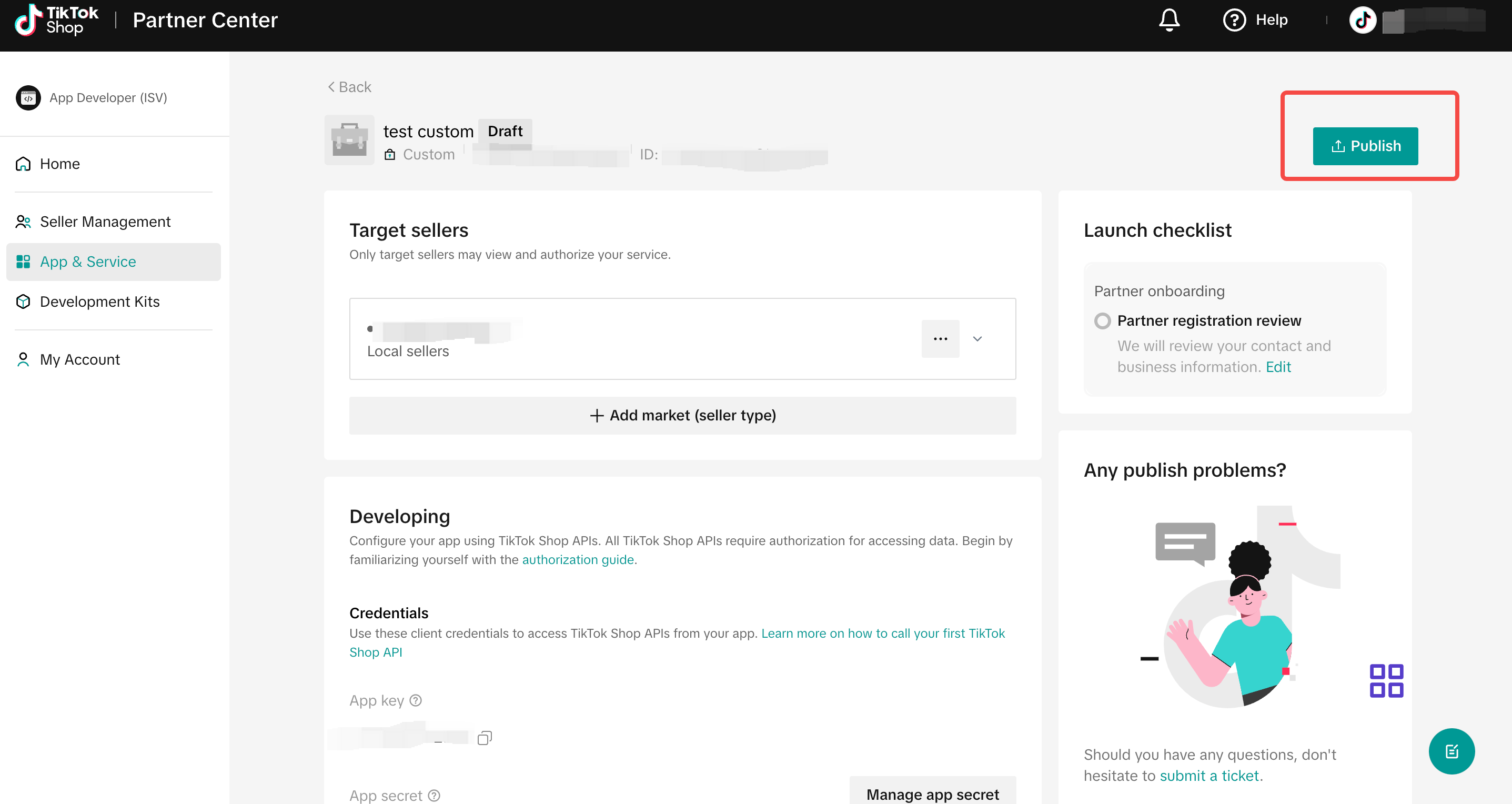
After you complete registration and integration, you have finished all the steps necessary to publish your custom app. Please click 「Publish」and then the App will be published automatically.
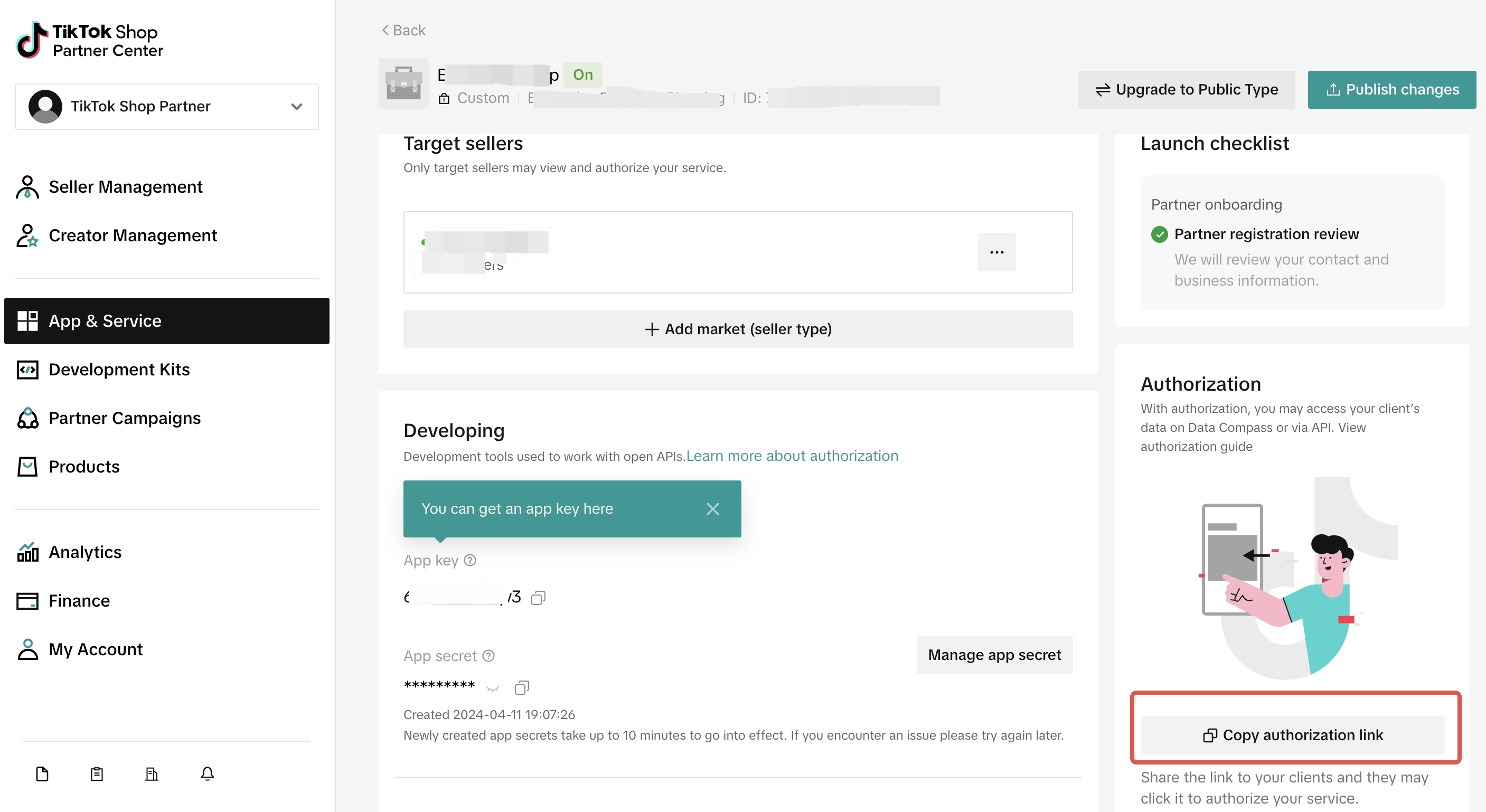
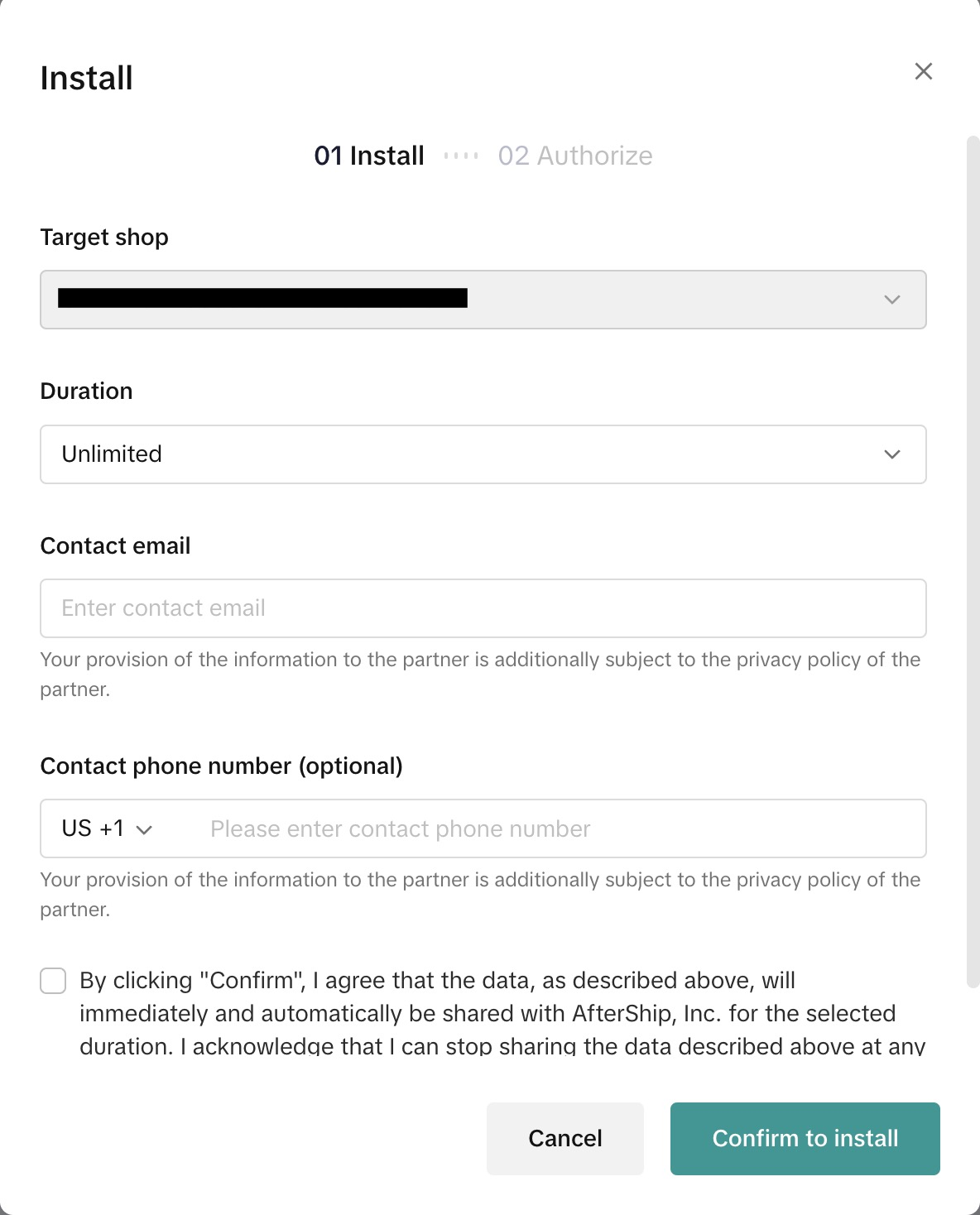
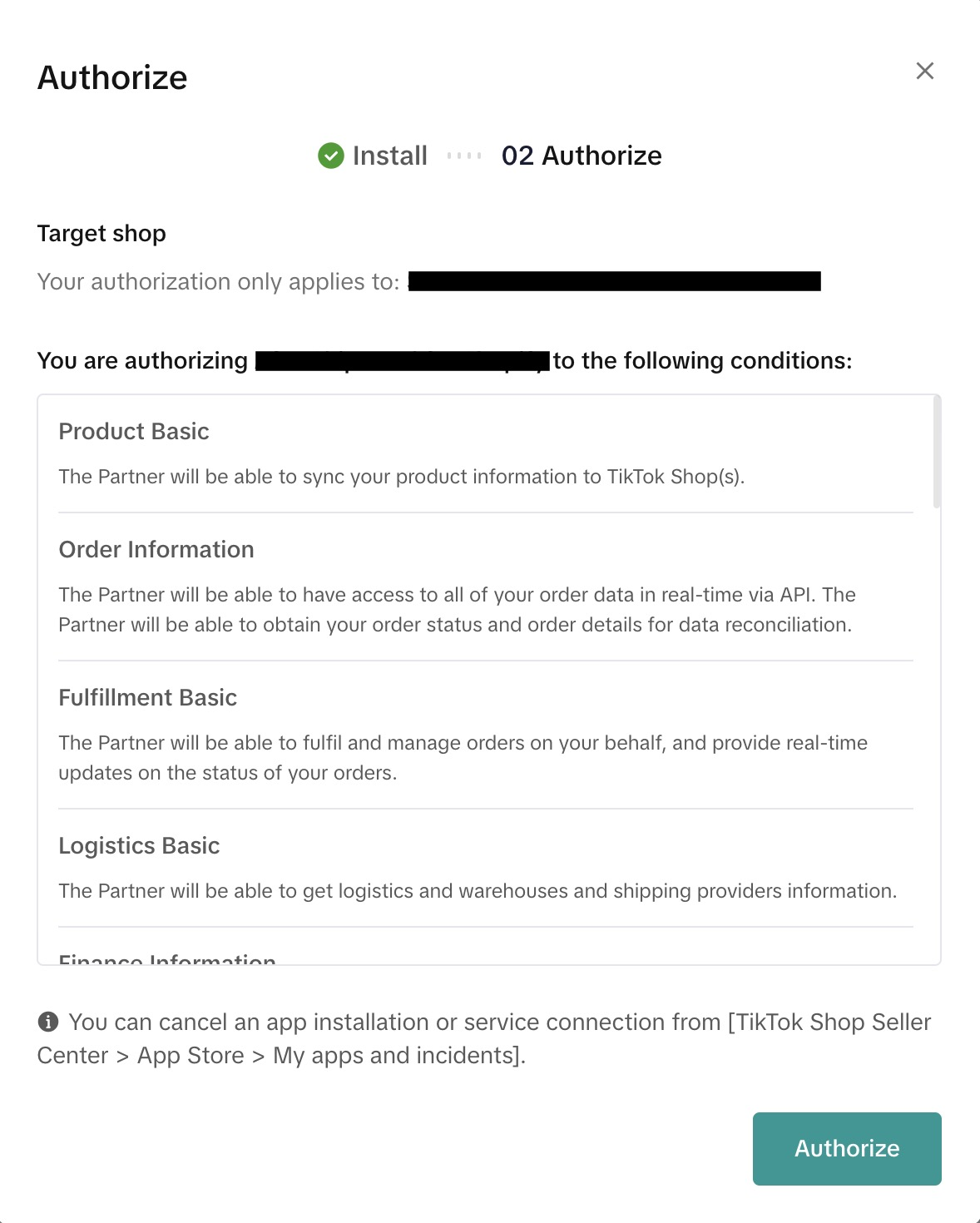
Step 8: Authorize
Alternatively, you can open the authorization link directly and authorize your shop. This link serves as a means for sellers to authorize your application in a more personalized and targeted manner.
 |  |  |
|---|---|---|
| No information |
Part 2: FAQ
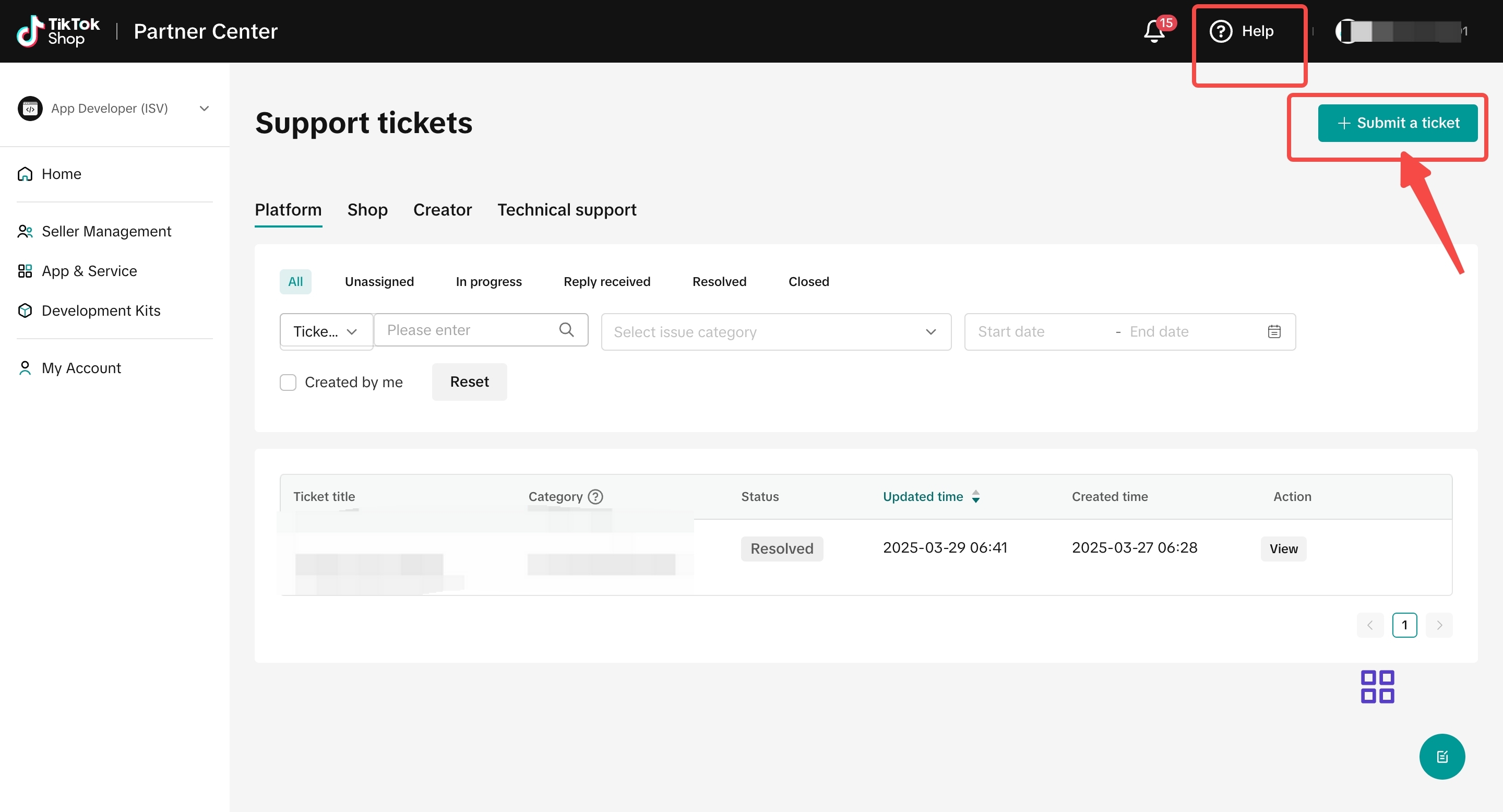
1. If I have API questions, where can I contact TikTok Shop?
- Questions about US domestic or cross-border stores: https://partner.us.tiktokshop.com/ticket/center
- Questions about non-US stores: https://partner.tiktokshop.com/ticket/center
2. Can I register for ISV?
- Except seller inhouse developer - TikTok shop seller, other categories all under the ISV categories.
- Only when you have the service for all sellers in your market, you can apply for ISV.
- ISV needs to pass complex compliance security review, but seller developers do not.
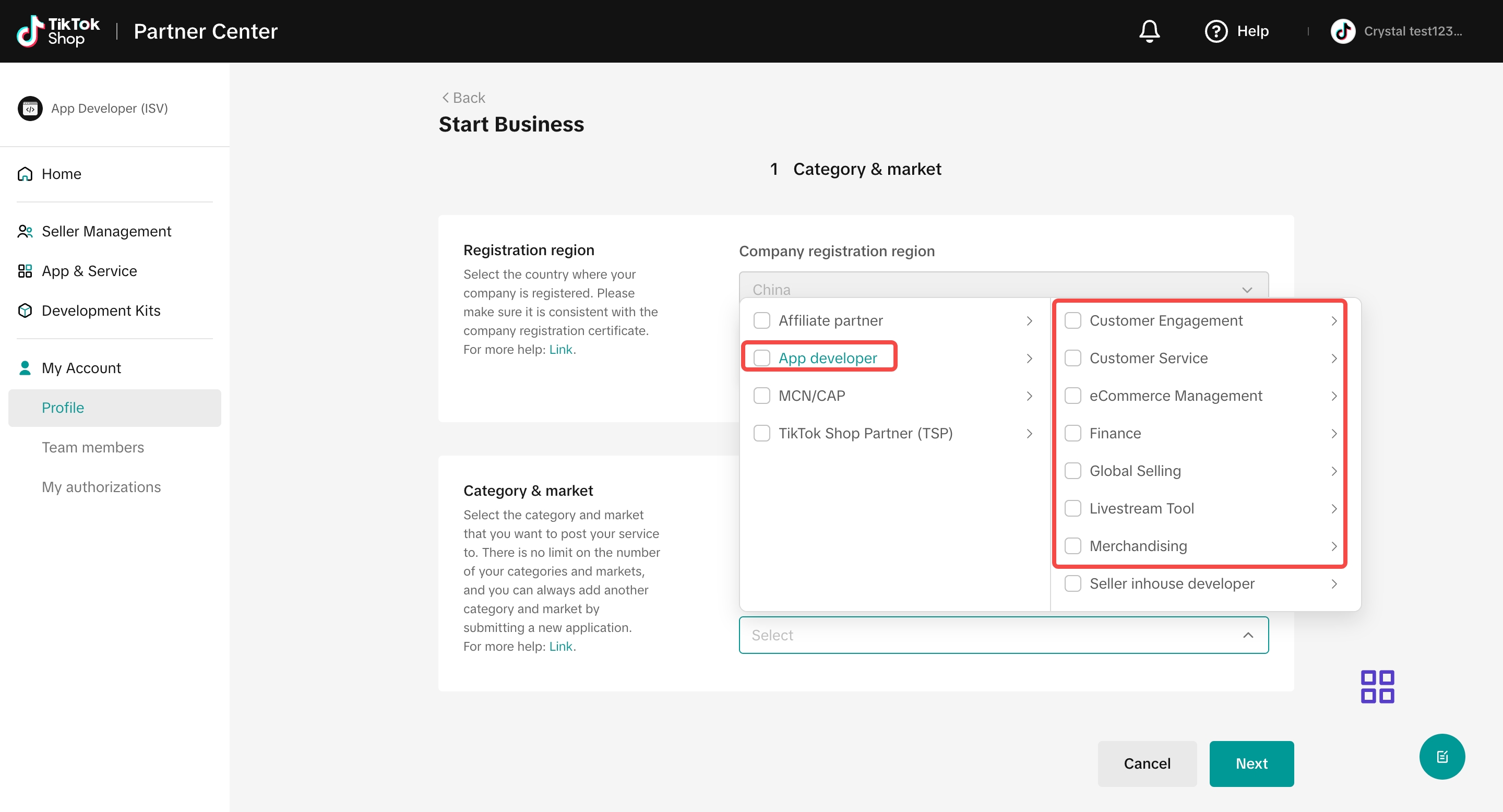
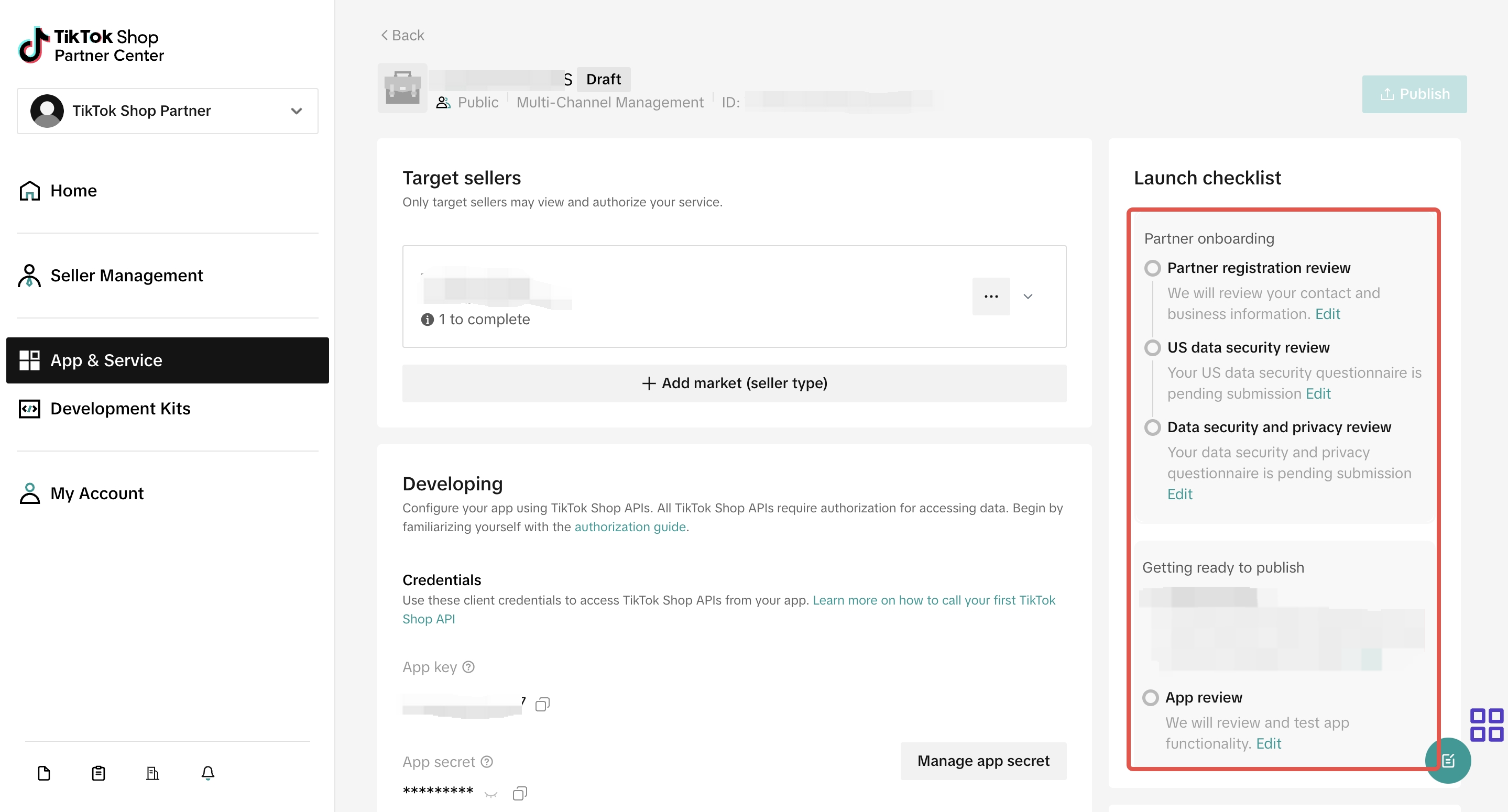
3. Do I need to do the compliance / App function review ?
- For ISV: Security review is waived if applying in line with local regulations.
- For seller: Security review is mandatory. Because you are applying to become ISV, you must do the compliance security review and app function review. Note: The security form must be completed in English with truthful information. Three consecutive rejections will result in automatic account blacklisting.
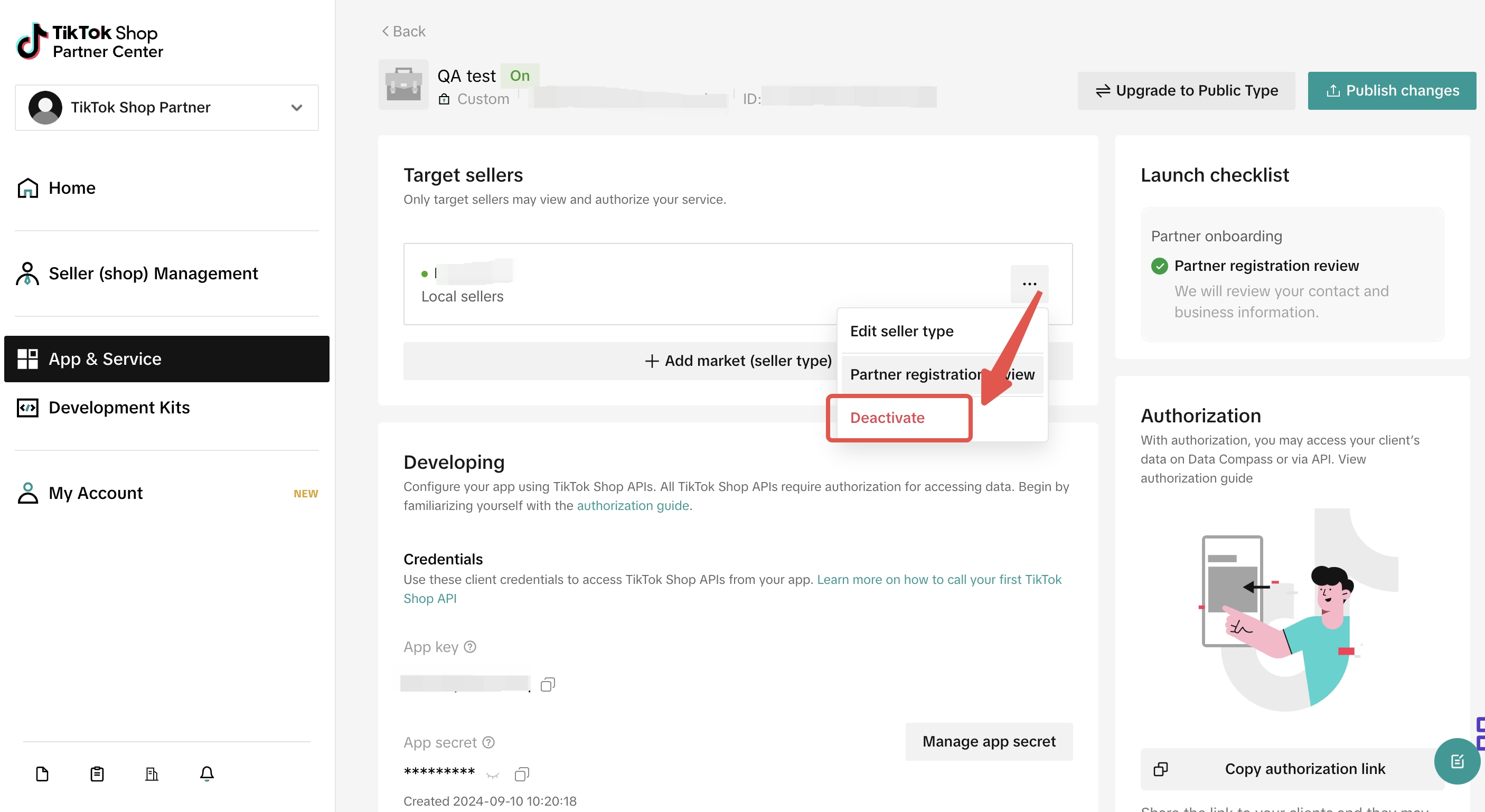
4. Can I deactivate an App?
No. Once the App is created, developer can not delete the App. But developers can deactivate an App. Once the App is deactivated, the App can not be online again.
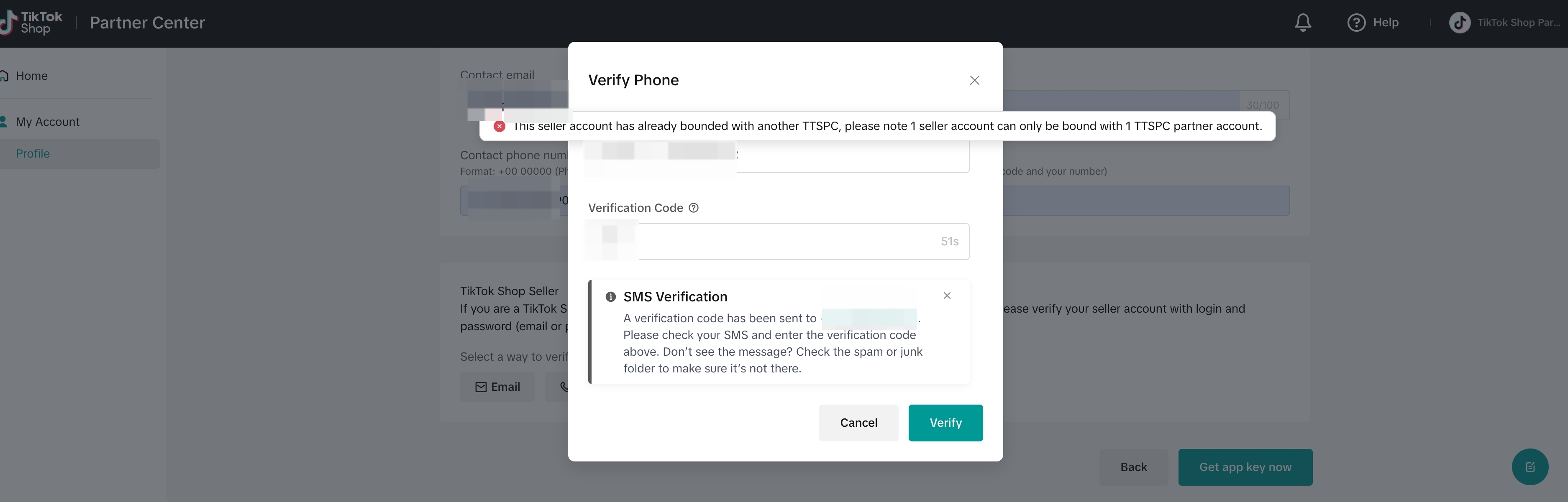
5. I can not bind my TikTok Shop seller account. What's the meaning of this error?
1 seller account can only be bound with 1 TTSPC account. Please use another seller account to bind/verify
6. I can not verify the seller center account. What's the meaning of this error?
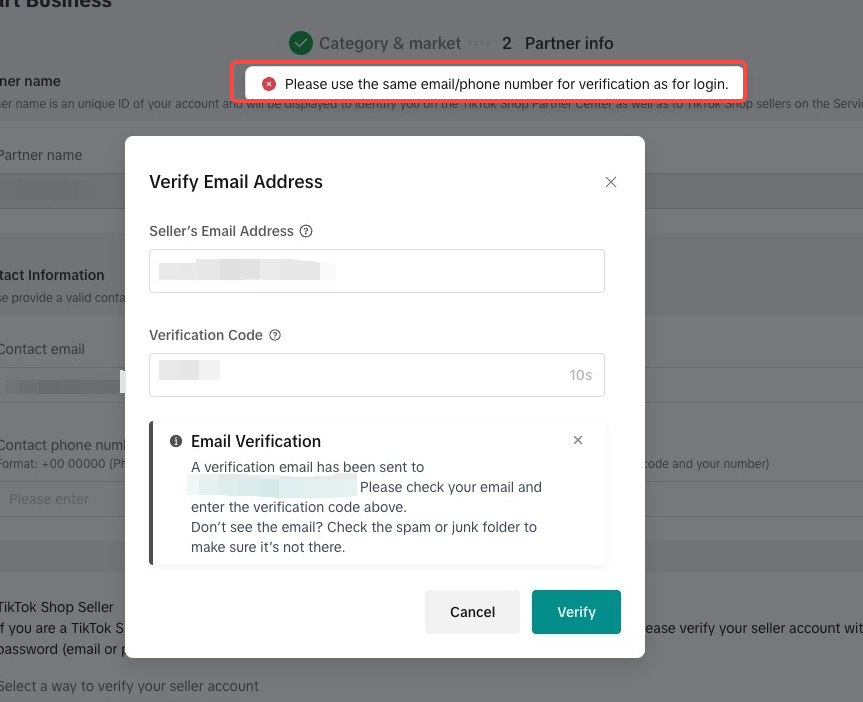
- Error : "Please use the same email/phone number for verification as for login"
- Please verify your TikTok Shop account to be certified as a TikTok Shop Seller.
- TTSPC login email = Seller Center login email = verification email
 |  |  |
7. What's the meaning of this error: email/phone number does not have a linked Seller Center Account?
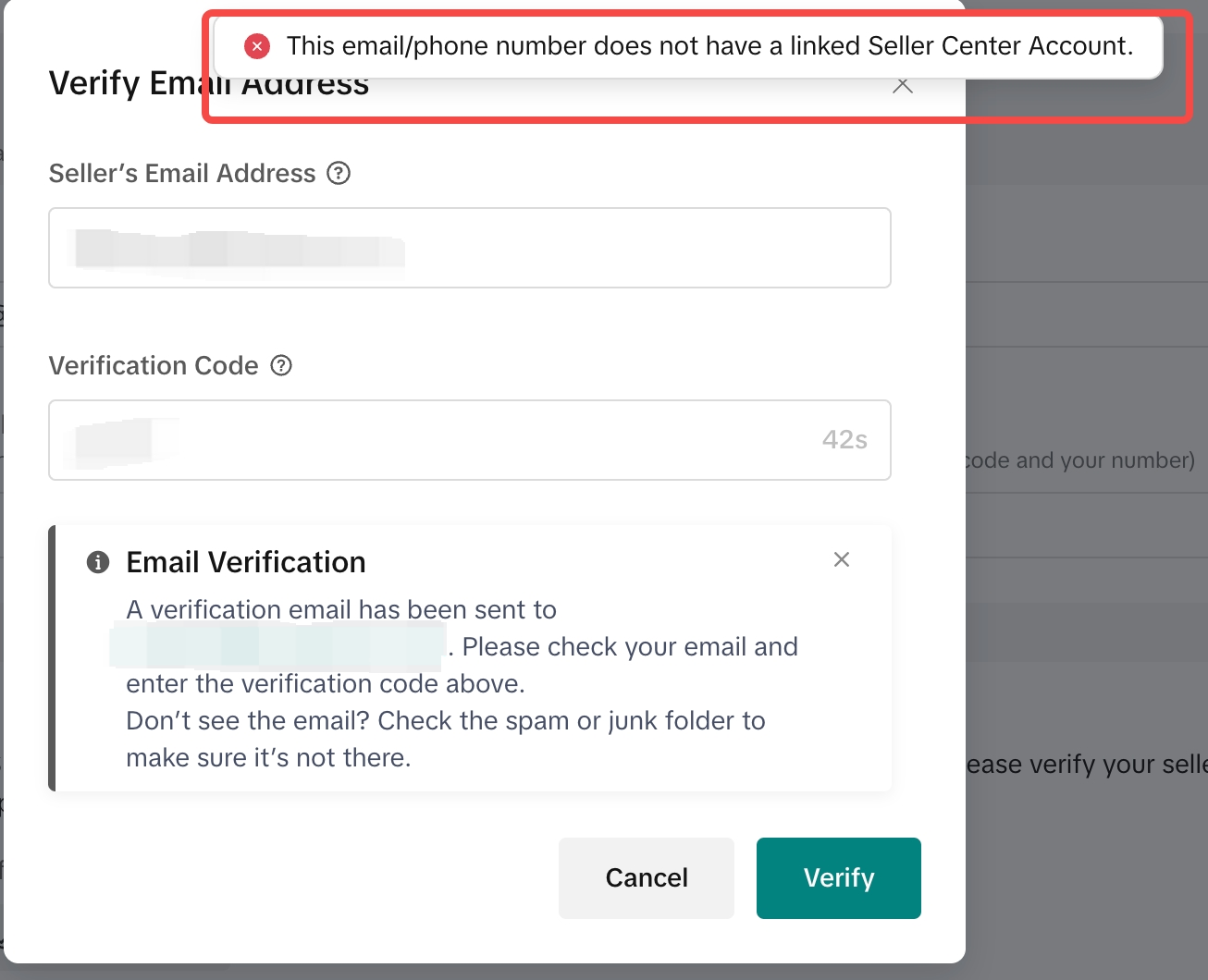
- Error: This email/phone number does not have a linked Seller Center Account.
- Please note that seller developer should use TikTok Shop seller center account to verify and this seller account must pass the KYC/KYB review in seller center
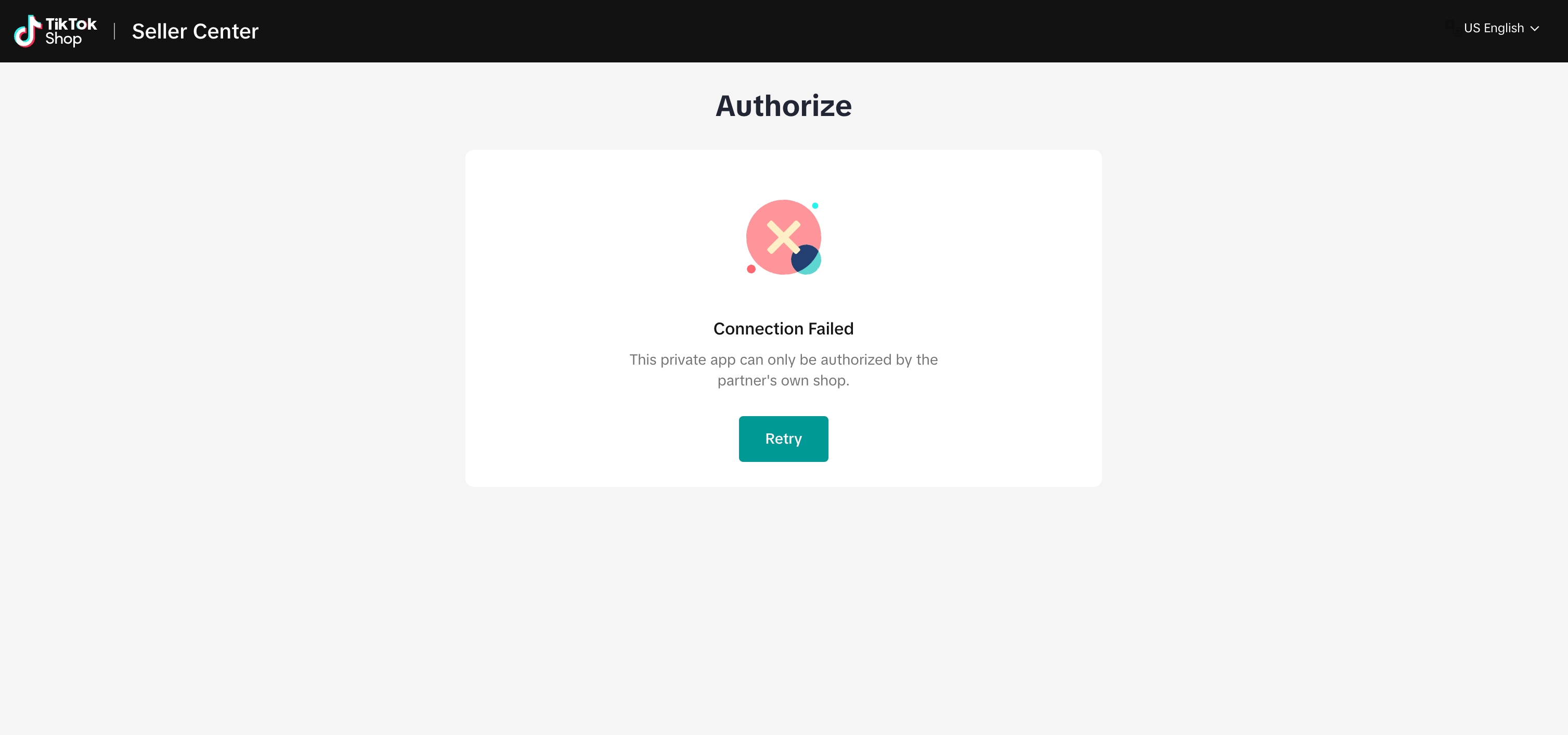
8. What's the meaning of this error: Authorization failed?
Private App can only be authorized and bind to one shop ONLY (seller's own shop) . Please create an App in other categories that does not belong to 「App developer / Seller inhouse developer / TikTok Shop Seller. Seller's own shop refers to the shop which seller has bind seller center account with My Account - Category & Market - TikTok Shop Seller.
9. I have an App in the ISV category. Can I change the App category to seller developer?
Please register as TikTok Shop seller developer. Refer to Seller developer onboarding guide.
10. What APIs can I integrate with?
11. I have an app under other categories, which is not 「App developer / Seller inhouse developer / TikTok Shop Seller」, do I get affected?
No, you won't be affected.
12. Are there any changes to my existing authorizations?
No, authorizations are still valid until the token is expired or your authorization is cancelled.
13. I have created another custom App to make sure new shops can authorize the App, what should I do with the existing App?
Existing App refers to App created in 「App developer / Seller inhouse developer / TikTok Shop Seller」)
- Plan A: you can maintain two Apps.
- Plan B: you can migrate historical authorizations to the new App. For migration, the historical shop should re-authorize the new App