Push Mechanism notifications
Last Updated: 2023-01-16
Language Supported:
English /
简体中文 /
繁體中文 /
Português (Brasil) /
ไทย
Push Mechanism notifications
Subscribing to Shopee Open Platform Push Mechanism helps you get immediate notifications when a specific event occurs. This lets you receive timely updates without having to periodically poll the API endpoint.
⚠️ Note: Push Mechanism on the Shopee Open Platform Console is equivalent to what’s commonly known as webhooks.
Here’s an overview of how Push Mechanism works on Shopee Open Platform:
- You subscribe to a specific push type for your App and define a callback URL.
- The specific event, such as an order status update, happens.
- Shopee sends an HTTP POST request to the defined callback URL.
- You receive a notification via your defined callback URL.
⚠️ Note: Push Mechanism (webhooks) on Shopee Open Platform only notifies you that data for the specific event has changed. To get more updated information, make a call to the corresponding API. You’re encouraged to use both to enhance your systems’ integration efficiency.
Understanding Push Mechanism notifications
There are 5 categories of webhooks (Push) available on Shopee Open Platform:
- Shopee - Webhooks for shop authorization and important Shopee updates.
- Order - Webhooks for order status and tracking number updates.
- Marketing - Webhooks for tracking products’ promotional activities.
- Product - Webhooks for product information, violations, and brand registration process updates.
- Chat - Webhook for chat updates from buyers.
Read more about these Push notifications below, ordered by popularity.
Shopee Push
- Shop Authorization Push (Code:1)
Get notified with the applicable list of shop and merchant IDs when the seller authorizes your App to access their shop(s)’ data.
- Shop Authorization Canceled Push (Code:2)
Get notified with the applicable list of shop and merchant IDs when the seller revokes their authorization for your App to access their shop(s)’ data.
⚠️Notes
-
Sellers can revoke authorizations via your App or Seller Centre.
-
The 2 above-mentioned authorization webhooks are important for acquiring the applicable list of shop and merchant IDs when authorizations for multiple shops are revoked via the main account. Without these 2 webhooks, the callback address only returns the main account ID.
-
Open API Authorization Expiry Push (Code:12)
Get notified 7 days in advance with a list of shop and merchant IDs with expiring authorizations. You can then contact the seller(s) to authorize your App again. This will help prevent disruptions in your service caused by expired authorizations.
⚠️Note: The seller’s authorization for your App to access their shop’s data is only valid for 1 year. After the authorization expires, the seller needs to authorize again.
- Shopee Updates (Code:5)
Get the latest important Shopee updates promptly.
Order Push
- Order Status Update Push (Code:3)
Get notified immediately on all order status updates. This includes order cancellations that occur before shipping, so that you can take the necessary steps in time.
- Order TrackingNo Push (Code:4)
Get notified immediately when order tracking numbers are updated so that you can ship promptly, and avoid having to query the v2.logistics.get_tracking_number API repeatedly.
This can be useful when logistics partners take some time to update tracking numbers which may be required on shipping documents.
- Shipping_document_status_push(Code:15)
Get notified immediately when shipping document status is "READY" or "FAILED", so that you don't need to call the v2.logistics.get_shipping_document_result API repeatedly to get shipping document status.
Marketing Push
- Item Promotion Push (Code:7)
Get updates on a product’s stock when it is affected by participation in campaigns or promotional events. You’ll also be notified when the product’s stock is no longer affected because the campaign or promotional event has ended or the product is no longer participating.
- Promotion Update Push (Code:9)
Get updates on promotional activities, including when products are added to/removed from the promotional event or when there is an update to the promotion’s start/end time.
Product Push
- Reserved Stock Change Push (Code:8)
Get updates on how much reserved product stock was used for each promotional event, helping sellers to manage changes to their inventory.
⚠️Note: Reserved (product) stock refers to the amount of a product reserved specially for a promotional event such as flash sales.
- Video Upload Push (Code:11)
Get updates on product video uploads that have been successfully transcoded. This is a useful webhook if you want to add or update product listings that include a video as you can only do so with successfully transcoded video files.
When you have made an API call for v2.media_space.complete_video_upload, wait for this Video Upload Push which will inform you whether the transcoding was successful. If the transcoding is successful, you can continue to add or update product listings with the video_upload_id..
- Banned Item Push (Code:6)
Get prompt updates on products banned by Shopee to find out the violation reason.
- Brand Register Result Push(Code:13)
Get updates on the results of brand registration applications, including approved, rejected, or merged with an existing brand.
⚠️Note: Sellers can either register their brand via (i) the v2.product.register_brand API or (ii) Seller Center for Shopee’s review. When setting up a product listing, sellers can then select the officially recognized brand.
Chat Push
- Webchat Push (Code:10):Chat information notification
Get notified immediately when the shops you support receive messages from buyers.
Subscribing to
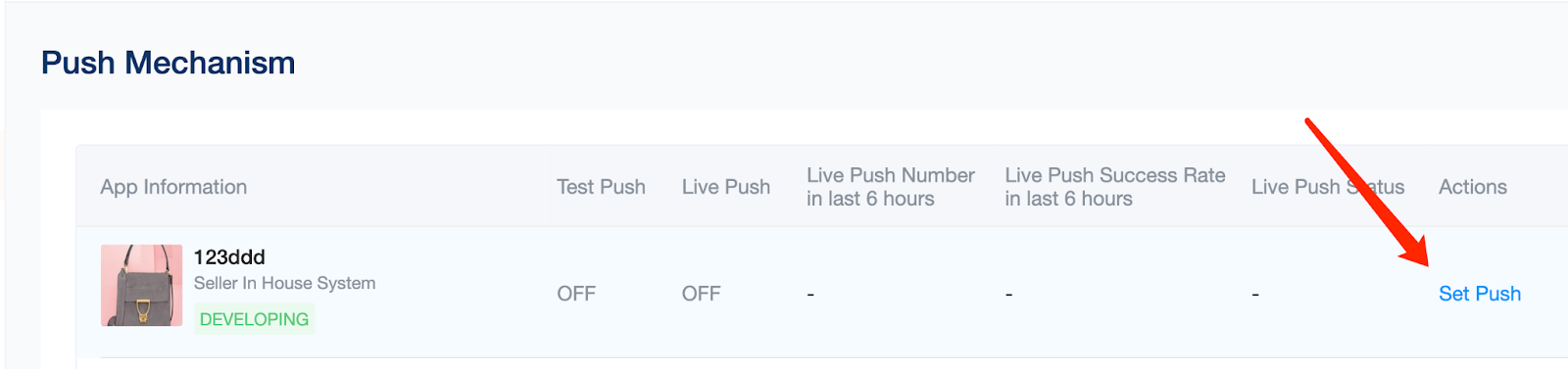
- Log in to Shopee Open Platform Console and access the Push Mechanism page. Select the relevant App > select Set Push.
- Fill in your callback URL > select Verify.

⚠️ Note: To verify the validity of your defined callback URL, Shopee will send an HTTP POST request to the callback URL. If it fails, you can view the reason in a red banner that appears on the Set Push page.
- Upon successful verification of your callback URL, select the relevant Push (webhooks) that you want to receive notifications for.
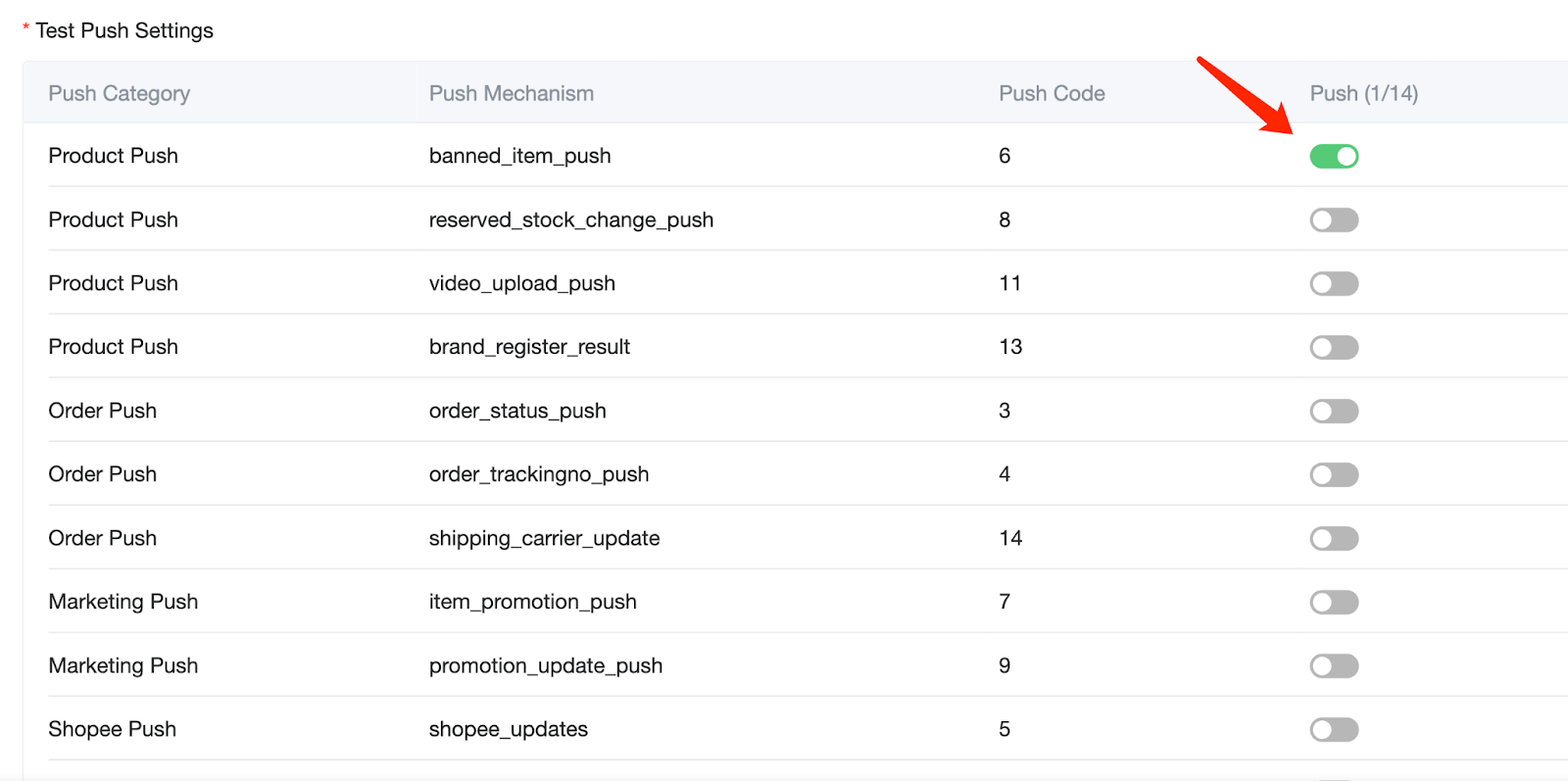
⚠️ Note: You can manage the settings for Push via Shopee Open Platform Console or via the v2.push.set_push_config API.
The availability of Push notifications (webhooks) depends on your App type; refer to the table below for details:
| App Type | Available Push notifications |
|---|---|
| Original | All Push notifications except Brand Register Result Push (Code:13) |
| ERP System | All Push notifications except Webchat Push (Code:10) |
| Seller In-house System | All Push notifications |
| Product Management | Shopee Push - Shop Authorization Push (Code:1) - Shop Authorization Canceled Push (Code:2) - Open API Authorization Expiry Push (Code:12) - Shopee Updates (Code:5) Product Push - Reserved Stock Change Push (Code:8) - Video Upload Push (Code:11) - Banned Item Push (Code:6) - Brand Register Result Push (Code:13) Marketing Push - Item Promotion Info Push (Code:7) - Promotion Update Push (Code:9) |
| Order Management | Shopee Push - Shop Authorization Push (Code:1) - Shop Authorization Canceled Push (Code:2) - Open API Authorization Expiry Push (Code:12) - Shopee Updates (Code:5) Order Push - Order Status Push (Code:3) - Order TrackingNo Push (Code:4) - Shipping Document Status Push (Code:15) |
| Accounting and Finance | Shopee Push - Shop Authorization Push (Code:1) - Shop Authorization Canceled Push (Code:2) - Open API Authorization Expiry Push (Code:12) - Shopee Updates (Code:5) |
| Marketing | Shopee Push - Shop Authorization Push (Code:1) - Shop Authorization Canceled Push (Code:2) - Open API Authorization Expiry Push (Code:12) - Shopee Updates (Code:5) Product Push - Reserved Stock Change Push (Code:8) - Banned Item Push (Code:6) Marketing Push - Item Promotion Info Push (Code:7) - Promotion Update Push (Code:9) |
| Customer Service | Shopee Push - Shop Authorization Push (Code:1) - Shop Authorization Canceled Push (Code:2) - Open API Authorization Expiry Push (Code:12) - Shopee Updates (Code:5) Chat Push - Webchat Push (Code:10) |
- (Optional) For developers with systems that only allow access for whitelisted IP addresses, use v2.public.get_shopee_ip_ranges API to get Shopee's Open API IP addresses.
- If you’re testing, make an API call within the sandbox environment.
- If you’re already using the production environment, make an API call within the production environment.
Push Authorization
To prevent cyberattacks, we have provided an authorization signature for each Push request, which can be located in the Authorization field of the HTTP request header. With this, you can identify Shopee's authorization information.
This step is technically optional, but we strongly recommend that developers use the following steps to validate the request to generate the authorization signature, ensuring that it matches the authorization signature generated from the Push request. Here's how you can generate the signature:
- Use URL, |, response.content as the signature base string. E.g:
‘http://www.example.com/example/uri|\{“shop\_id”: 123, “code”: 1, “success”: 1, “extra”: “shop_id 123 is authorized successfully”, “data”: {“more_info”: “more info”}, “timestamp”: 1470198856}’
Note that the json.loads(response.content) method is not recommended
-
Retrieve your partner key from your App details on Shopee Open Platform Console
-
Use the signature base string and partner key to generate the signature with the HMAC-SHA256 hashing algorithm. The output of the HMAC signature function is a binary string. This requires hex encoding to generate the signature string.
Code demo
Python:
Python
import hmac

def verify_push_msg(url, request_body, partner_key, authorization):

    base_string = url + '|' + request_body

    cal_auth = hmac.new(partner_key, base_string, hashlib.sha256).hexdigest()

    if cal_auth != authorization:

        return False

    else:

        return True
Go:
Go
package verify

import (

    "crypto/hmac"

    "crypto/sha256"

    "encoding/hex"

    "fmt"

)


func VerifyPushMsg(url, requestBody, partnerKey, authorization string) (result bool) {

    baseStr := url + "|" + requestBody

    h := hmac.New(sha256.New, []byte(partnerKey))

    h.Write([]byte(baseStr))

    calAuth := fmt.Sprintf("%x", h.Sum(nil))

    if authorization != calAuth {

        return false

    }

    return true

}
Java:
Java
import javax.crypto.Mac;

import javax.crypto.spec.SecretKeySpec;

import org.apache.commons.codec.binary.Hex;

import java.io.UnsupportedEncodingException;

import java.security.NoSuchAlgorithmException;


public static Boolean verfiyPushMsg(String url, String requestBody, String partnerKey, String authorization)

        throws NoSuchAlgorithmException, UnsupportedEncodingException, java.security.InvalidKeyException {


    String baseStr = url + "|" + requestBody;

    Mac sha256_HMAC = Mac.getInstance("HmacSHA256");

    SecretKeySpec secret_key = new SecretKeySpec(partnerKey.getBytes("UTF-8"), "HmacSHA256");

    sha256_HMAC.init(secret_key);

    String result = Hex.encodeHexString(sha256_HMAC.doFinal(baseStr.getBytes("UTF-8")));

    return result.equals(authorization);

}
Triggering Push Mechanism notifications
Note that after subscribing to Push Mechanism notifications, and generating the authorization signature, you also have to ensure that the App Partner ID set for each Push notification is already authorized by the shop(s). If not, do complete shop authorization first.
If shop authorization is complete, you will be notified via Push Mechanism when the relevant events occur.
Learn more about events that may trigger a Push Mechanism notification. Do note to ensure that your callback URL provides a response to our requests.
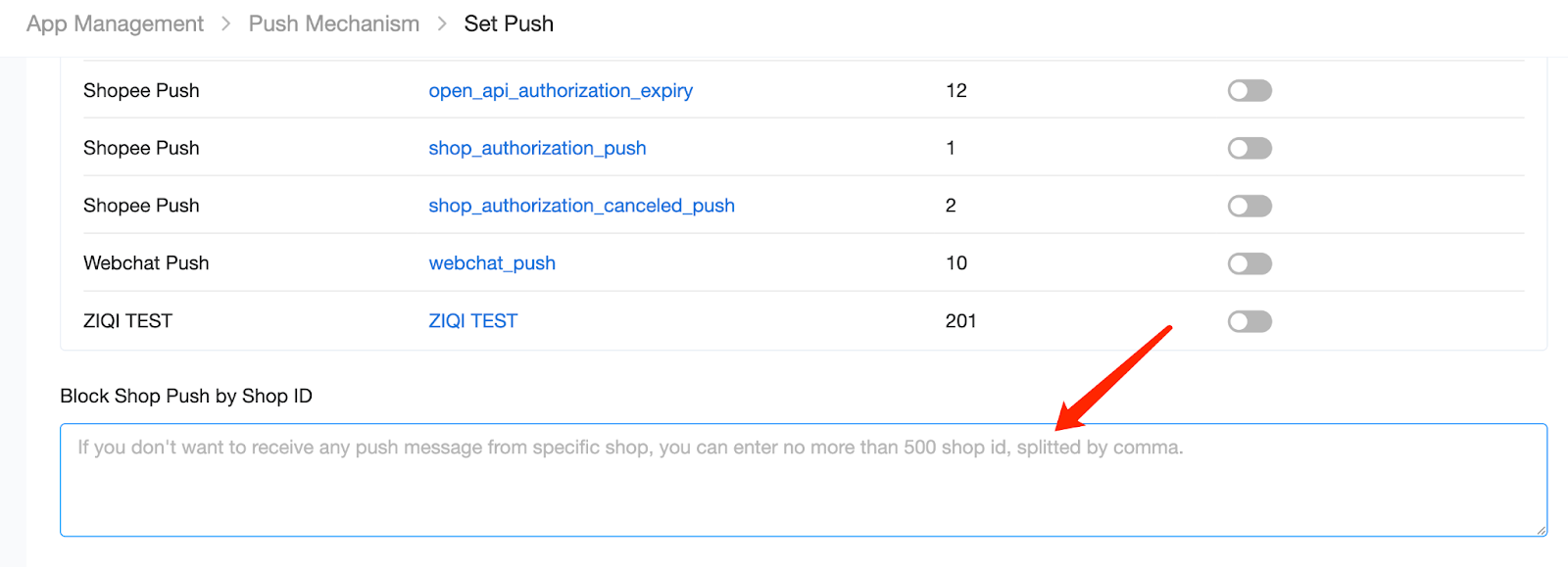
Blocking notifications from specific shops
If you don’t want to receive notifications for certain shops, you can do so with these methods:
- Use the blocked_shop_id field of the v2.push.set_push_config API (Block up to 500 shops).
- Fill in the list of Shop IDs on the Push Mechanism page on Shopee Open Platform Console. (Block up to 500 shops).
Push Mechanism Retry Logic
To avoid receiving repeated notifications from Push Mechanism, set up your callback URL to respond according to these HTTP response requirements:
- Includes a status code of 2xx.
- Includes an empty body.
⚠️ Note: All Pushes (webhooks) support a different maximum number of notifications and intervals for any repeated notifications. See the next section Push Mechanism Warning/Disable Logic for Apps that have a poor success rate for responding to notifications.
View the Push Mechanism documentation for specific details.
Push Mechanism Warning/Disable Logic
Shopee Open Platform has a warning/disable logic in place for Apps that have a poor success rate for responding to Push Mechanism notifications. For such Apps, we will take action accordingly. Warning emails will be sent to you or we may also eventually disable your subscription to Push Mechanism notifications.
⚠️ Note: Success rate is calculated by comparing successful Push items versus failed Push items. A failed Push is defined as Shopee Open Platform not receiving an HTTP response with a status code of 2xx and an empty body within the timeout period.
View the Push Mechanism documentation for specific details.
Here are the details for Push Mechanism warning and disabling actions:
-
Warning emails
-
You will receive a warning email every 30 minutes if:
-
There have been more than 600 Push Mechanism notifications sent to you in the past 6 hours AND
-
Your overall Push success rate is less than 70%.
-
Warning emails will not be sent once your success rate returns to more than 70%.
-
Disabling of subscription to Push Mechanism notifications
-
Your subscription to Push Mechanism notifications will be disabled and you will receive a notification email if:
-
There have been more than 600 Push Mechanism notifications sent to you in the past 6 hours AND
-
Your overall Push success rate is less than 30%.
-
You should check your callback URL and ensure that you’re ready to receive Push Mechanism notifications normally before subscribing again.
⚠️ Notes
-
After subscribing again, here are some important points to note:
-
You will not receive Push Mechanism notifications missed during the period where your subscription was disabled.
-
Success rate calculation of Push Mechanism notifications will be restarted based on records from your new subscription.
You can view the current Push Mechanism success rate and status through the Shopee Open Platform Console page.
