CNSC API Integration Guide
Last Updated: 2023-10-27
Language Supported:
English /
简体中文
1. What is CNSC
The full name of CNSC is the China Seller Center, is a customized seller backend for Chinese cross-border sellers including Hong Kong sellers, through which sellers can manage products, orders, marketing, etc. for multiple stores.For basic operation guide and introduction of CNSC, please visit here.
Important: CNSC Sellers and CNSC shops managing ERP developers (ISVs) need to pay attention who upgrade to CNSC need to pay attention that the product API needs to replace other APIs. The APIs you need to be developed include Global Product API and Merchant API. And make sure that you have used V2.0 shop authorization.
If CNSC API - Global Product API and Merchant APIs are not integrated, CNSC upgraded shops cannot use API calls for Product listing related modules.
FAQ:
Q:How to judge whether a shop has been upgraded to CNSC?
A:You can query the v2.shop.get_shop_info API and the api returns the parameter merchant_id, then query the v2.merchant.get_merchant_info, merchant_region=CN or HK, which means that the shop has been upgraded to CNSC.
Q:If my system does not have product-related functions, that is, it does not include product creation and product update functions, do I need to connect to do some adjustment?
A:No need, such as order-related API, there is no change for api call flow.
2. How to integrate CNSC API
2.1 Register as a developer(If you already have a developer account, you can skip this step)
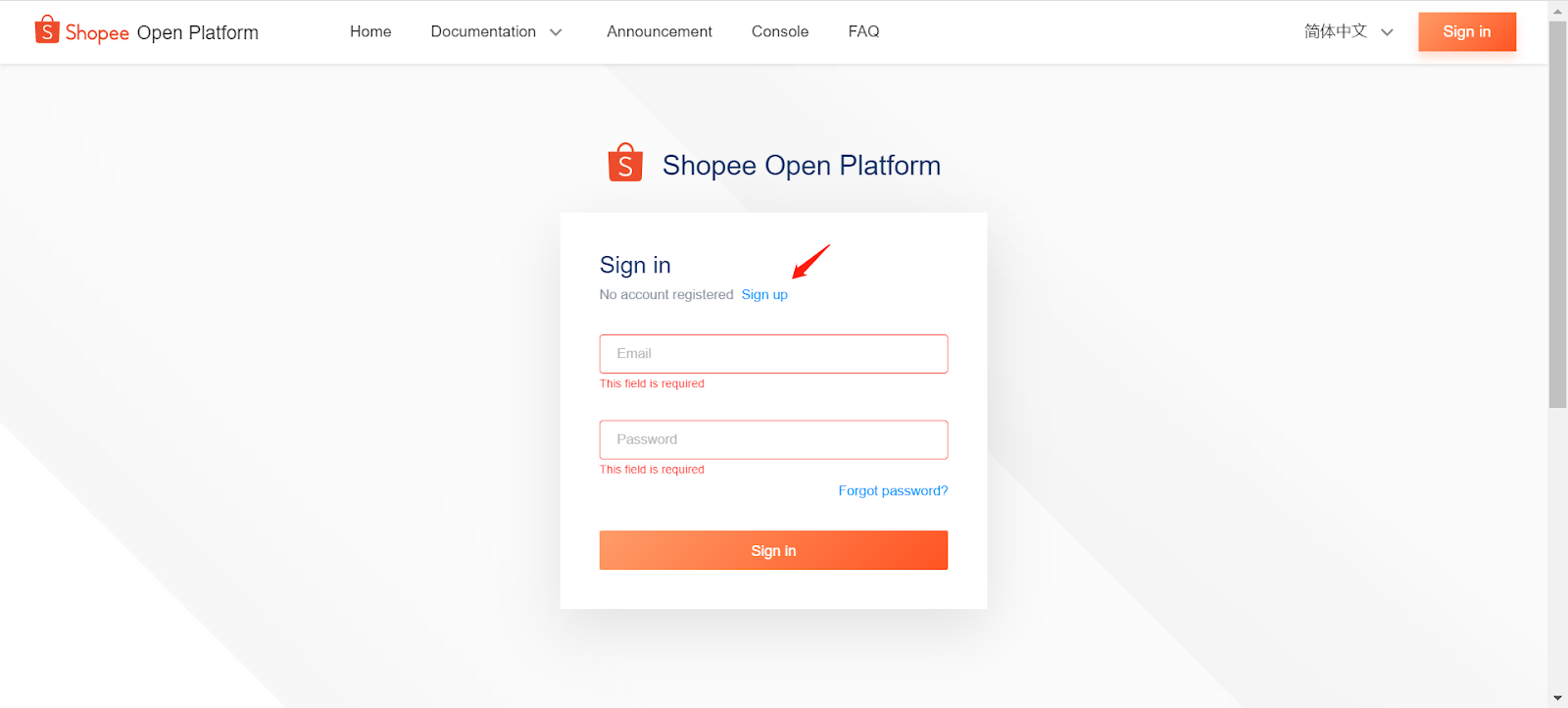
a. Click "Sign up" and read "Agreement", and register a Shopee Open Platform account by email. https://open.shopee.com/
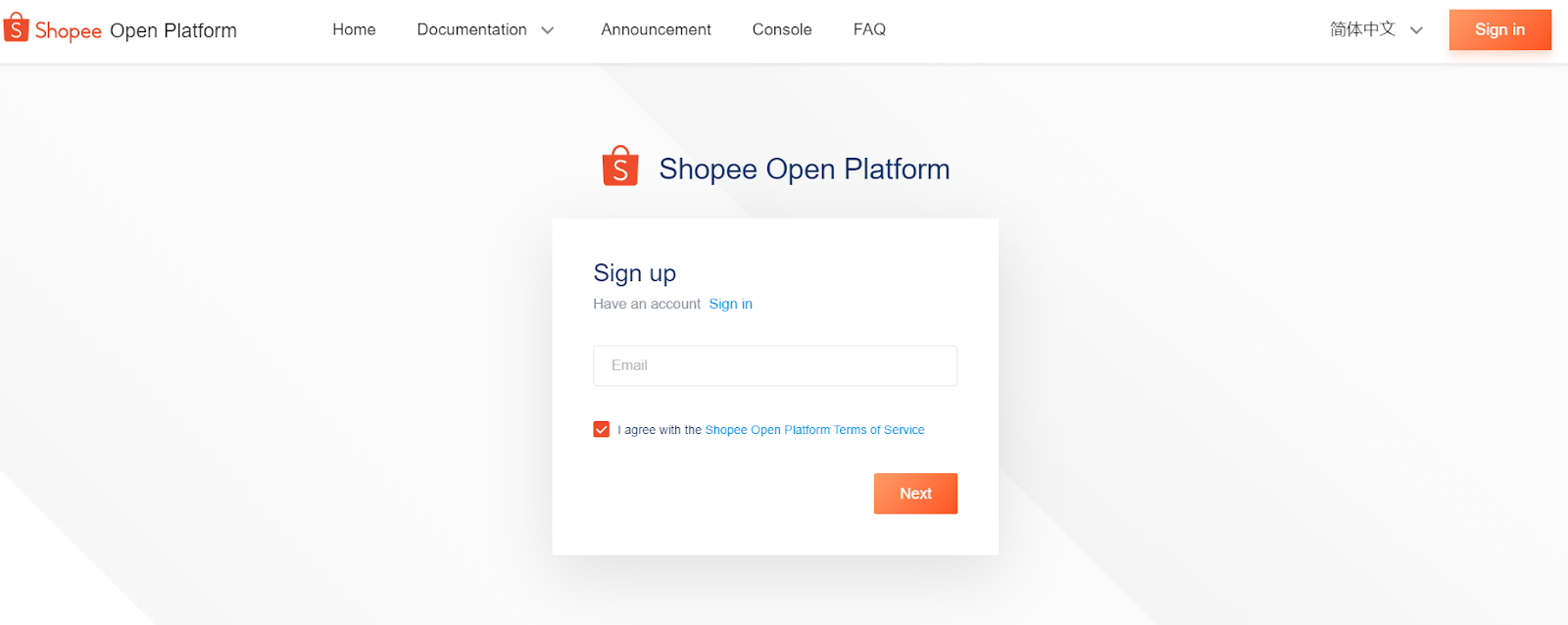
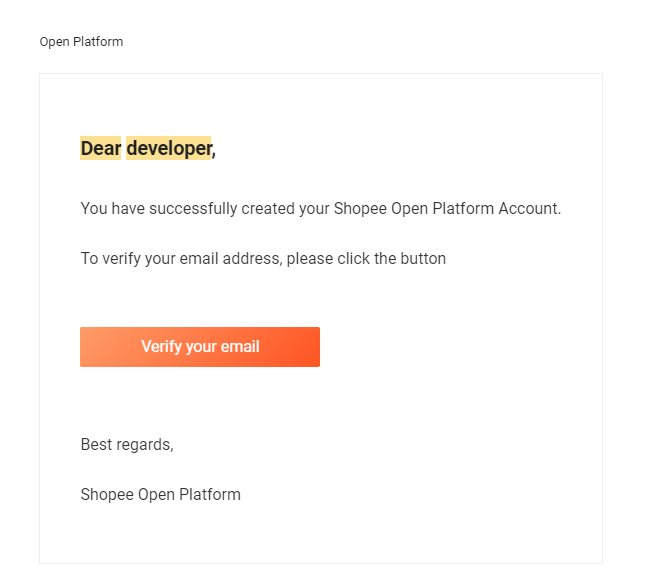
b. You will receive a verification email, please verify your email and set a password.
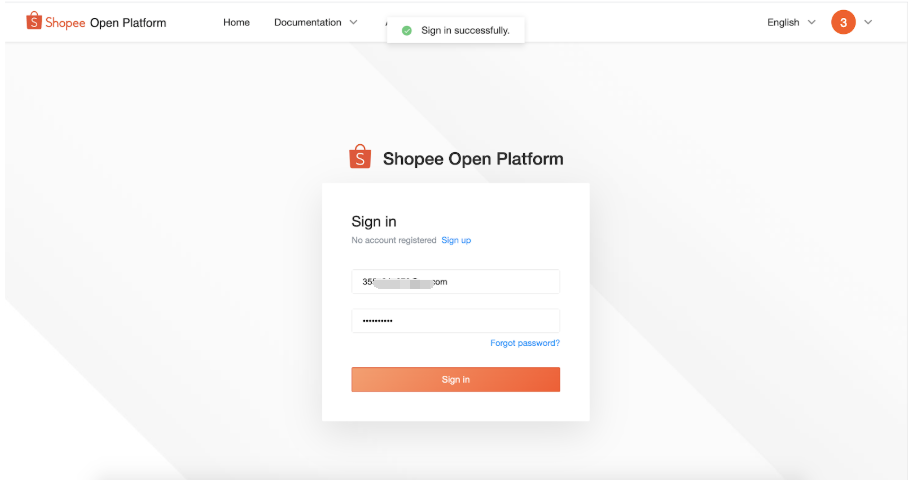
c. Login with your account.
2.2 Complete account information (If you already have an approved developer account, you can skip this step)
a. Please refer to this article to find out what type of developer account you are.
Login to Open Platform >> Console >> App List >> Select developer type >> Add
*Different types of developers will own different types of apps. For details, please refer to the App management page.
b. Complete the appropriate profile according to the type of developer you choose. The information needs to be reviewed by the Shopee platform.
2.3 Create an app
To call Shopee OpenAPI, you need to create an App first. You can create apps after the developer profile is approved.
Noted
*Original APP type does not support V2.0 api, If your existing app is Original type, please complete the app upgrade according to this announcement.
*For other types of app types, please check the API permission according to this article.
If you don't have an app, you can create one through this path
Path: Open Platform >> Console >> App List >> + Create App >> Fill in the information >> Submit
2.4 Go live app
You must make sure your app status is online. Click "Go-Live" to request to use the Live environment API.
Open Platform >> Console >> App List >> Select the APP to be launched >> Click Go live >> Fill in the information >> Submit
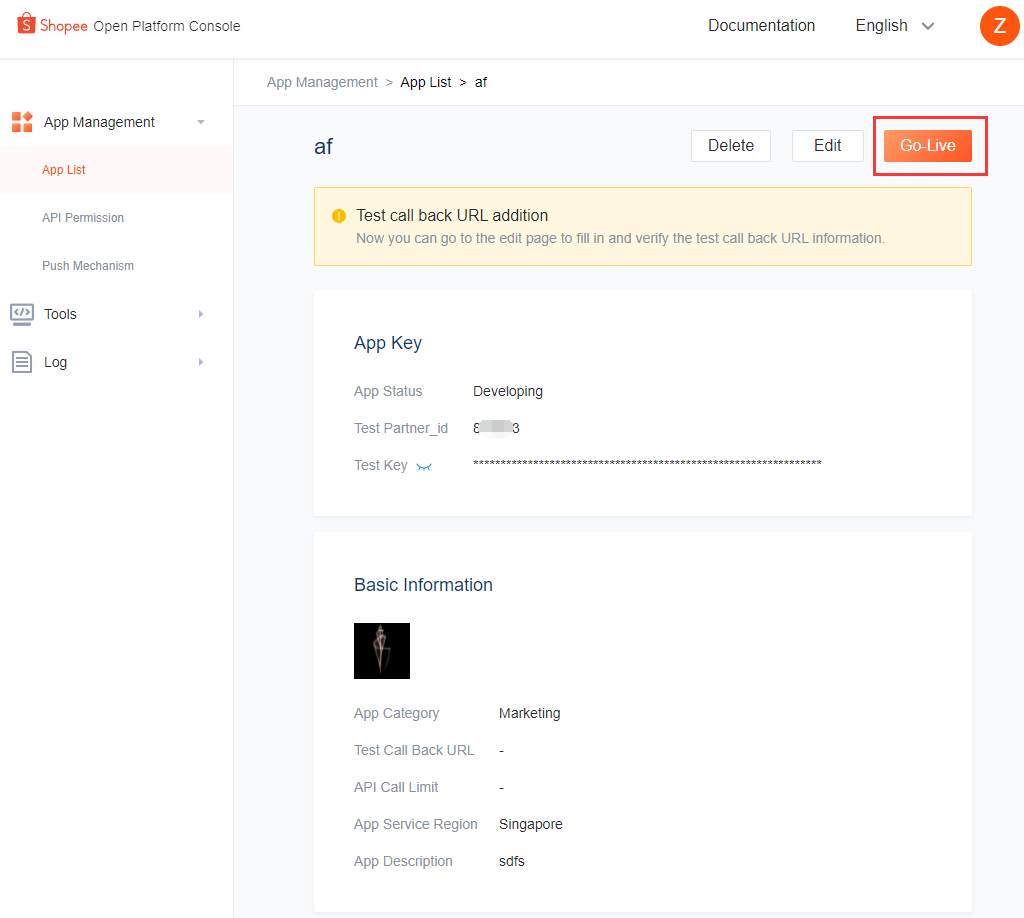
APP will automatically complete the review after 24 hours and the APP status will change to the Online status, and the developer will obtain the Live Partner id and Partner Key of the Live environment.
2.5 Start API testing
- To start testing, you should create a China merchant on Console
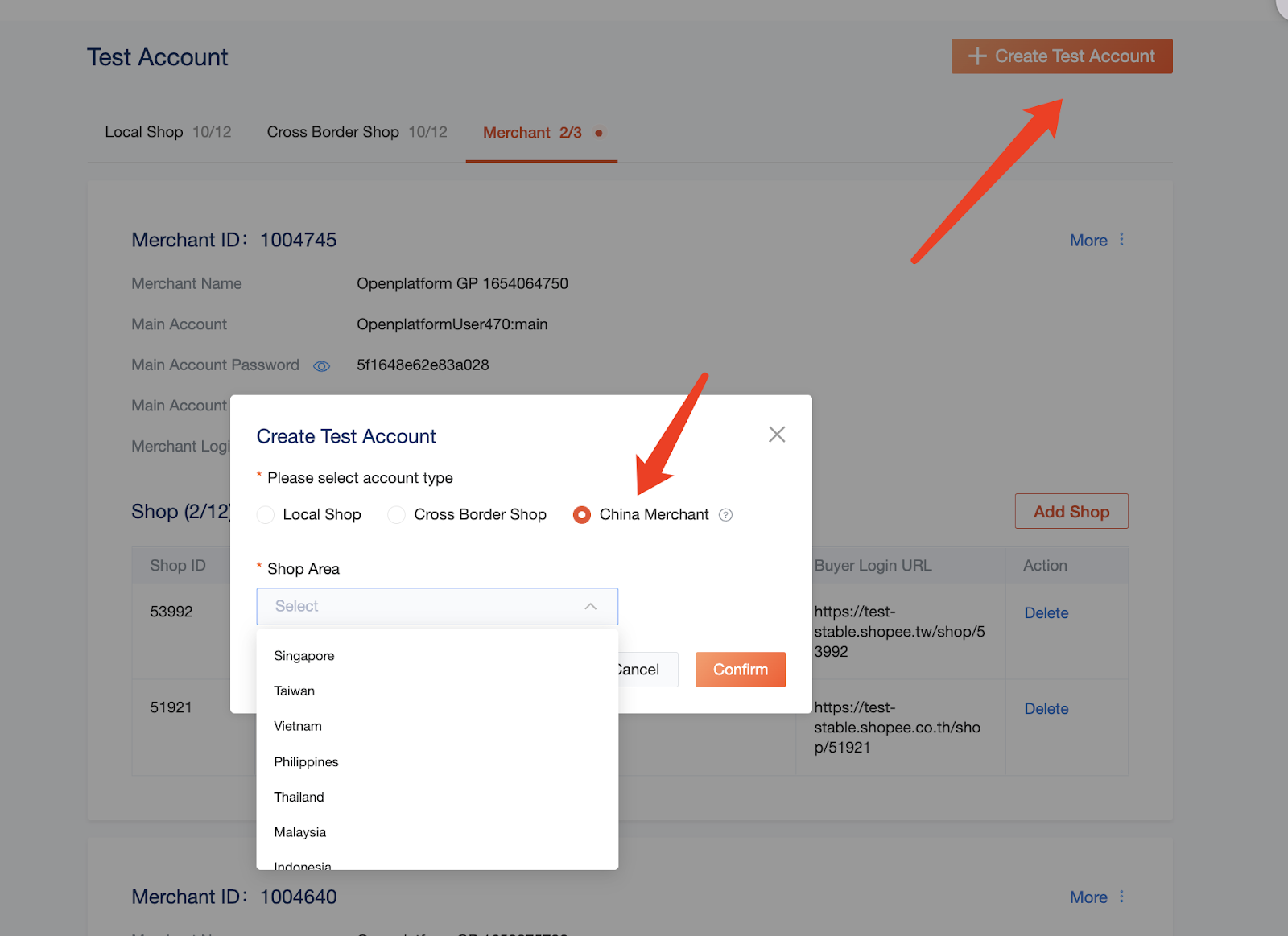
2)Login https://seller.test-stable.shopee.cn. Please note that otp is 123456.
** Note: Kindly use google translator to translate to English or Korean if needed.
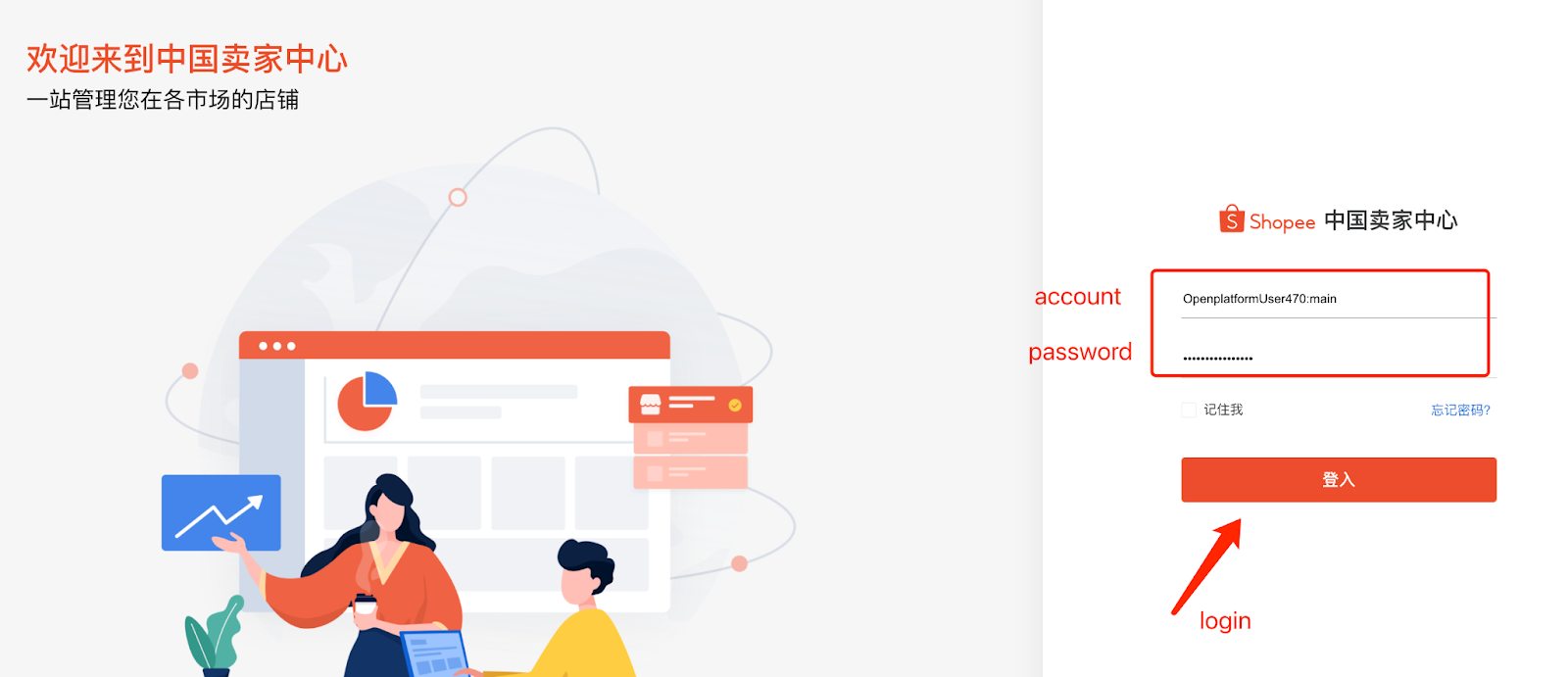
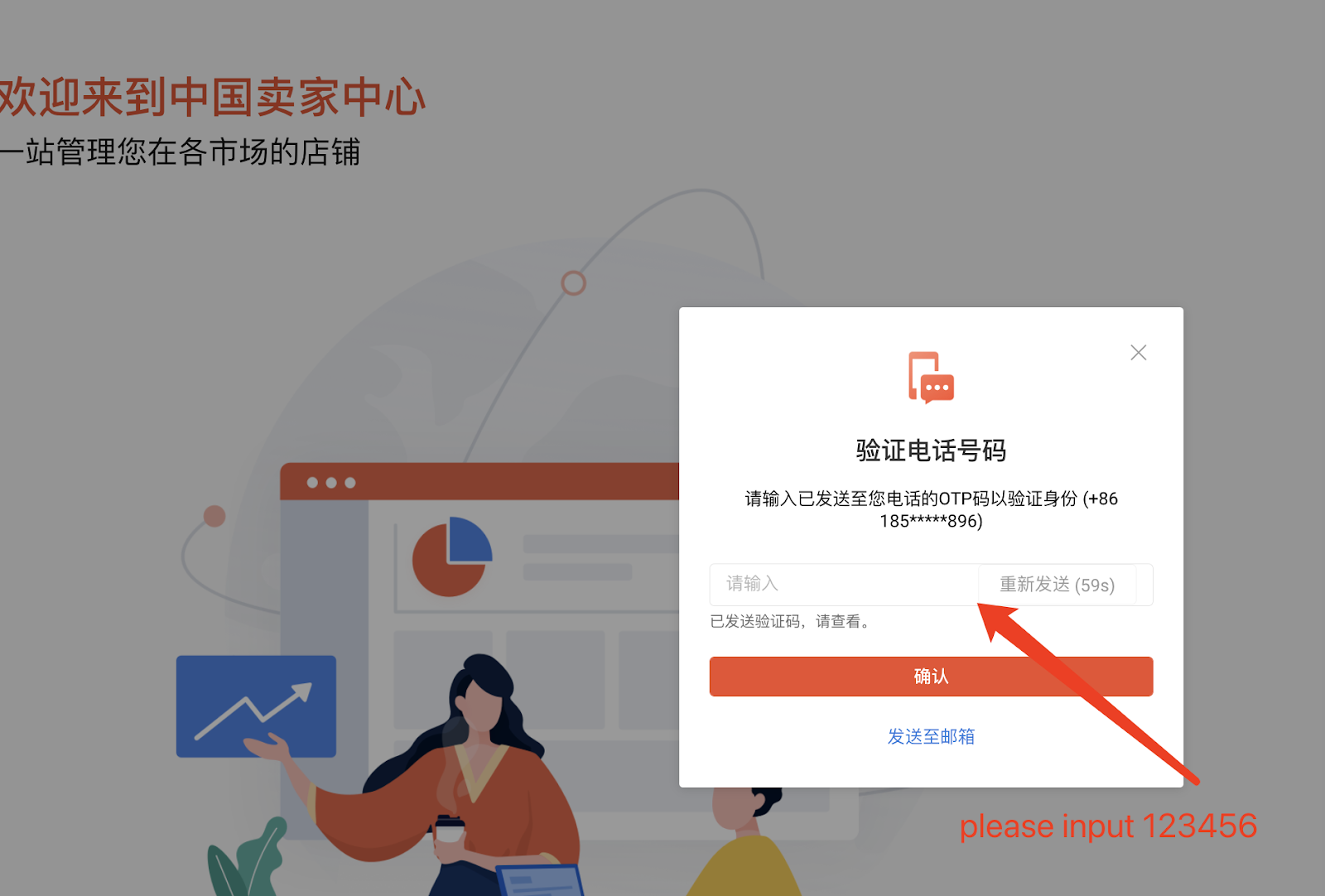
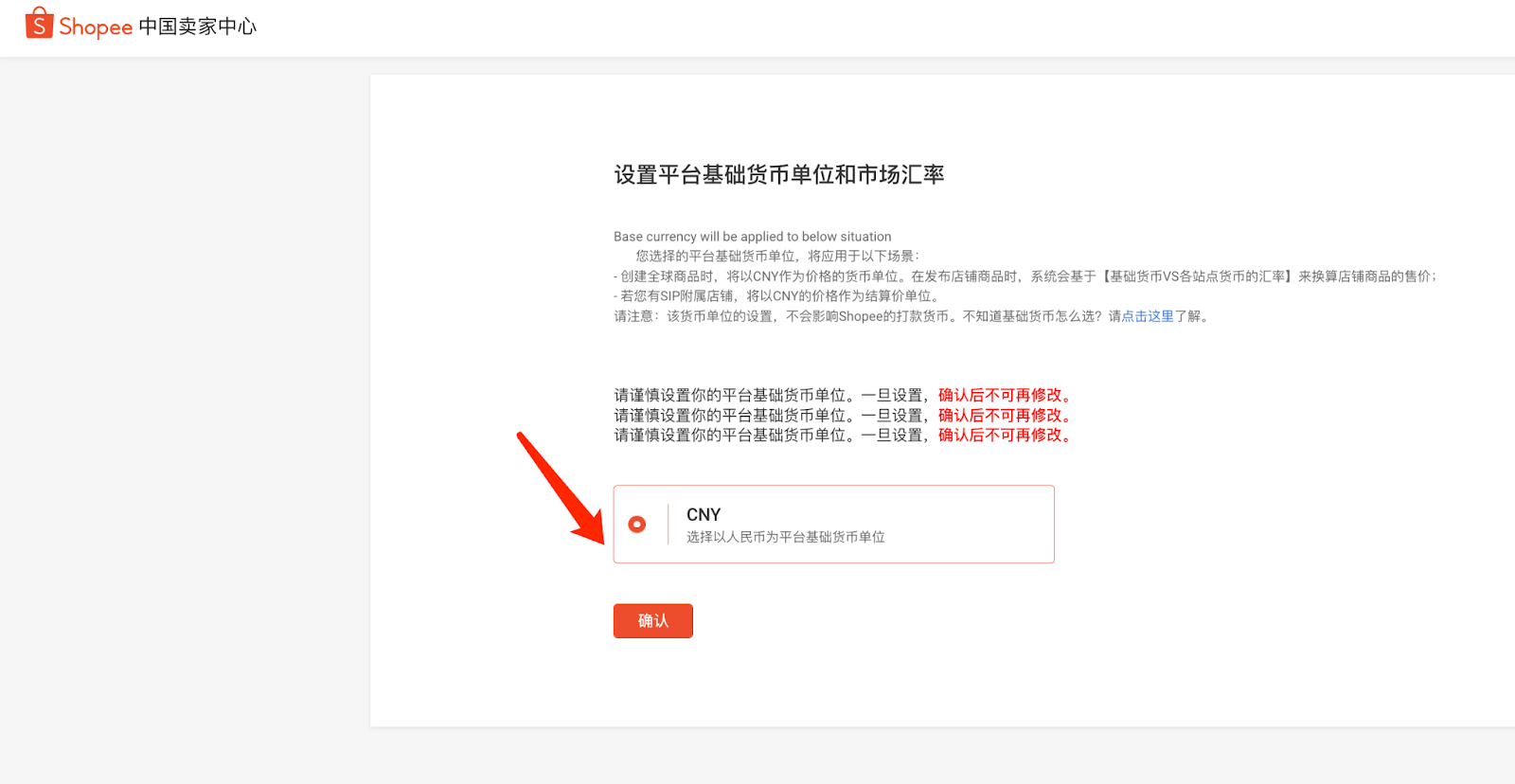
3) Set the currency after login.
** Note: When testing in the CNSC sandbox, only CNY currency is available.
In the actual CNSC (Live environment), the currency options will be USD or CNY for now and support HKD in the future.
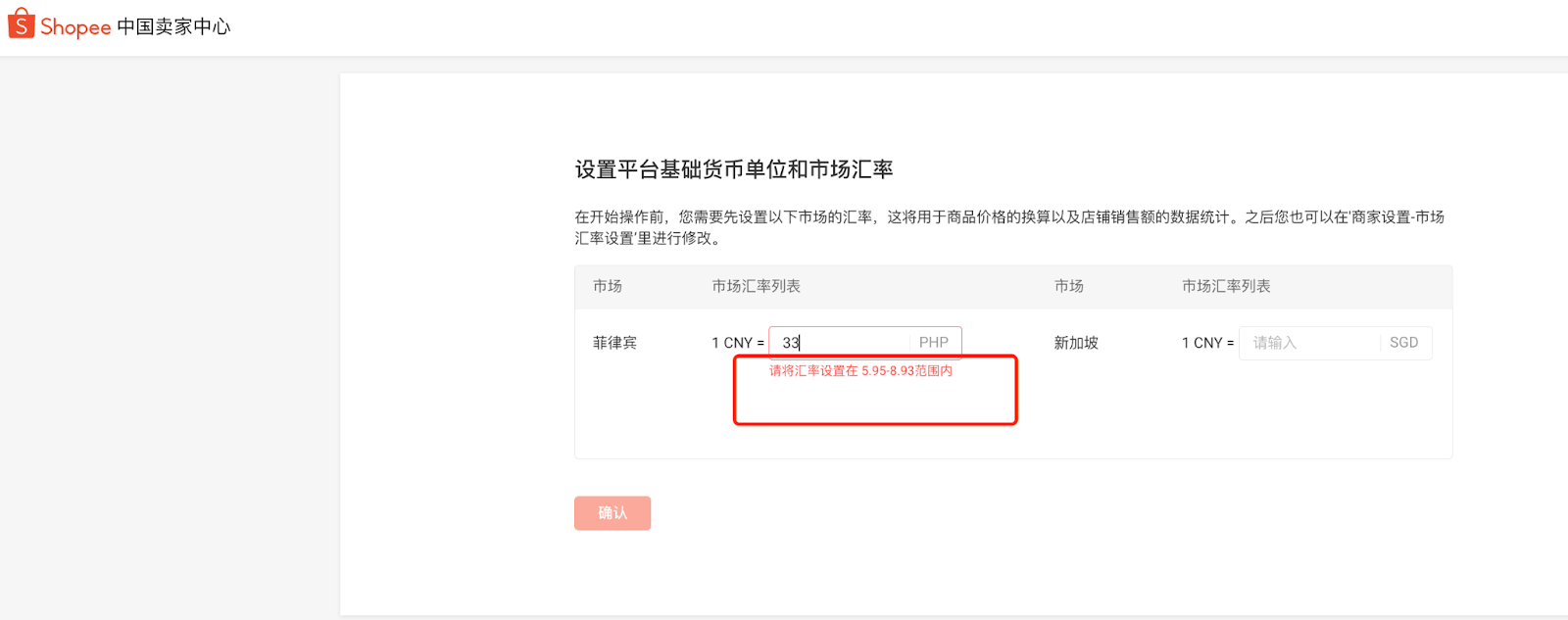
- Set the market rate. If you set the wrong number, we will prompt the correct range of the number as the screenshot shown.
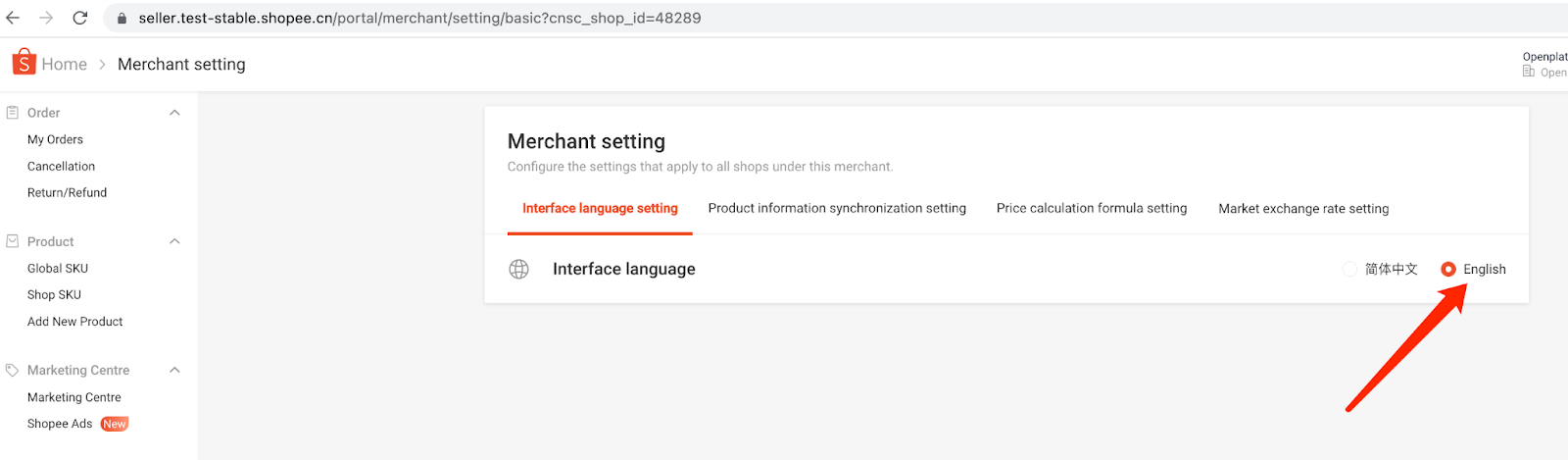
- Then, you can set the Interface language in Merchant setting page to English.
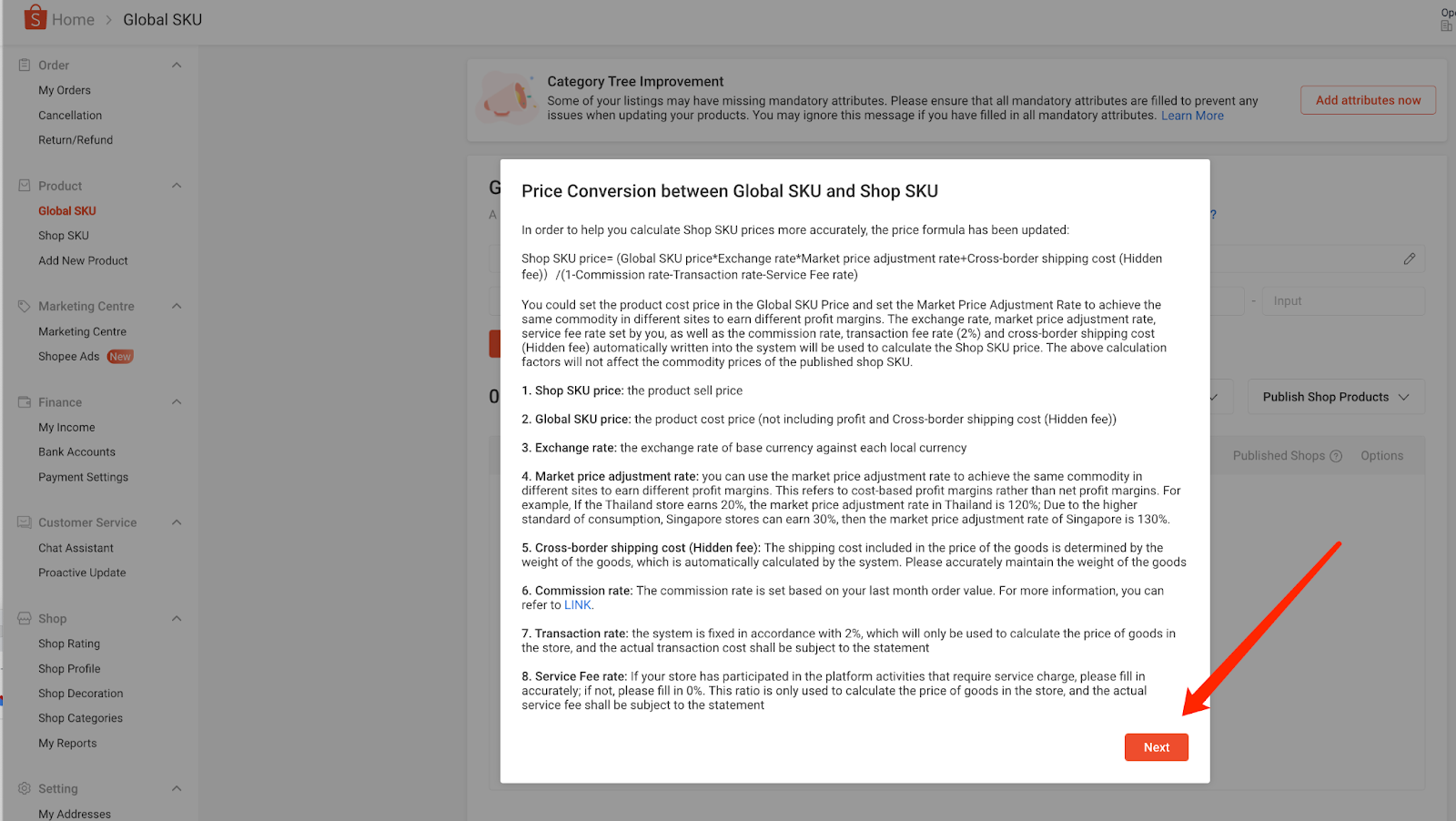
- Check the Global SKU page. Please finish the setting and click the button “Start to upgrade to Global SKU”
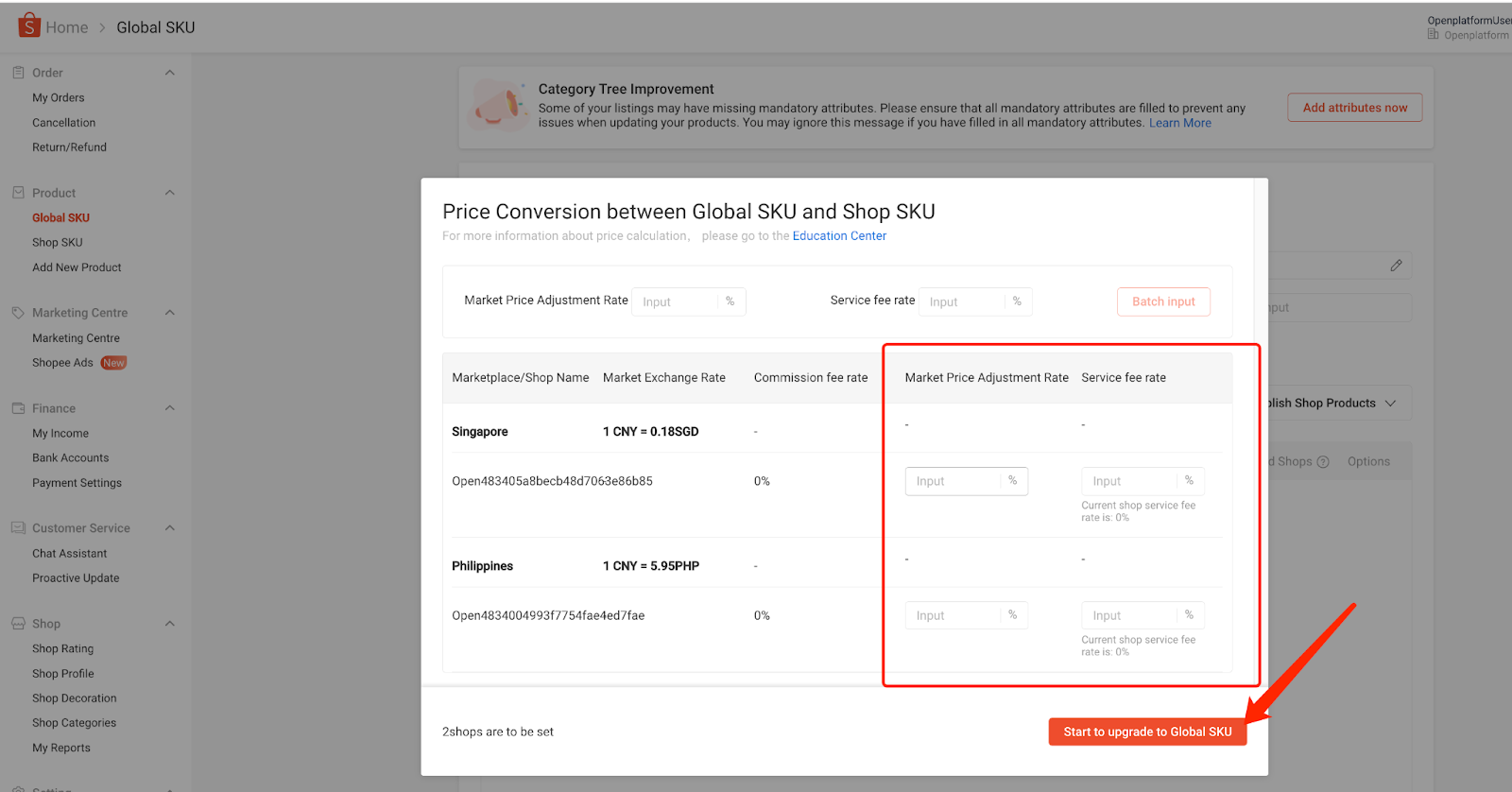
Then you can start to test open api. More details you can check the Sandbox Testing article.
b. When the seller logs in to CNSC and completes the upgrade for each shops’ products, v2.shop.get_shop_info will return merchant_id.then can query v2.merchant.get_merchant_info to check.
c.Test Global Product API and Merchant API. You can check the API call flow from here
2.6 Merchant & Shop Authorization
Because after the shop account is upgraded to CNSC, multiple shops will belong to merchants, you can learn more about the relationship between Merchant and shop through this FAQ.
Therefore, in order for you to call the GlobalProduct API normally, please re-authorize your shops and switch the sub account page when authorizing.
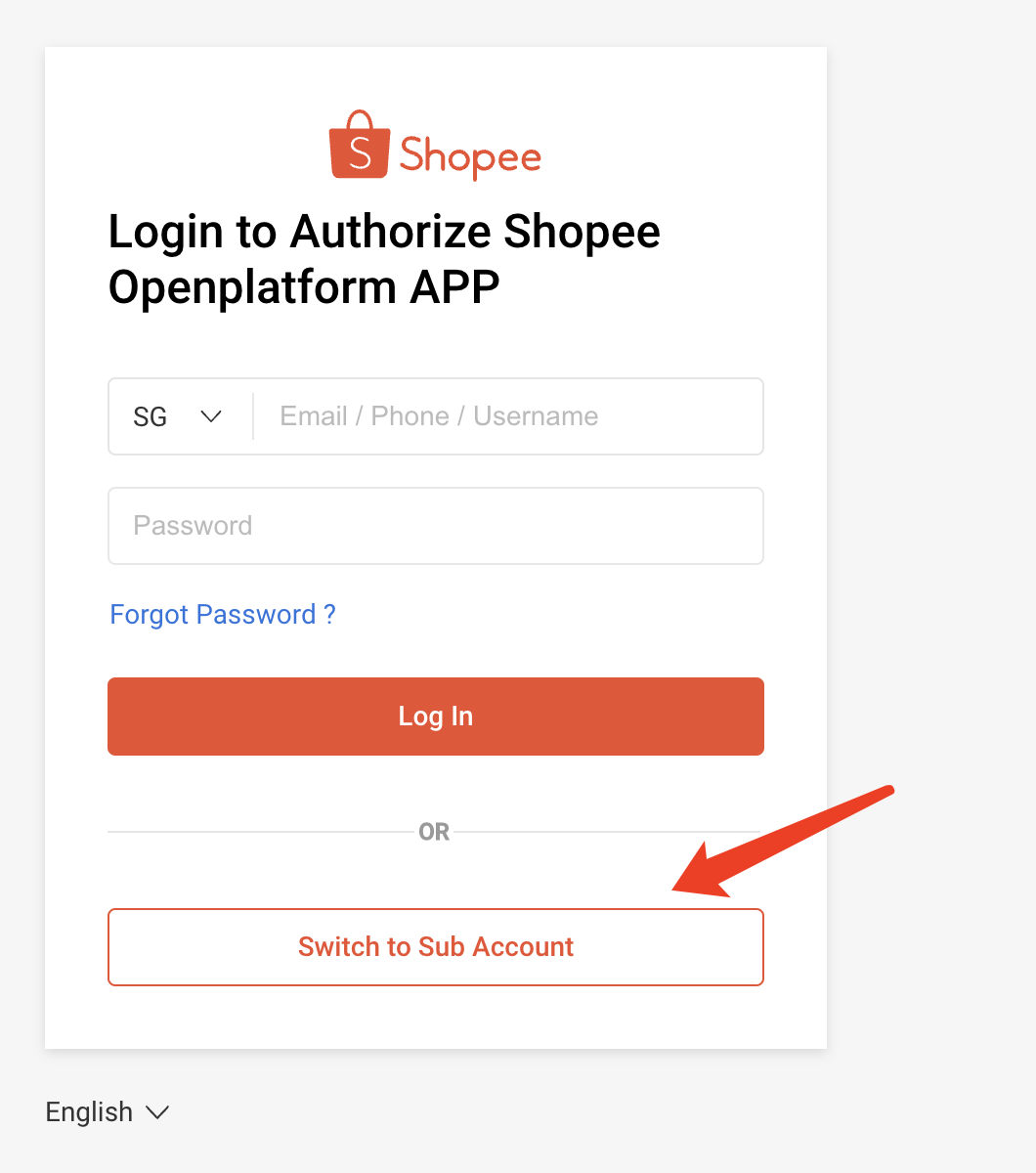
Please use your main account for authorization. Sub-accounts cannot finish the authorization. The account format of the main account is ***.main
After the account is successfully logged in, you will see the Authorization page, first check the shop you want to authorize and then check Auth Merchant. If you do not check Auth Merchant, you will not be able to call the relevant Global Product API or to obtain the Merchant information. If some shops are not checked, the product cannot be published to the related shop through the API. So please make sure you check the Merchant and shop that you manage completely.
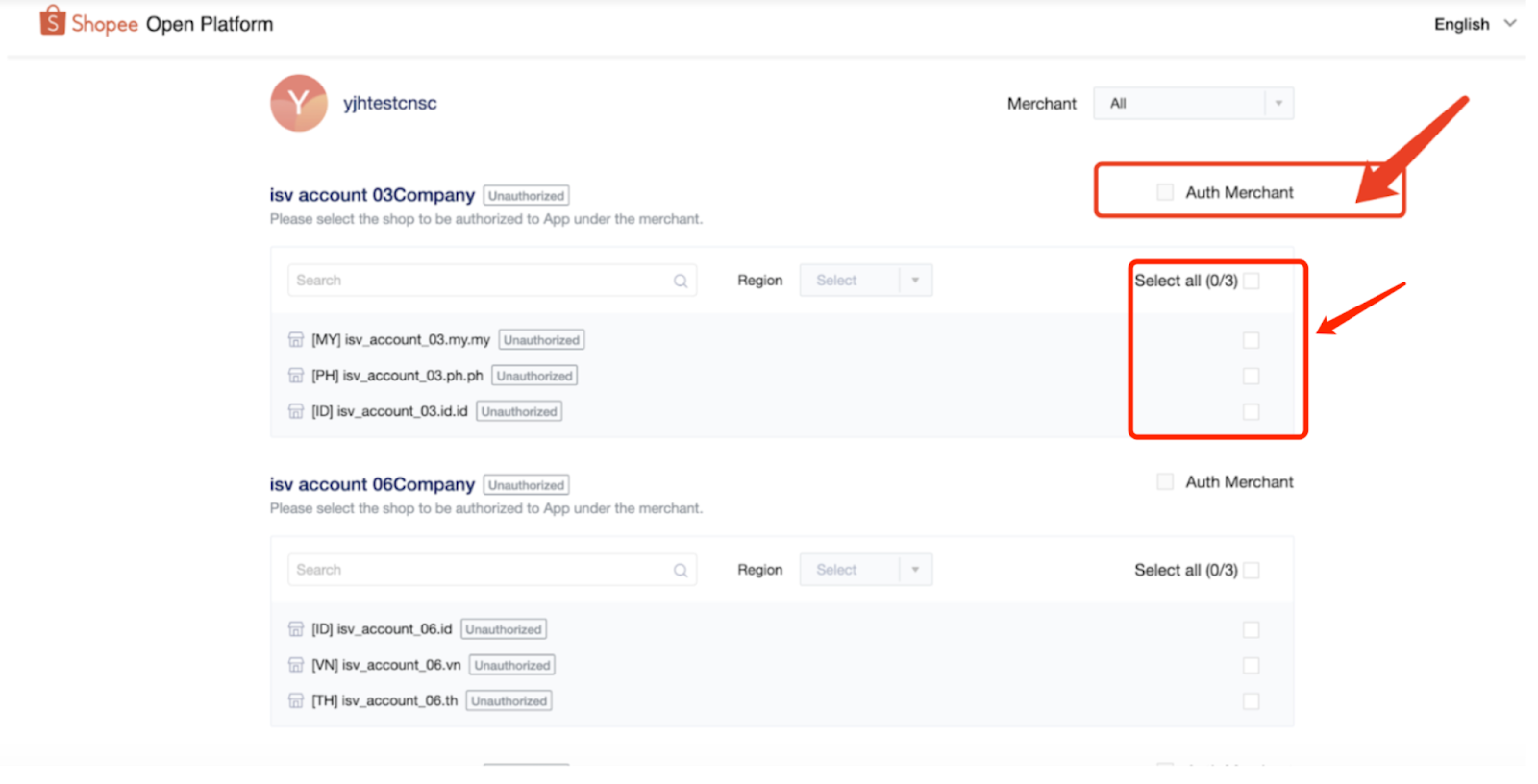
After the authorization is successful, the callback address will return the main_account_id instead of shop id. Main_account_id will be used to obtain AccessToken later.
Then please refresh the token according to this document
Through the GetAccesstoken API, you will get a list of all merchant ids and shop ids that have been successfully authorized at that time.
Note that the tokens for each merchant and each shop are independent and you need to store them separately. When you completing the authorization, the initial refresh token and access token you obtained can be shared by the currently authorized merchant id and shop id, and then you call the RefreshAccessToken API, and different merchant ids or different shop ids will return different refresh tokens and access token, so please keep their tokens separately.
If you want to obtain the relationship between the merchant id and the shop id, please call the get_shop_list_by_merchant API. You can get each merchant information by calling get_merchant_info, and call get_shop_info to get each shop information.
3. Summary
1)When you create an app, or use an existing app, please make sure that your app type can call the v2.0 GlobalProduct API.
2)The shop needs the seller's re-authorization to provide the seller with CNSC product related API services.
3)It is necessary to ensure that the APP status is Online, so that seller users can use the CNSC API in the production environment. Clicking Go Live in the Open Platform Console and submitting the information. APP will automatically be approved after 24 hours.
4)The seller needs to log in to CNSC and complete the relevant settings before the CNSC product upgrade is successful. Only when the product is successfully upgraded, can the Global Product API be called normally.
5)You can learn more CNSC API FAQ from here: API FAQ