App management
Last Updated: 2025-04-24
Language Supported:
English /
简体中文 /
繁體中文 /
Português (Brasil) /
ไทย
Once your developer account is approved, you can create new Apps in the Shopee Open Platform Console Create App page.
App types
There are several types of Apps on Shopee Open Platform, each designed for different purposes.
- ERP System: Such Apps are for managing key business processes. This App type is suitable if you provide software services to Shopee sellers.
- Product Management: Such Apps are for managing product-related processes.
- Order Management: Such Apps are for managing processes related to order and fulfillment.
- Accounting and Finance: Such Apps are for managing processes related to finance and order reconciliation processes.
- Marketing: Such Apps are for managing processes related to marketing.
- Seller In-house System: Use this App type if you are a Shopee seller managing your own Apps.
- Customer Service: Such Apps are for managing processes related to customer service.
Different types of developer accounts can create different types of Apps.
| Developer account types | ||||
|---|---|---|---|---|
| App Types | Third-party Partner Platform (ISV) | Registered Business Seller | Individual Seller | Individual Third Party* |
| ERP System | ✓ | |||
| Product Management | ✓ | ✓ | ||
| Order Management | ✓ | ✓ | ||
| Accounting and Finance | ✓ | ✓ | ||
| Marketing | ✓ | |||
| Customer Service | ||||
| Seller In House System | ✓ | ✓ |
The Individual Third Party developer account types are no longer supported and have been replaced with Individual Seller, Registered Business Seller, and Third-party Partner Platform (ISV).
If you originally registered as an Individual Seller or Registered Business Seller but your team has grown and started to serve other sellers, you can switch to Third-party Partner Platform (ISV). Once approved, your App type will automatically change from Seller In-house System to ERP System. For more details, please see our FAQs, Q.3.
Different types of Apps have different API and push permissions. You can create different types of Apps according to your needs.
| App type | API permissions |
|---|---|
| ERP System | All API except Chat API and Ads API |
| Seller In-house System | All API including Chat API |
| Product Management | View API permission list |
| Order Management | View API permission list |
| Accounting and Finance | View API permission list |
| Marketing | View API permission list |
| Customer Service | View API permission list |
| Ads Service | View API Permission list |
Learn more about the notifications available under Push Mechanism for different types of Apps.
| ⚠️ Note Newly created Apps only have v2.0 API permissions, and cannot call v1.0 APIs. You can check your App permissions under the API Permission section on the App details page. |
Creating an App
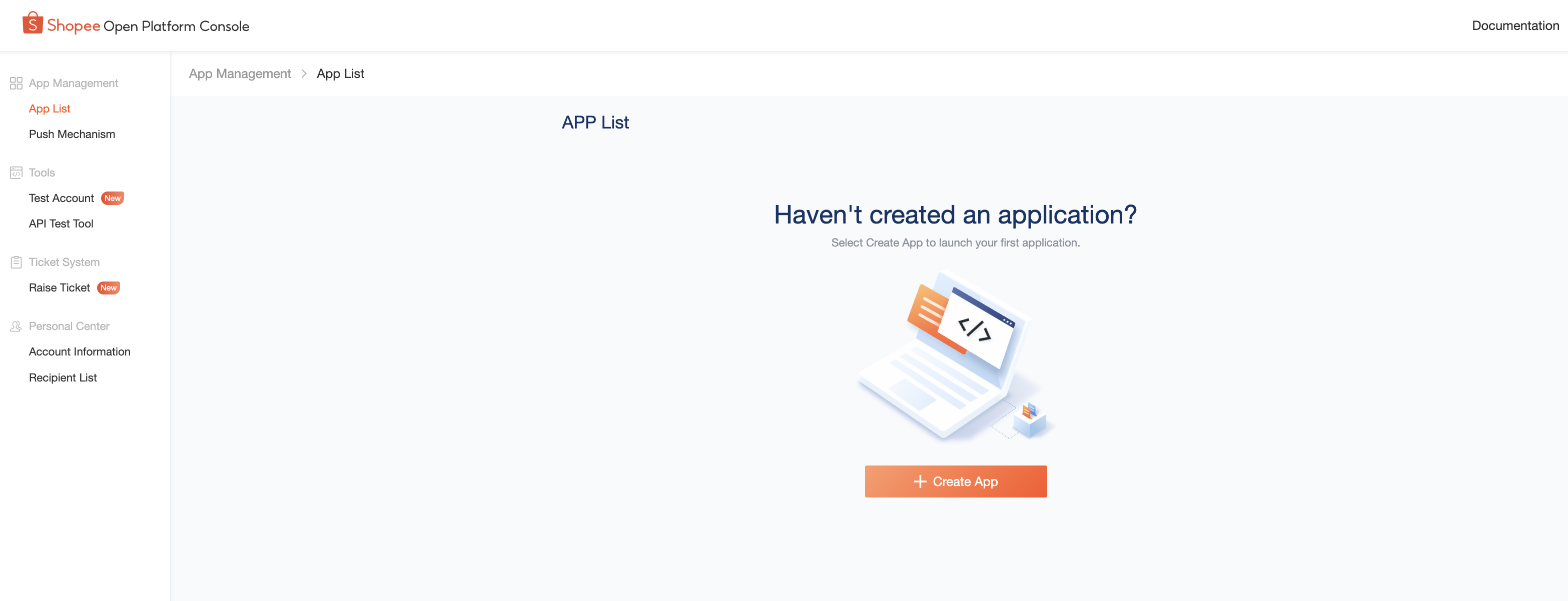
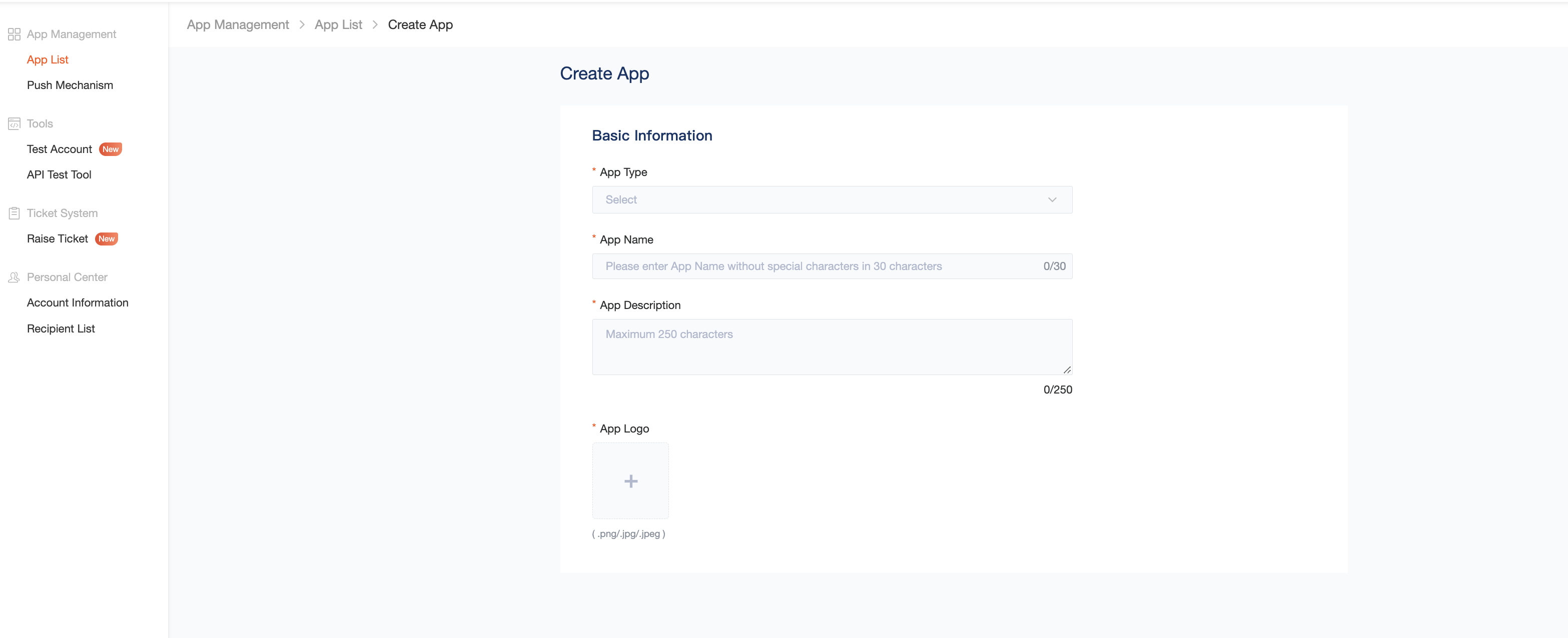
- Log in to Shopee Open Platform Console, select Create App. On the Create App page under Basic Information, you can edit your App Type, App Name, App Description, and App Logo .
- After you’ve successfully created your App, you’ll get a Test Partner ID and Test Key. These can only be used for testing in the sandbox environment, but not in the production environment.
Submitting your App to Go Live
- Once you’ve finished testing your App, select the App from the App List page, then select Go Live.
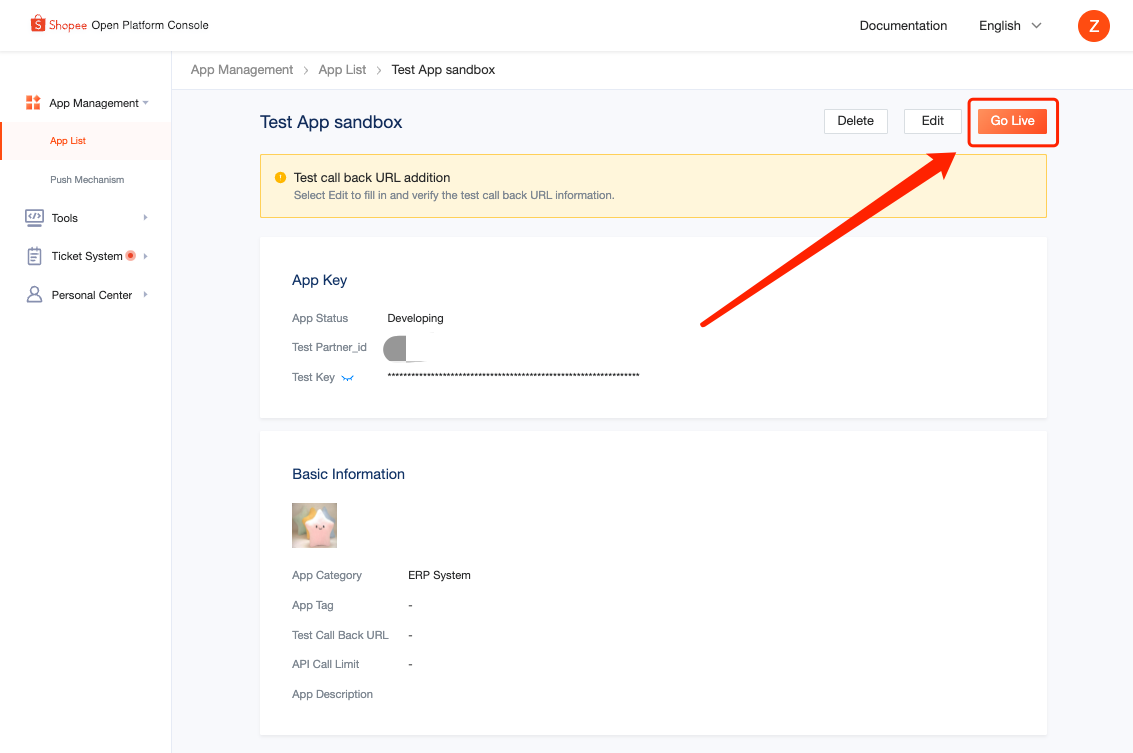
- On the Go Live page, fill in the relevant information.
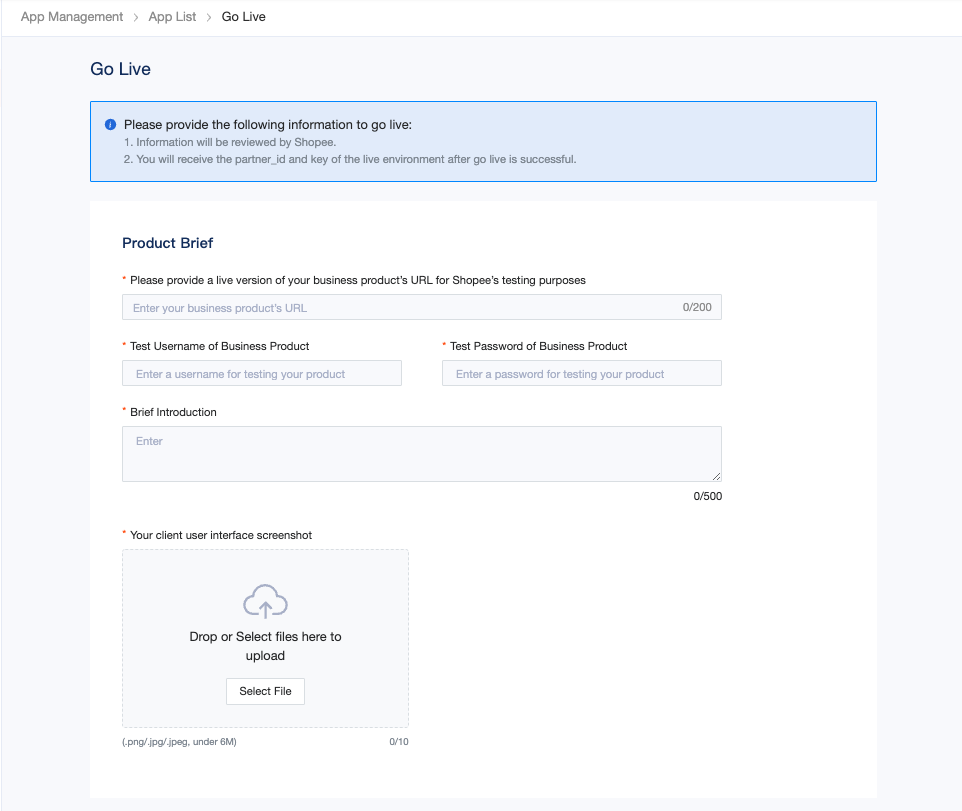
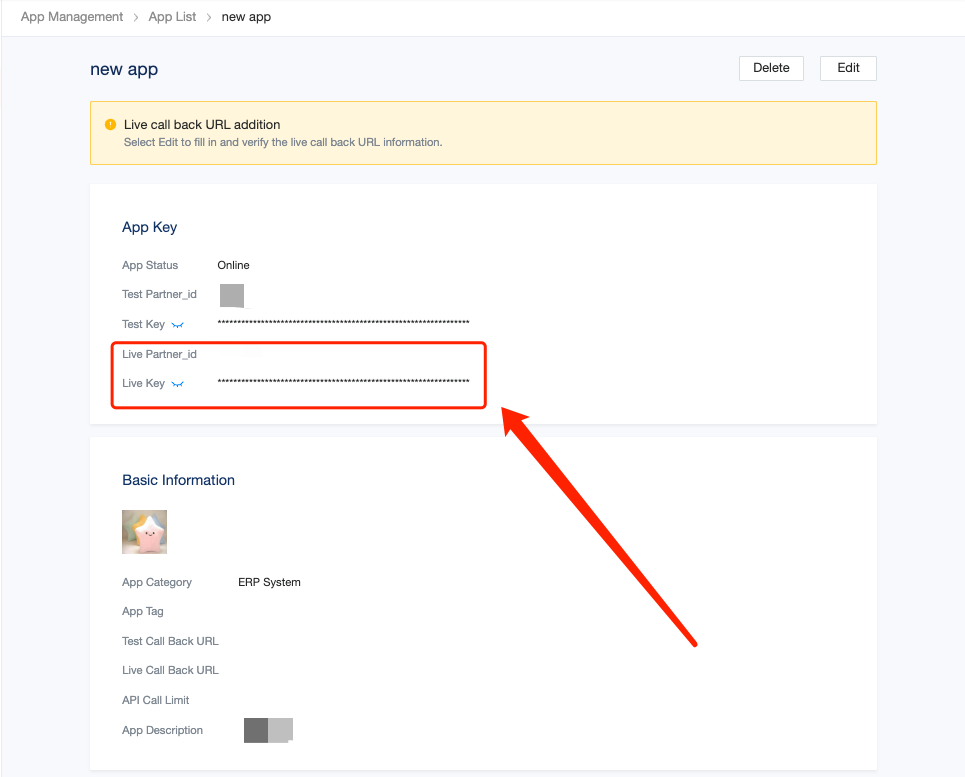
- Your App will be reviewed 24 hours after submission. Once approved, you can view the Live Partner_id and Live Key corresponding to the App under the App Key section. These can be used in the production environment.
Switching to the production environment
Once you're ready, you can switch to the production environment.
-
Switch to the Live Partner_id and Live Key to complete the authorization.
-
Switch to the HTTP Address of the production environment. You can find the HTTP Address in your API documents. Here’s an example:
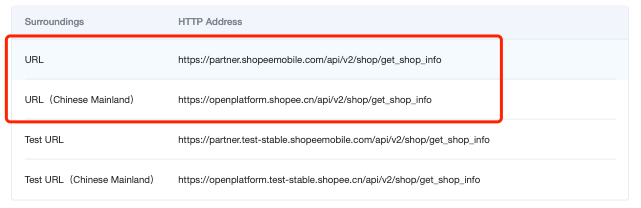
| ⚠️ Notes - https://openplatform.shopee.cn/is only open to developers in Mainland China. - https://partner.shopeemobile.com/ is open to local developers. Select the HTTP Address that corresponds to the server location where you want to call the Open API. |
-
(Optional) If you need to subscribe to Push Mechanism notifications, you can enable the settings within the production environment.
-
(Optional) If you need to add a whitelist of Shopee addresses in your system, please call the v2.public.get_shopee_ip_ranges API of the production environment to obtain the IP address of the production environment.
Viewing your App status
Once you’ve created your App, you’ll see 1 of the following App statuses. Each status has a different set of restrictions that limit the use of the App.
| Status | Description | Product environment restrictions |
|---|---|---|
| Developing | App is under development | 1. Apps cannot be authorized to access shop data in the production environment2. Unable to call production environment APIs |
| Online | App is online | 1. Apps can be authorized to access shop data in the production environment2. Able to call production environment APIs |
| New App authorizations restricted | New authorizations for the App are restricted | 1. Apps cannot be authorized to access shop data in the production environment2. Existing App authorizations to access shop data are not affected3. Able to call production environment APIs |
| API calls restricted | App is restricted from calling all APIs | 1. Apps cannot be authorized to access shop data in the production environment2. Existing App authorizations to access shop data are not affected3. Unable to call production environment APIs |
| Suspended | App is offline | 1. Apps cannot be authorized to access shop data in the production environment2. Existing App authorizations to access shop data will be removed3. Unable to call production environment APIs |
| ⚠️ Note If a developer violates Shopee Open Platform policies, their App status may be changed to one of the following: - New App authorizations restricted - API calls restricted - Suspended If your App status is updated, you will receive an email notification explaining why in your developer account’s registered email. You can also view the reason on Shopee Open Platform Console. Regardless of the App status, you can continue to use the Test Partner ID in the sandbox environment to authorize shops and test APIs. |
Resetting your App keys
If your App keys have been compromised or want to change them for other security reasons, you can reset your keys.
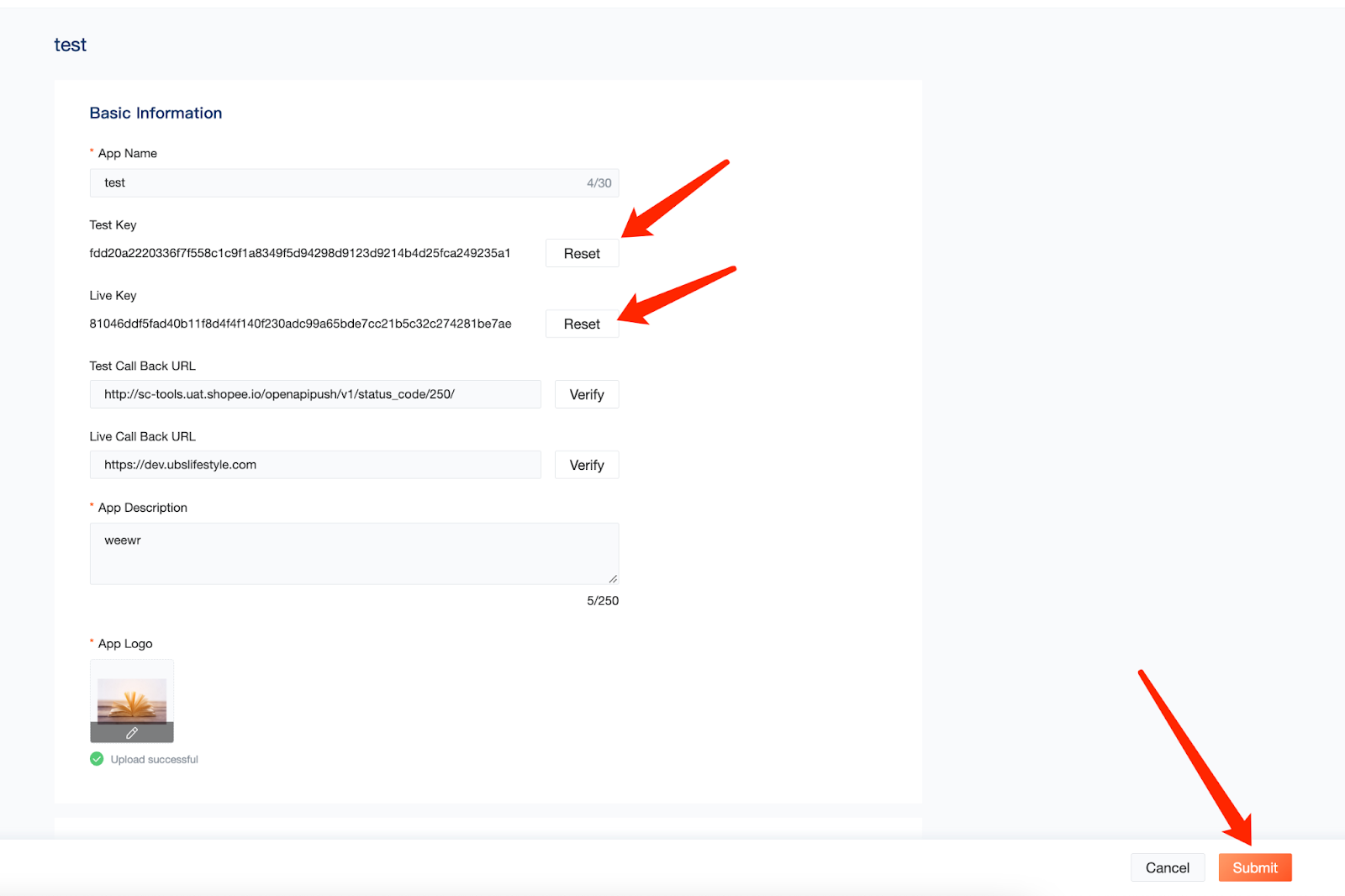
- To reset your App keys, select the App, then select Edit.
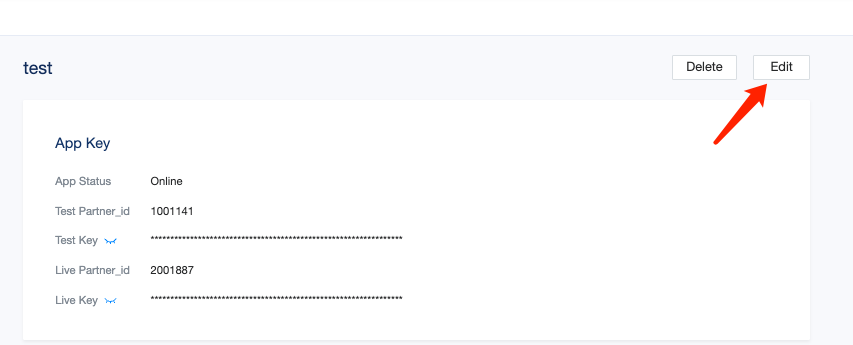
- Under Basic Information, select Reset under Test Key or Live Key. Then, select Submit at the bottom of the page to complete the key reset.
Deleting an App
If you no longer need an App, you can select the App and Delete it.
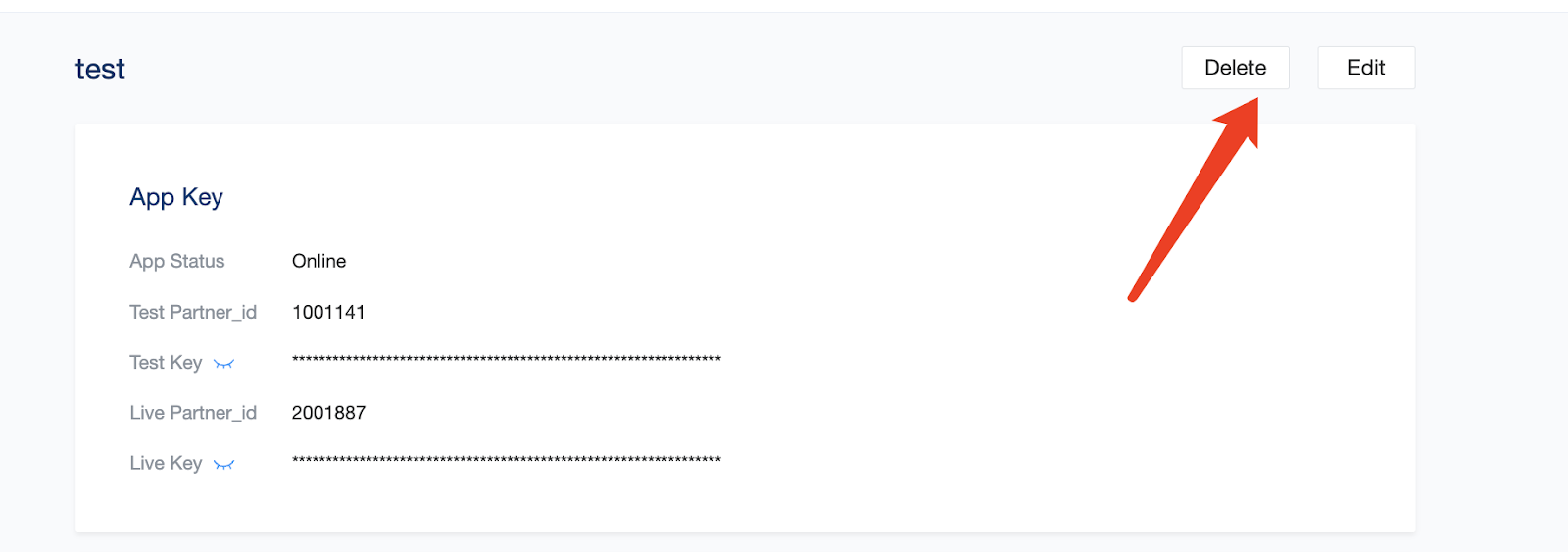
| ⚠️ Note After you delete an App, these items will become invalid: - Partner ID and Key obtained - All existing shop authorizations Do proceed with caution. |
FAQs
Q1: What is the maximum number of Apps I can create?
A: You can create up to 10 Apps.
Q2: Can an App authorize shops from different markets?
A: Yes.
Q3: Is there a maximum number of shops an App authorize shops?
A: Currently, there is no limit.
Q4: Can the review process for an App to go live be expedited?
A: No. You should submit your App for review at least 24 hours before the expected live date to ensure that it can go live on time in the production environment.
Q5: If my system is using a dynamic IP address, how do I fill in the Declaration of IT Assets?
A: You can select the option IP address(es) unavailable and add your reason below.
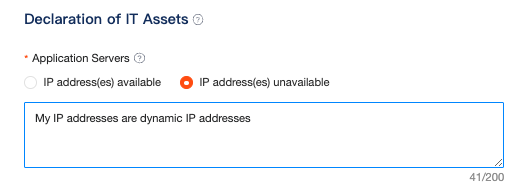
⚠️ Note: You’re strongly encouraged to use static IP addresses. If you use dynamic IP addresses, we will request for regular declarations of your IT assets to perform security checks.
Q6: When do I need to update my IT assets?
A: Once your static IP address has changed, please update your IT assets in the Shopee Open Platform Console.
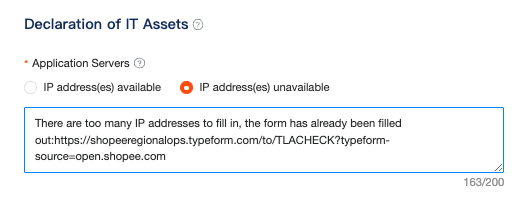
Q7: My IT asset IP address exceeds the character limit of the text box
A: You can select the option IP address(es) unavailable, add your reason in the text box below. Then, submit the IT Assets form.