Shopee On-Platform Ads API Guide
Last Updated: 2026-01-29
Language Supported:
English /
简体中文 /
ไทย
What is Shopee Ads
Shopee Ads allow you to create ads within Shopee’s platform to increase exposure for your products and shop.
Learn Shopee Ads:https://ads.shopee.sg/learn/faq/96/195
Ads Open API Usage Rules
When using the advertising API, you need to abide by the following rules we have listed so that Shopee can create a fair and safe market for all sellers:
- When processing advertising data, you need to comply with the platform's data protection policy.
- The advertising API is limited to Shopee's official cooperative ISVs and is used with platform sellers. It can be used for shop advertising operations and official cooperation agency operation projects. The advertising API cannot be used for other purposes.
- shop data may not be used for any purpose other than shop operations and official Shopee cooperation projects.
- To retrieve seller shop data through the ISV API, you need to obtain the consent of the platform seller through the authorization process.
Tips: If you fail to comply with our norms and rules, you will receive a warning email from Shopee; if you fail to modify it in time, you may face our penalties.
Ads Open API Instruction
1. Retrieve Ad Balance and Shop Settings
- v2.ads.get_total_balance: Use this API to retrieve the seller's real-time total ad credit balance, including both paid and free credits. Sellers can monitor their balance status through this API to ensure that the balance is sufficient for normal ad operations.
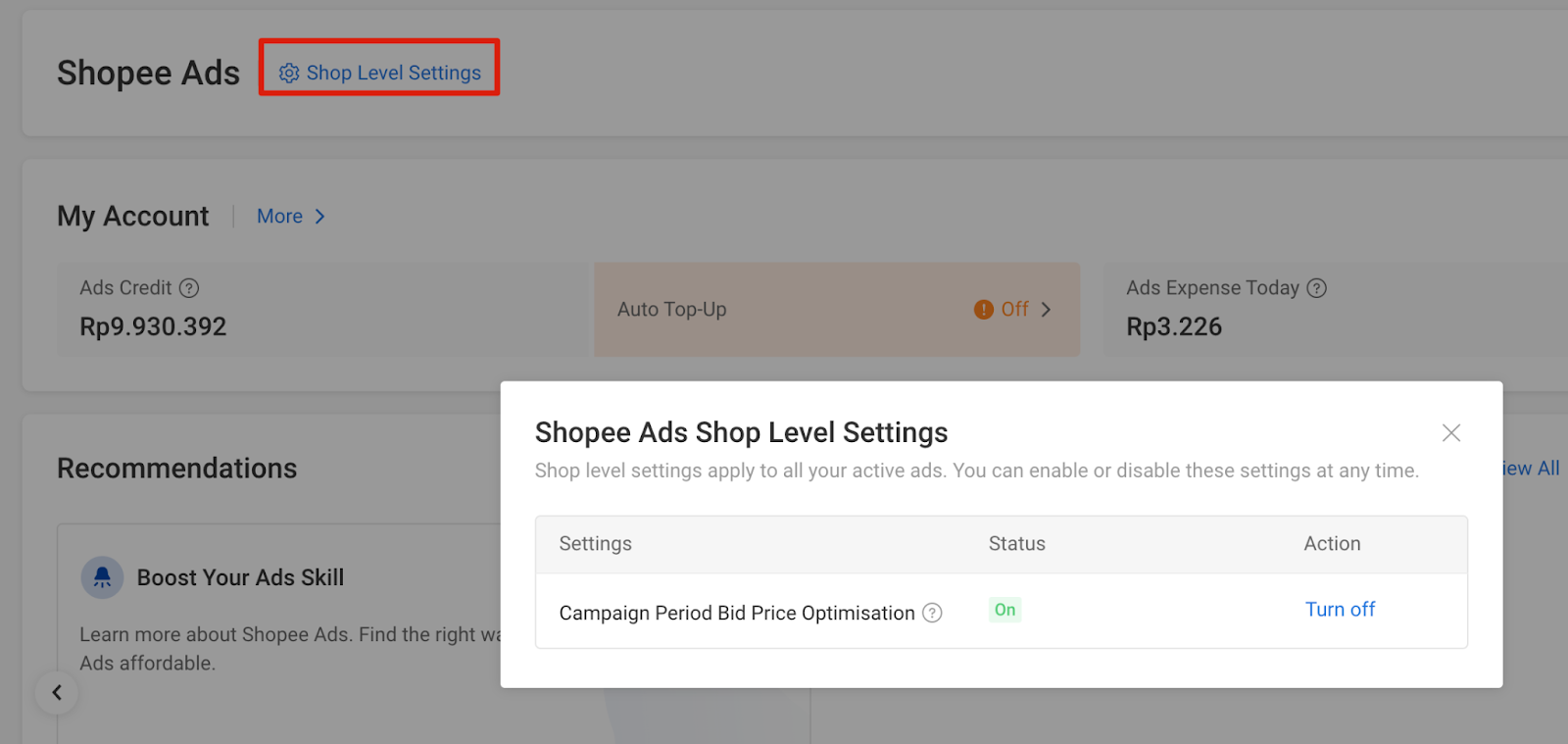
- v2.ads.get_shop_toggle_info: Use this API to retrieve the shop’s ad settings, such as whether auto top-up and ad price optimization features are enabled.
Top_Up Toggle: Enable/disable auto top-up

Campaign_Surge: Turn on/off ads price optimization in the campaign period
- Campaign_Surge: Enable/disable ad price optimization
2.Obtain real-time performance overview data of product ads (shop dimension)
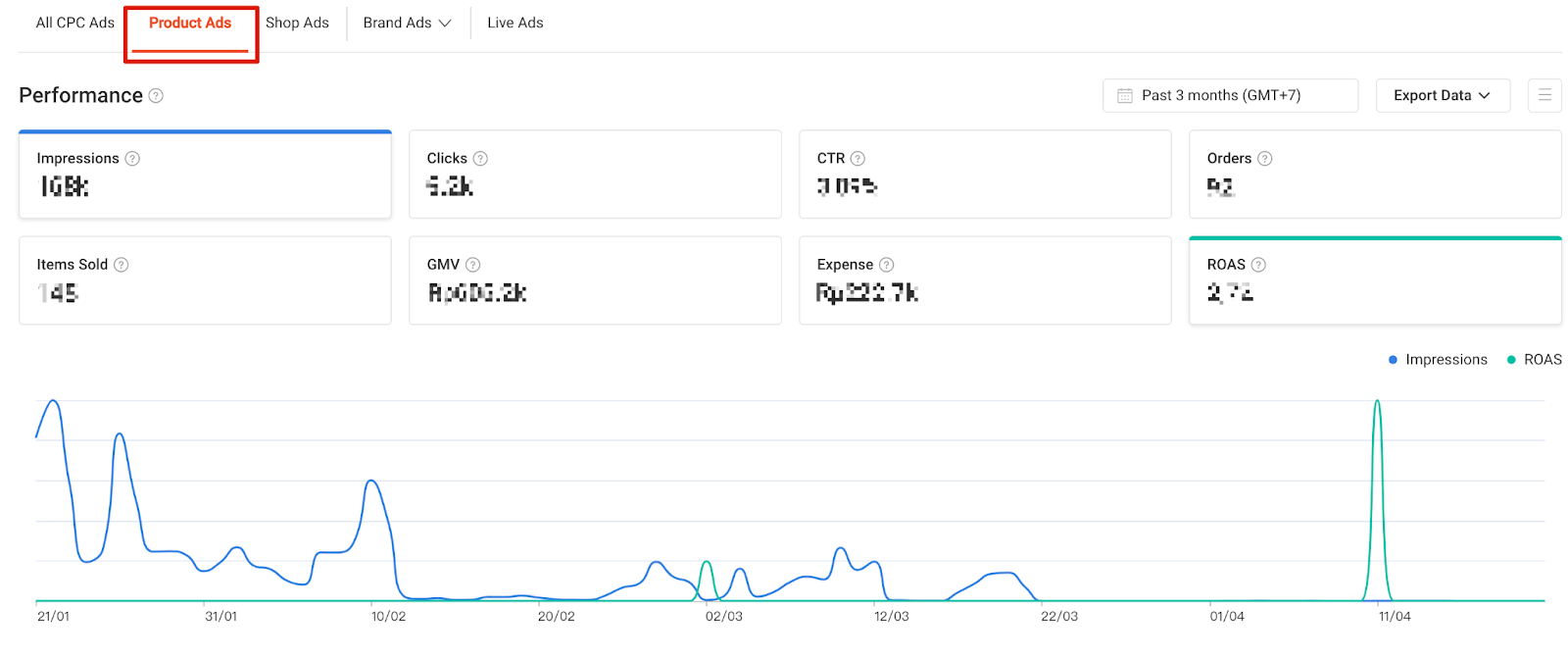
- v2.ads.get_all_cpc_ads_hourly_performance: Use this API to obtain the hourly performance data of store-level CPC advertisements for a single day. Sellers can access information such as daily Conversions, Conversion Rate, items sold, GMV, Ad GMV/Ad Expenditure, etc.
- v2.ads.get_all_cpc_ads_daily_performance: Using this API, you can obtain the multi-day performance of store-level CPC ads (with the time dimension unit being days). Sellers can get information such as daily conversions, conversion rate, items sold, GMV, Ad GMV/Ad Expenditure, etc., over multiple days.
3. Retrieve Recommended Keywords and Product Data
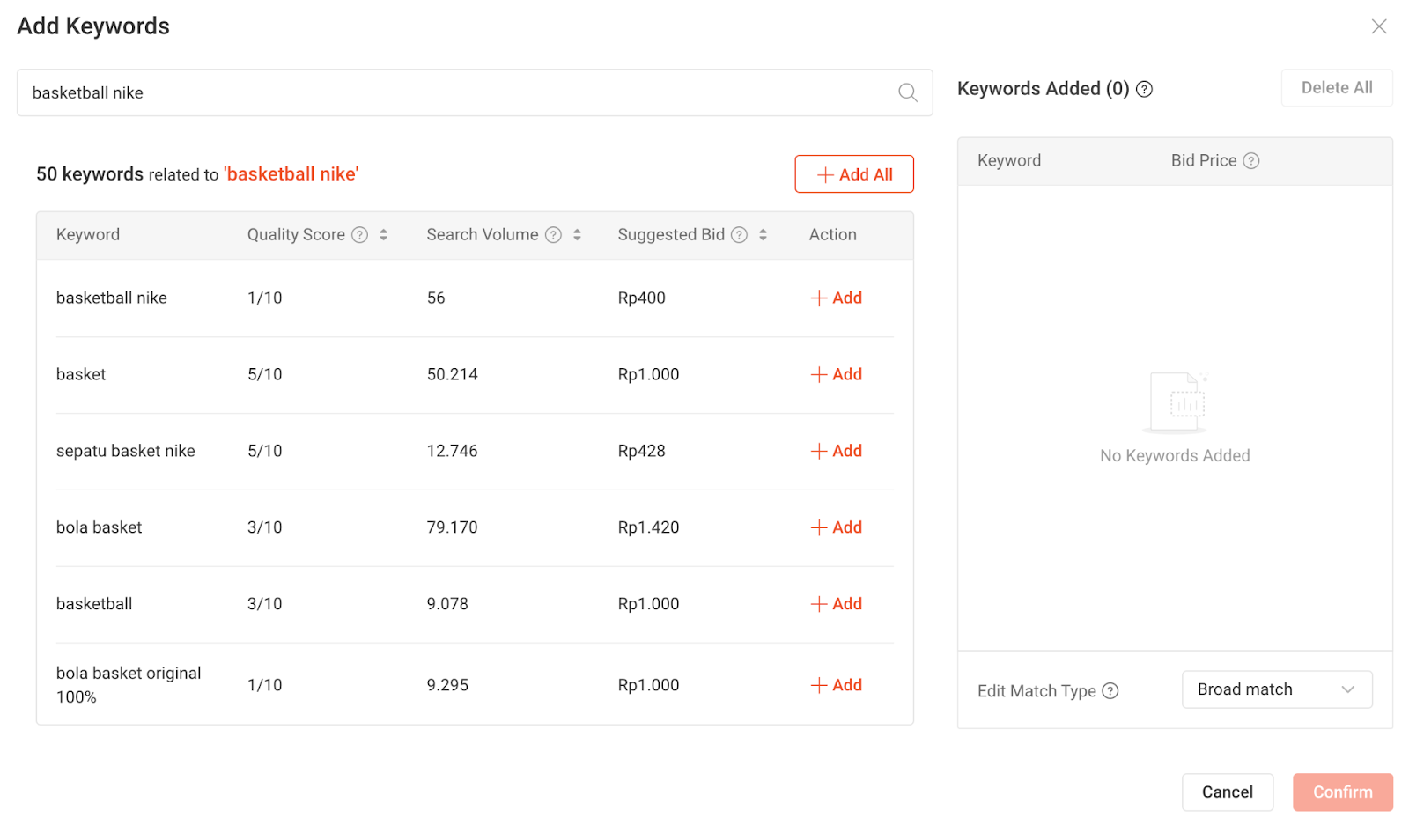
- v2.ads.get_recommended_keyword_list: Use this API to retrieve a list of recommended keywords per item, along with optional search keywords. Sellers can also view keyword quality scores, search volume, and suggested bids.
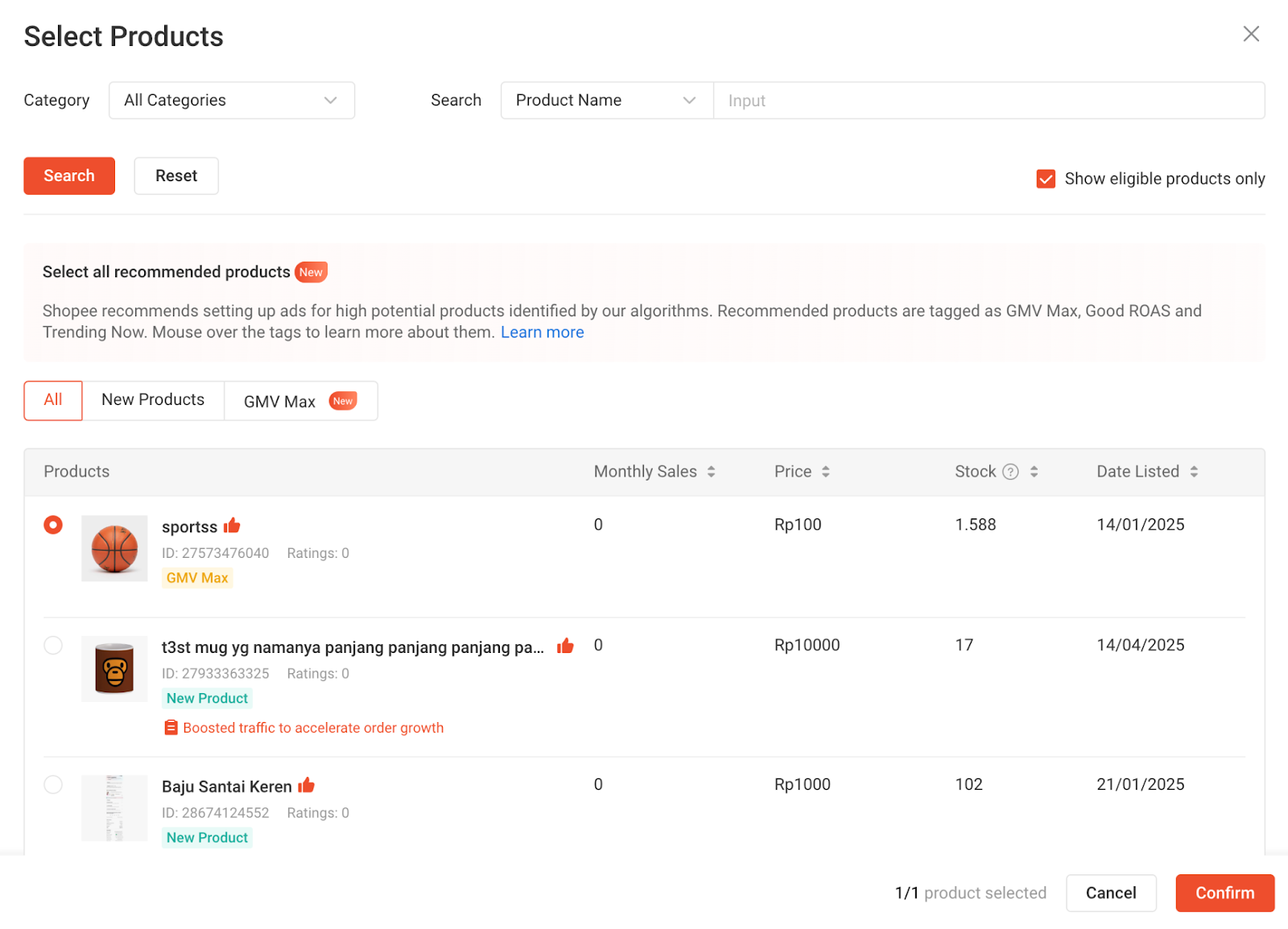
- v2.ads.get_recommended_item_list: Use this API to retrieve a list of recommended SKUs (shop-level) with specific tags such as Hot Search, Best Seller, or Best ROI.
4. Retrieve Campaign-Level Data
- v2.ads.get_product_level_campaign_id_list: Use this API to get the list of ad campaigns associated with a specific product.
- v2.ads.get_product_level_campaign_setting_info: Use this API to retrieve detailed settings for a specific ad campaign.
- v2.ads.get_product_campaign_daily_performance and v2.ads.get_product_campaign_hourly_performance: Use these APIs to obtain daily/hourly performance data for product-level ad campaigns.
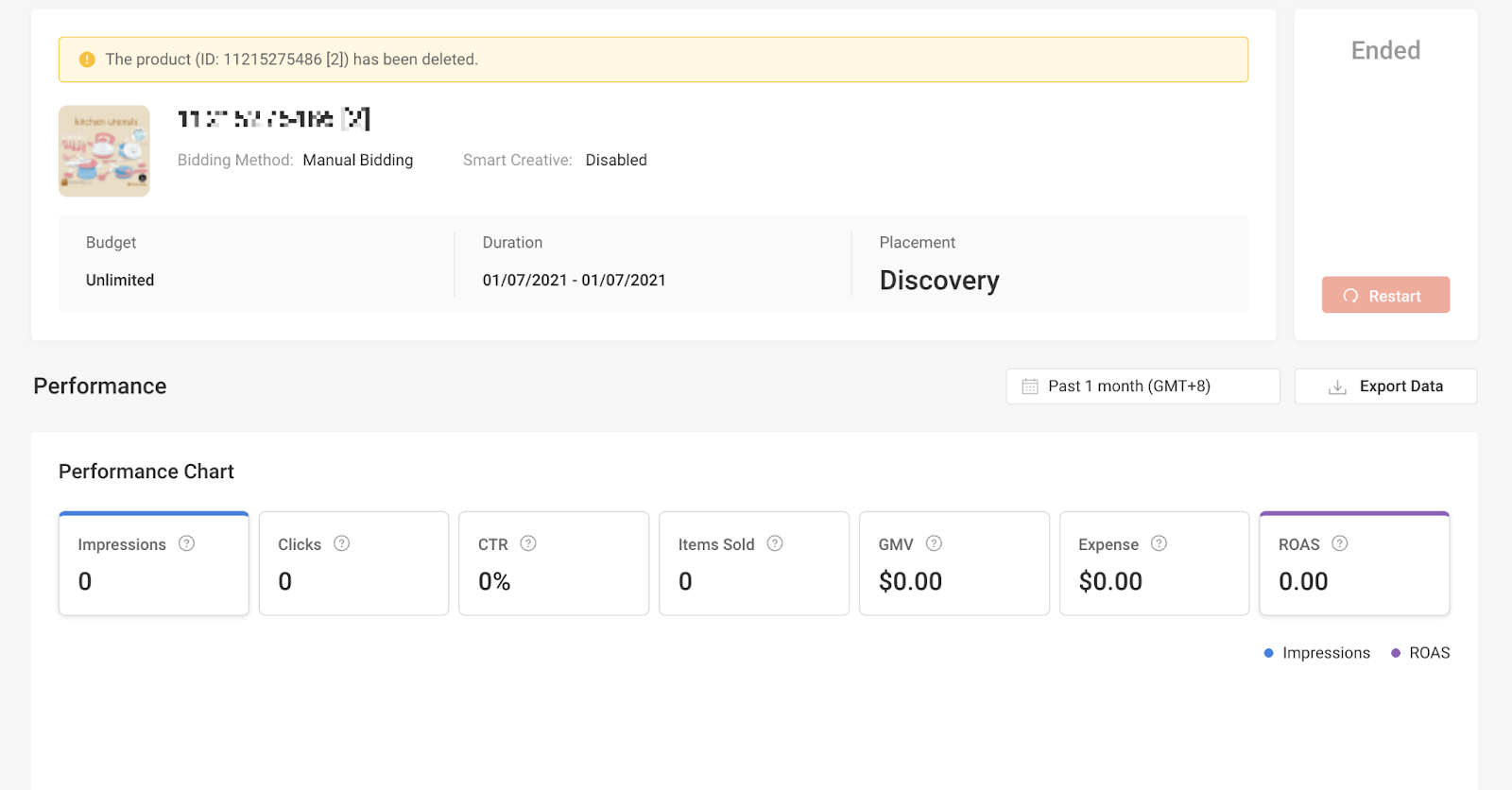
5. GMV Max Ads Overview
GMV Max Ads are Shopee’s full-funnel advertising solutions that leverage automated bidding and intelligent traffic allocation to maximize sellers’ GMV performance.
Currently, Shopee supports two types of GMV Max Ads:
- Item GMV Max Ads (Item-level)
- Shop GMV Max Ads (Shop-level / Auto-selected Products)
Both ad types are powered by system automation and optimized around ROAS (Return on Ad Spend) targets.
Comparison:
| Dimension | Item GMV Max | Shop GMV Max |
| Ad Level | Item | Shop |
| Product Selection | Developer-specified | System auto-selected |
| Creation API | create_manual_product_ads | create_gms_product_campaign |
| ROAS Control | Supported | Supported / Auto |
| Campaign Limit | Multiple | One per shop |
| Product Exclusivity Rule | A product cannot participate in both Item GMV Max Ads and Shop GMV Max Ads | A product cannot participate in both Item GMV Max Ads and Shop GMV Max Ads |
6. Item GMV Max Ads (Item-level Full-site Promotion)
Item GMV Max Ads are item-level full-site promotion ads designed to promote specified products across Shopee’s entire traffic inventory.
Key Characteristics:
- Created at the item level
- Uses Auto Bidding
- Optimized around ROAS targets
- Suitable for sellers aiming to scale GMV for individual products
To create Item GMV Max Ads via Open API, use:
-
v2.ads.create_manual_product_ads
-
Key Parameter:
-
bidding_method = auto → Item GMV Max Ads
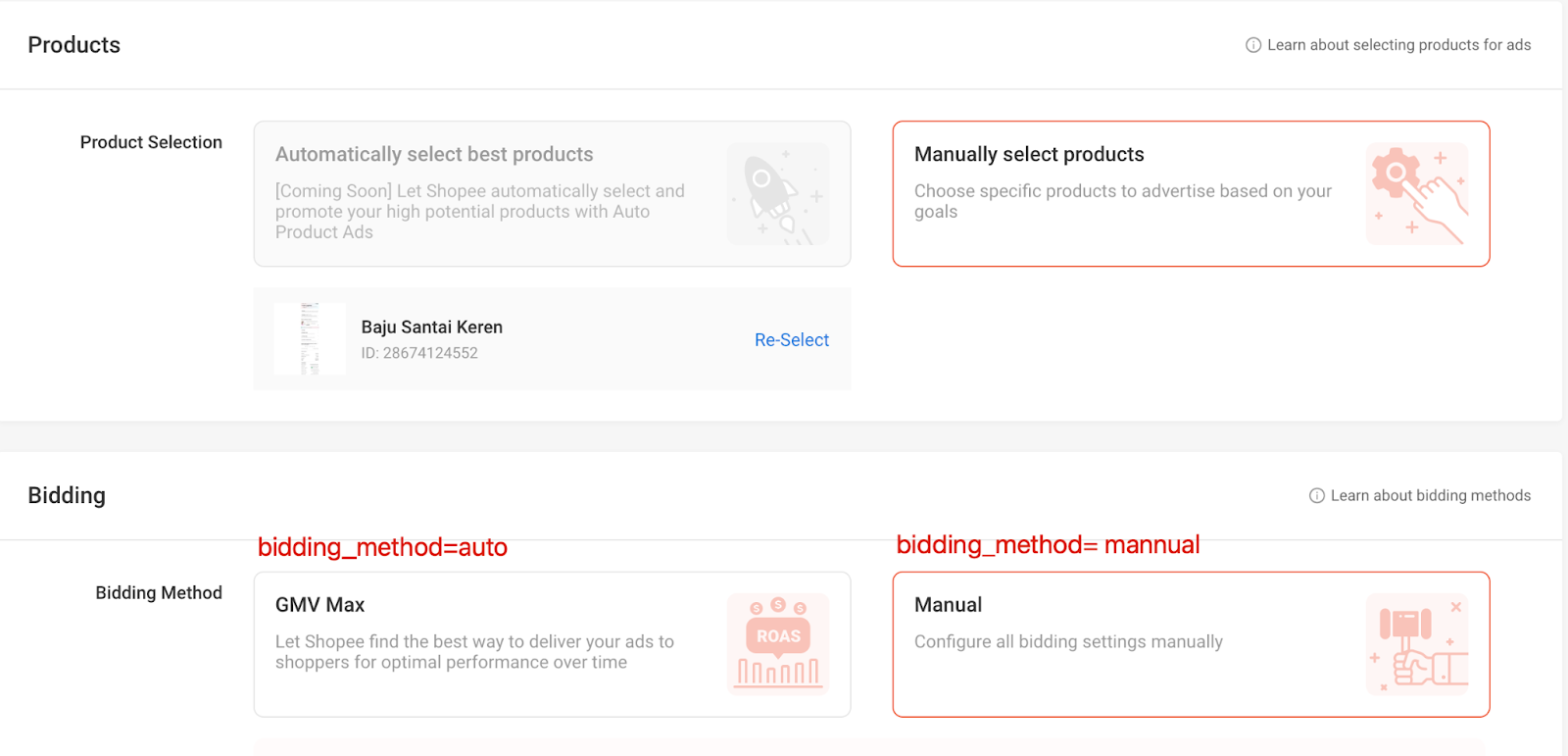
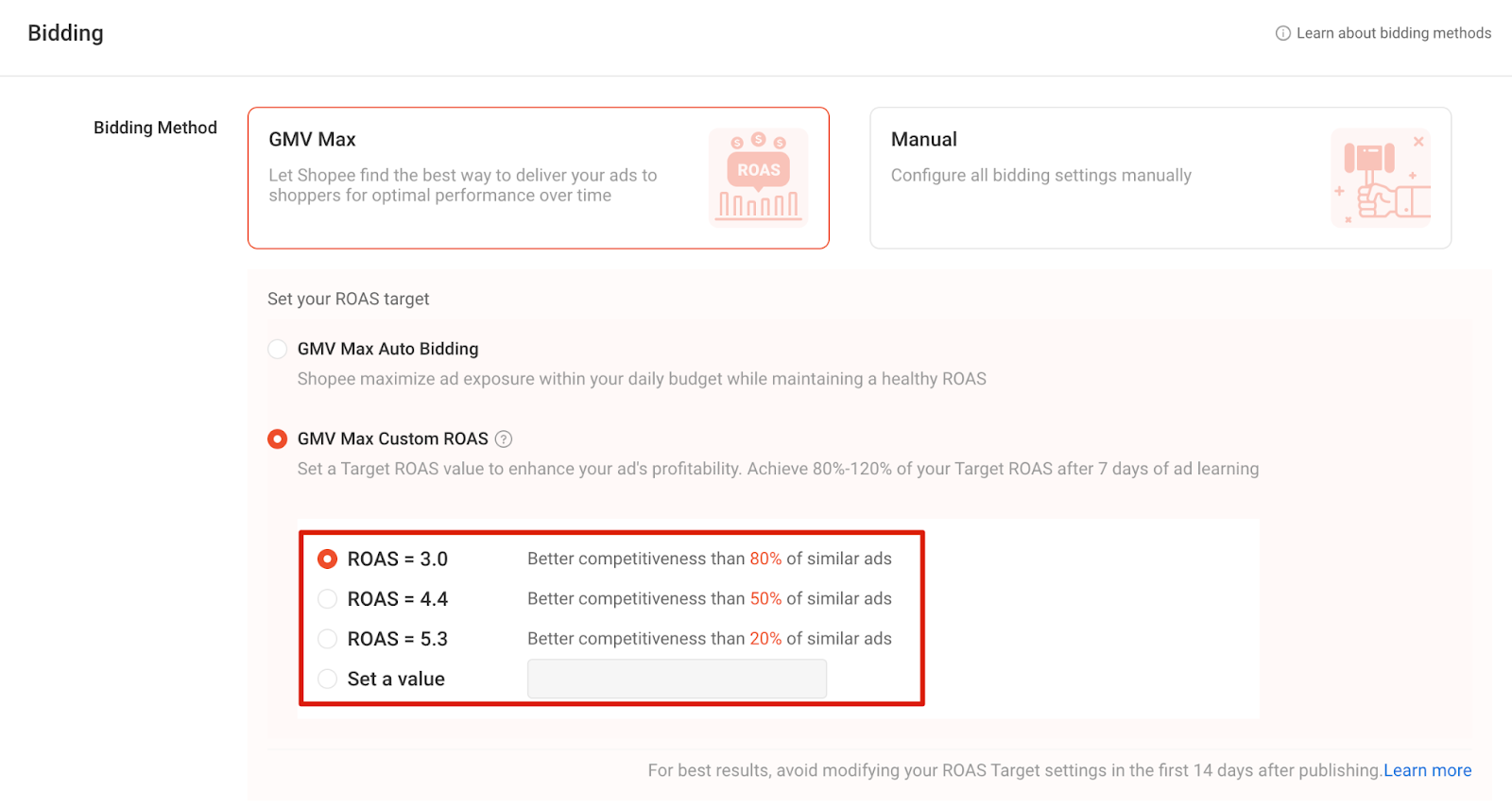
Before creating Item GMV Max Ads, developers may retrieve recommended ROAS using:
v2.ads.get_product_recommended_roi_target
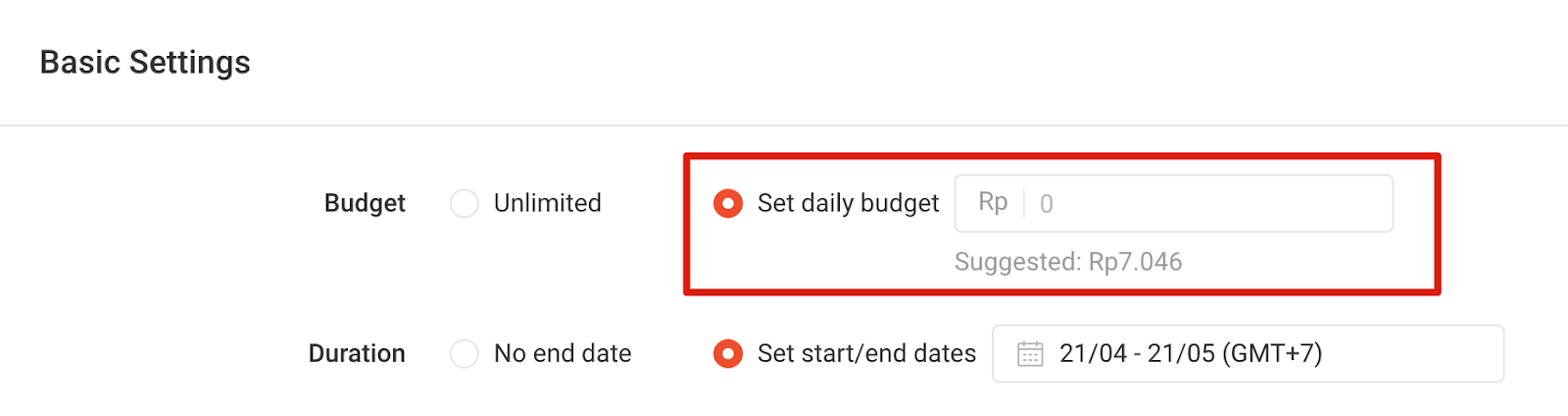
Developers may also retrieve recommended budget ranges via:
v2.ads.get_create_product_ad_budget_suggestion
Typical Flow:
-
Call v2.ads.get_product_recommended_roi_target to retrieve recommended ROAS
-
Call v2.ads.get_create_product_ad_budget_suggestion to retrieve budget suggestions
-
Call v2.ads.create_manual_product_ads (bidding_method = auto)
Note:
ROAS and budget recommendations are system-generated references. Final performance depends on actual delivery and system learning.
7. Shop GMV Max Ads
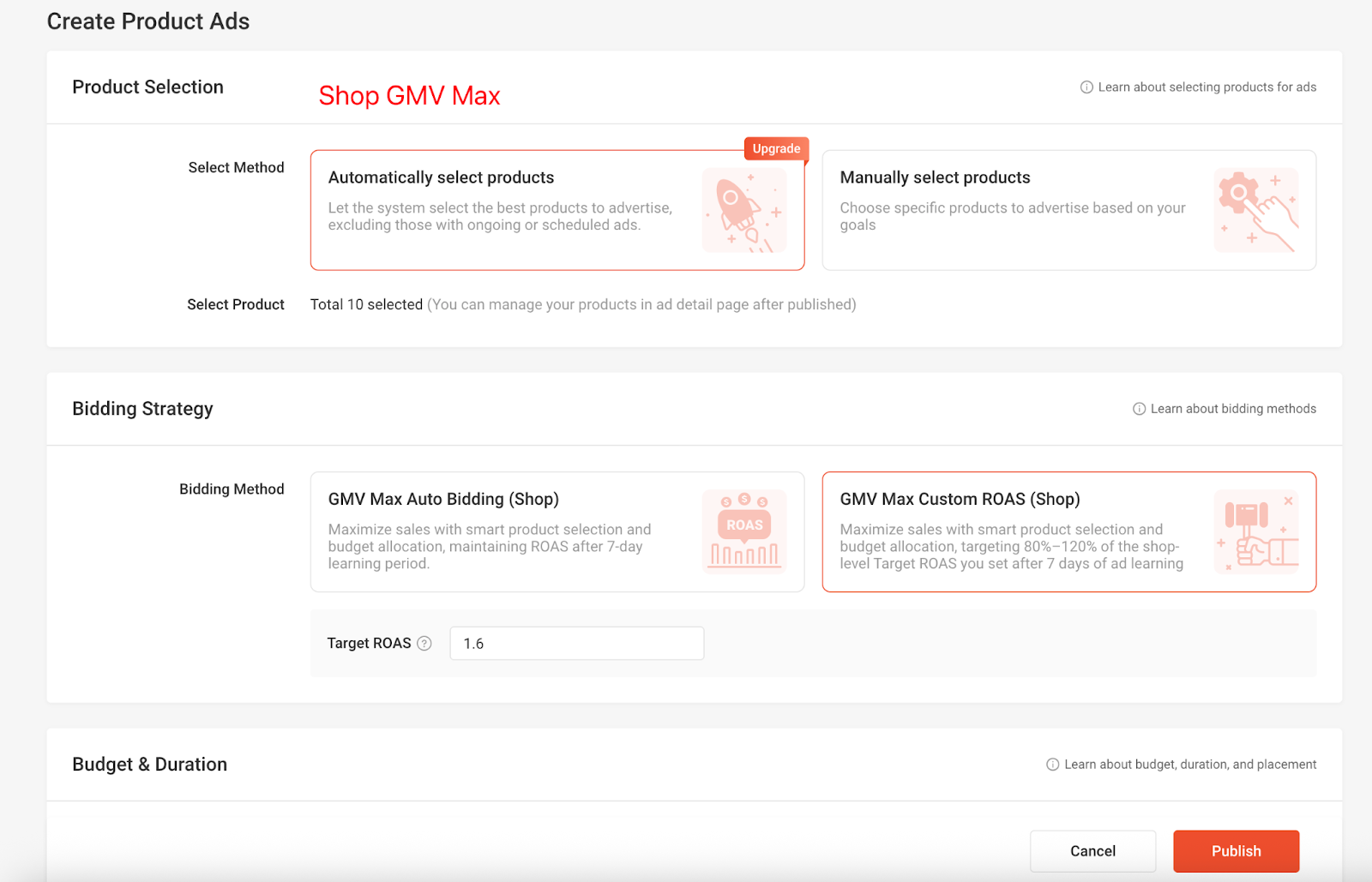
Shop GMV Max Ads are shop-level full-site promotion ads. The system automatically selects products within the shop and optimizes delivery based on budget and ROAS settings to maximize overall shop GMV.
Key Characteristics:
- Created at the shop level
- System automatically selects products and dynamically allocates budget
- Supports Auto Bidding and Custom ROAS
- Suitable for sellers seeking lower management overhead and scalable shop GMV growth
Bidding Modes:
- Auto Bidding: The system explores traffic opportunities automatically within acceptable ROAS ranges to scale exposure and GMV.
- Custom ROAS: The system optimizes delivery based on advertiser-defined ROAS targets to balance GMV and efficiency.
To create Shop GMV Max Ads via Open API, use:
-
v2.ads.create_gms_product_campaign
-
Key Field: roas_target
-
Not provided or = 0 → Auto Bidding (Shop GMV Max)
-
0 → Custom ROAS (Shop GMV Max)
Before creation, developers may validate eligibility using:
- v2.ads.check_create_gms_product_campaign_eligibility
Management & Performance APIs:
-
Campaign Configuration & Management
-
v2.ads.edit_gms_product_campaign: Update Shop GMV Max campaign configuration (e.g. bidding mode, ROAS settings).
-
Product Management
-
v2.ads.edit_gms_item_product_campaign: Manage product-level configurations within a Shop GMV Max campaign.
-
v2.ads.list_gms_user_deleted_item: Retrieve information on products removed by the seller.
-
Performance & Reporting
-
v2.ads.get_gms_campaign_performance: Retrieve overall performance metrics of a Shop GMV Max campaign.
-
v2.ads.get_gms_item_performance: Retrieve item-level performance metrics within a Shop GMV Max campaign.
Typical Integration Flow
- Call v2.ads.check_create_gms_product_campaign_eligibility
- Validate whether the shop is eligible to create a Shop GMV Max campaign.
- Call v2.ads.create_gms_product_campaign
- Create a Shop GMV Max campaign.
- (Optional) Call v2.ads.edit_gms_product_campaign
- Update or adjust campaign configuration after creation.
- Call v2.ads.get_gms_campaign_performance and v2.ads.get_gms_item_performance
- Monitor campaign-level and item-level performance on an ongoing basis.
Note:
- Products are auto-selected by default and updated daily. If sellers manually adjust the product list, the seller-configured list takes precedence.
- Performance improves during the learning phase. Avoid frequent configuration changes during this period.
8. Manual Product Ads
Manual Product Ads are item-level ads that require developers to explicitly configure products, keywords, and bidding strategies. Currently, this feature is available only to selected whitelist sellers.
Key Characteristics:
- Created at the item level
- Uses Manual Bidding
- Supports keyword and item targeting
- Suitable for sellers requiring granular control
To create Manual Product Ads, use:
-
v2.ads.create_manual_product_ads
-
Key Parameter:
-
bidding_method = manual → Manual Product Ads
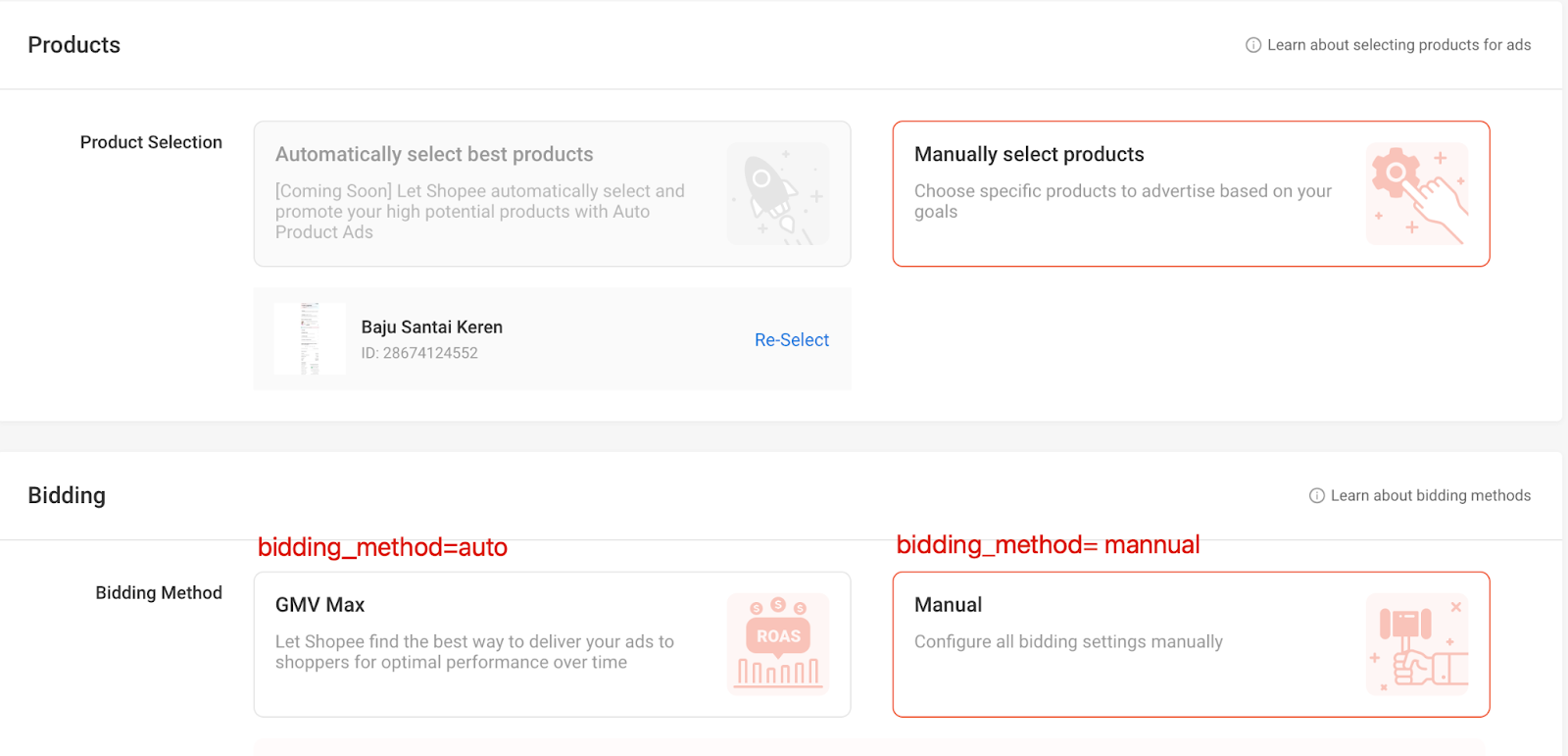
For Manual Product Ads (bidding_method = manual), developers may use
v2.ads.get_recommended_item_list and v2.ads.get_recommended_keyword_list
to obtain recommended items and keywords, and then configure budget, placements,
and other campaign settings to start ad delivery.
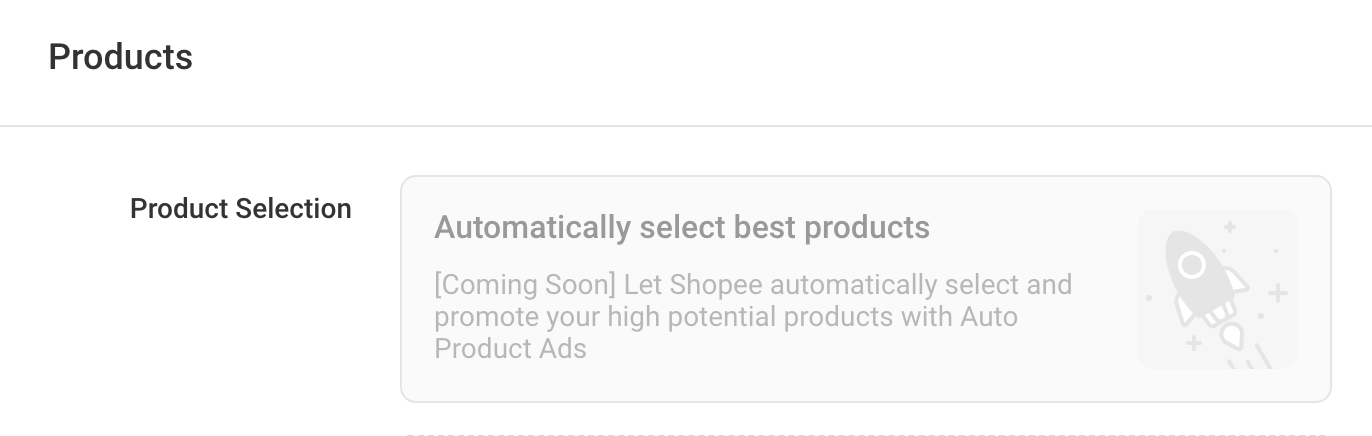
9. (coming offline soon) Auto Product Ads
v2.ads.create_auto_product_ads (whitelist shops only)
If you encounter problems, it is recommended to check the Developer Guide and search for FAQ.
If you encounter problems, please log in to the Open Platform Console to Raise a ticket.