Creating global product
Last Updated: 2025-09-19
Language Supported:
English /
简体中文 /
繁體中文 /
ไทย
*This article applies to cross-border sellers who have upgraded CNSC/KRSC
What is the global product?
Global product is proposed for cross-border sellers, through which you can manage the product of multiple market shops in one stop. Its advantages are reflected in the following aspects.
- Language auto-translation: sellers can fill in the product name and description of a global product in Chinese or English, and set up to synchronize the update to the shop products, Shopee will automatically translate into the local language.
- Stock unified management: sellers can unify the management of multi-shop products stock through global products.
- Product information synchronization update: for some non-market differentiated product information, sellers can modify the global product, then Shopee will synchronize the update to the shop product information.
- Multi-shop product one-click pricing: Shopee provides pricing formula and formula factor configuration, sellers can update the price of global products and set the synchronous update to shop products, Shopee will update shop products’ price according to the results of the formula calculation.
Currently, cross-border sellers who have upgraded CNSC or KRSC need to additionally integrate to Merchant API and Global Product API, because you need to manage product information with global products. For other APIs such as order related api, no changes are needed.
CNSC/KRSC account system
Below we will explain the concepts related to the upgraded CNSC or KRSC account system. (Only applicable to cross-border sellers)
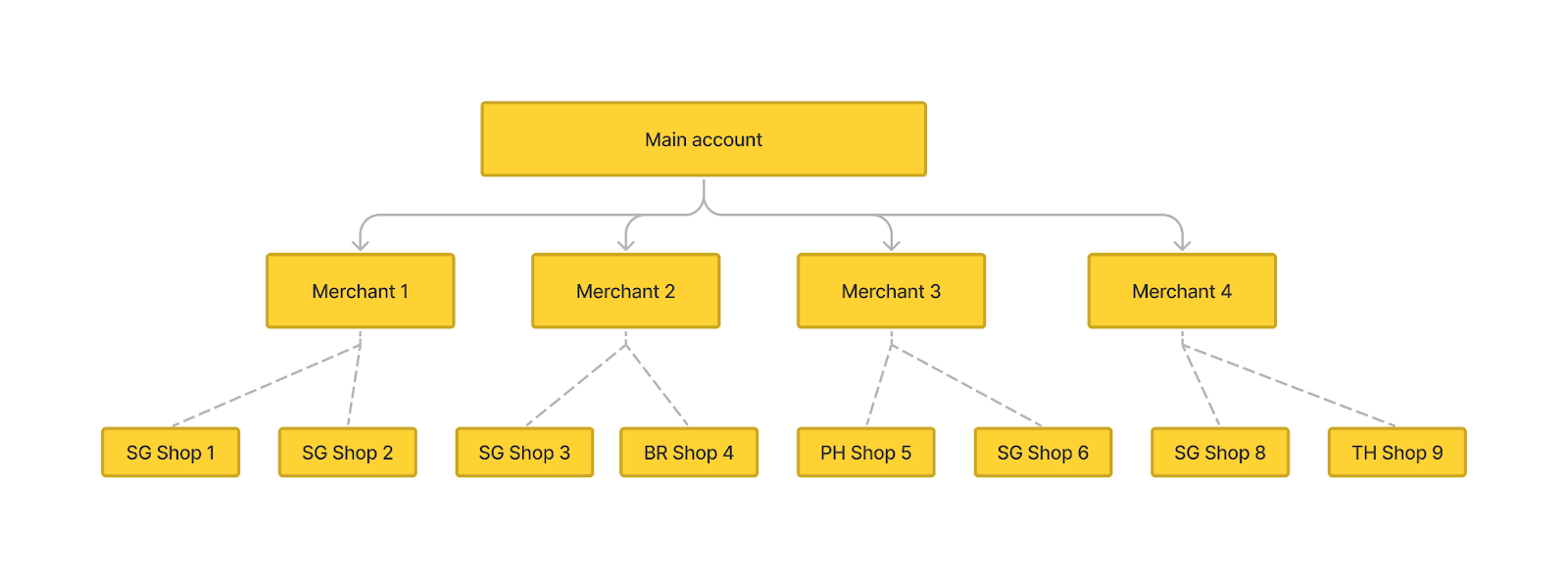
Terminology Description:
- Main account : The seller account with highest authority, the account owner is usually a corporate entity, and this account can manage all shops and all sub-accounts of the seller. The login format of the main account is XXX: main, for example, maidehao:main.
- Merchant: The company under the main account, multiple companies can be added to a main account after it is activated.
- Shop: The shops under the main account. Shops in multiple markets can exist under one Merchant. The main account can authorize the shops to be managed by different sub-accounts.
-
When you upgrade the shops to CNSC/KRSC accounts, You will get the main account for authorization, and only the main account can do the shop authorization. Please refer to the article on how to authorize using the main account.
-
Under one main account, there can be multiple Merchants, and under each Merchant, there can be multiple market shops, including SIP's shop. Moreover, there may be multiple shops of the same market under Merchant.
Global products and shop products
In the following, we will explain the relationship with global products and shop products.
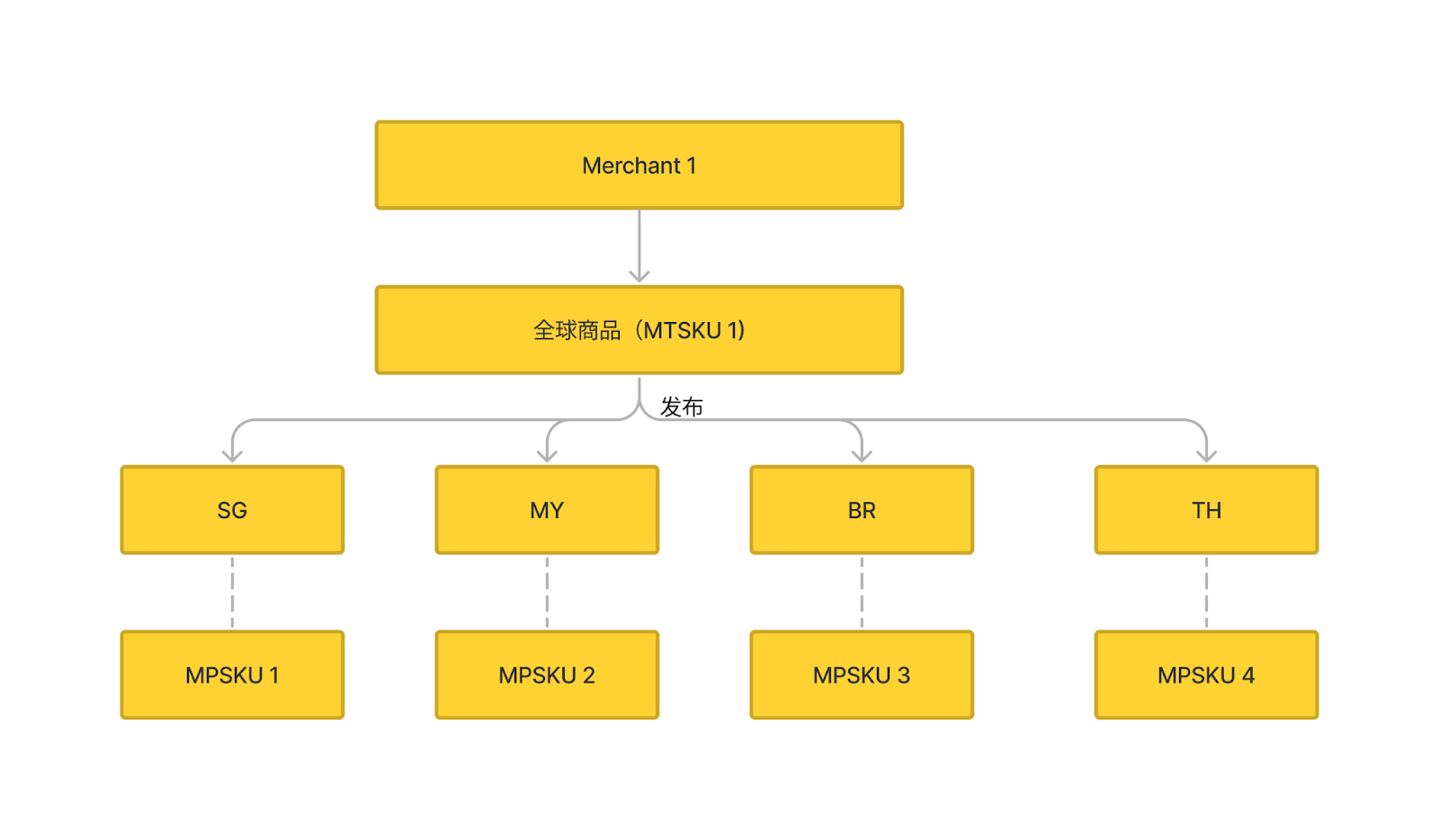
| Abbreviations | CNSC/KRSC name | Description |
| MTSKU | Global SKU | Sellers will manage some basic product information by MTSKU, including product categories, attributes, weights, etc. After publishing to diffremarkets, sellers only need to modify the global products, and Shopee will synchronize the changes to shop products. |
| MPSKU | Shop SKU | Real goods visible to buyers. |
Changes in product management process
After the adoption of global product management, please note the following changes to the product management process:
1. Product creation
Now you must create global products through v2.global_product.add_global_item API, and then call v2.global_product.create_publish_task API to publish global products to each market then shop products will be generated. For more detail about the publishing process can click here.
2. Field management restrictions
We divide the product-related fields into three categories.
-
Fields can only be managed by MTSKU: These fields have no market differences, such as categories, attributes, etc.. When the seller updates these field values of MTSKU, Shopee will update the value to MPSKU as well.
-
MTSKU and MPSKU jointly managed fields: These fields have market differentiation, such as product names and product descriptions. If sellers choose to update the field values through the MTSKU, then Shopee will translate or update the value to the MPSKU. If sellers choose to update the values of MPSKU alone, but do not modify the MTSKU, the update will only be effective for that MPSKU.
-
Fields can only be managed by MPSKU: These fields are not managed through the global product, like logistics info.
| API Field | Manage by MTSKU | Manage by MPSKU |
| category_id | ✓ | × |
| attribute | ✓ | × |
| brand | ✓ | × |
| item_name | ✓ | ✓ |
| description | ✓ | ✓ |
| weight | ✓ | × |
| dimension | ✓ | × |
| price | ✓ | ✓ |
| stock | ✓ | × |
| image/video | ✓ | ✓ |
| days_to_ship | ✓ | ✓ |
| item_status | ✓ | ✓ |
| condition | ✓ | × |
| item sku | ✓ | × |
| tier_variation structure | ✓ | × |
| tier_variation-name/option | ✓ | ✓ |
| logistics | × | ✓ |
Please note that:
- Stock Logic: Assuming the stock of MTSKU is 10 and MTSKU has published MPSKU1 and MPSKU2, then the stock of MPSKU1 = MPSKU2 = 10. When the buyer purchased one MPSKU1, that is, the stock of MPSKU1=9 , then the stock of MTSKU= MPSKU2=9.
- Item Status Logic: If a global item is deleted, all shop products for which the global item has been published will also be deleted. However, shop products can be deleted and unlist individually without affecting global products.
3. Product basic data differences
If you first connect to Shopee product management, it is recommended to read through the article "Product creation preparation" first, because the fields of global products and shop products are basically the same. Here we will explain the difference.
3.1 Getting categories
API: v2.global_product.get_category
Please note that:
- For different merchants, this API returns the same category tree data.
- V2.global_product.get_category API will return the available category for global product. But there may be a situation that category A is not available in Malaysia shop, but available in Brazil shop, we will prompt you not to publish the global product to Malaysia in the process of publishing global products, if you want to get the exactly available category for each market, you can call v2.product.get_category API.
3.2 Getting recommended categories
API: v2.global_product.category_recommend
3.3 Getting attributes
API:v2.global_product.get_attribute_tree
Please note that:
- The function of need_region_mandatory request parameter and mandatory_region response parameter: because for some attributes, such as NCC attribute, only products in the Taiwan market are compulsory, if the seller doesn't want to publish to Taiwan shops, we don’t want to block the process of global product creation, so this attribute will be optional for global products, but we will prompt by “mandatory_region” response parameter that the market code that is required for these certain attributes.
- Except for the special attributes mentioned in the first point, all other attributes, as long as one of the markets requires mandatory, are returned as mandatory by v2.global_product.get_attribute_tree API.
3.4 Getting recommendation attribute
API: v2.global_product.get_recommend_attribute
3.5 Getting the available brand list
API: v2.global_product.get_brand_list
3.6 Getting days to ship
API: v2.global_product.get_dts_limit
Please note that:
V2.global_product.get_dts_limit will return a concatenation of the number of shipping days that can be filled for all markets, i.e. can be
"days_to_ship_range_list": [
{
"min_limit": 7,
"max_limit": 8
},
{
"min_limit": 10,
"max_limit": 13
} ]
In this case, the available shipping days for global products are 7, 8, 10, 11, 12, and 13.
You can also save the API data of v2.product.get_dts_limit to get more precise shipping days for each market.
3.7 Getting information about whether the category supports size chart
API: v2.global_product.support_size_chart
Please note that:
We are rolling out the table type size chart, Please review the announcement for details
3.8 Getting global product restrictions
API: v2.global_product.get_global_item_limit
Please note that:
The function of text_length_multiplier field: For MTSKU product name/description/variation name and option name, we support seller input Chinese and English, but the Chinese translation with the same character length will have longer information than the English translation into the market language, so in order to Chinese and English have different character length limits, we added text_length_multiplier field to indicate the number of Chinese characters calculated multiplier. That is, when the API returns
"text_length_multiplier": 2.44,
"global_item_name_length_limit": {
"min_limit": 1,
"max_limit": 500
},
It means that if the seller fills in the product name in English, the maximum number of characters is 1 to 500; if the seller fills in the product name in Chinese, the maximum number of characters is 1 to 204 (because 500/2.44 =204.92), description/variation name and option name have the same logic.
4. Creating global product
4.1 Completing CNSC/KRSC basic configuration
Sellers need to log in to CNSC/KRSC to complete the configuration of currency and exchange rate before creating global products, otherwise, v2.global_product.add_global_item API will report an error.
-
CNSC sellers learn more about the operation guide
-
Set the currency: https://shopee.cn/edu/article/10614
-
Set the rate: https://shopee.cn/edu/article/3904
-
For KRSC sellers, please click here for more detail.
4.2 Completing the main account authorization
please refer to "Authorization and Authentication"
4.3 Getting the merchant id list and shop id list under the main account
The following APIs can be called:
Step 1: Get the current authorized merchant id list and shop id list through v2.public.get_access_token API after authorization.
Step 2: Call v2.merchant.get_merchant_info API to get the merchant information of each authorized merchant.
Step 3: Call v2.merchant.get_shop_list_by_merchant API to get the list of authorized shops of each merchant.
Step 4: Call v2.shop.get_shop_info API to get the information of each authorized shop, including the relationship between the SIP primary shop and affiliated shops.
- If it is a normal shop, is_sip= false and the sip_affi_shops field is not returned;
- If it is a SIP primary shop, is_sip=true and the sip_affi_shops field is returned;
- If it is a SIP affiliated shop, is_sip=true and the sip_affi_shops field is not returned.
4.4 Setting product information synchronization
Sellers can set whether global product information updates are automatically synchronized to shop products through CNSC/KRSC or API
CNSC/KRSC screenshot.
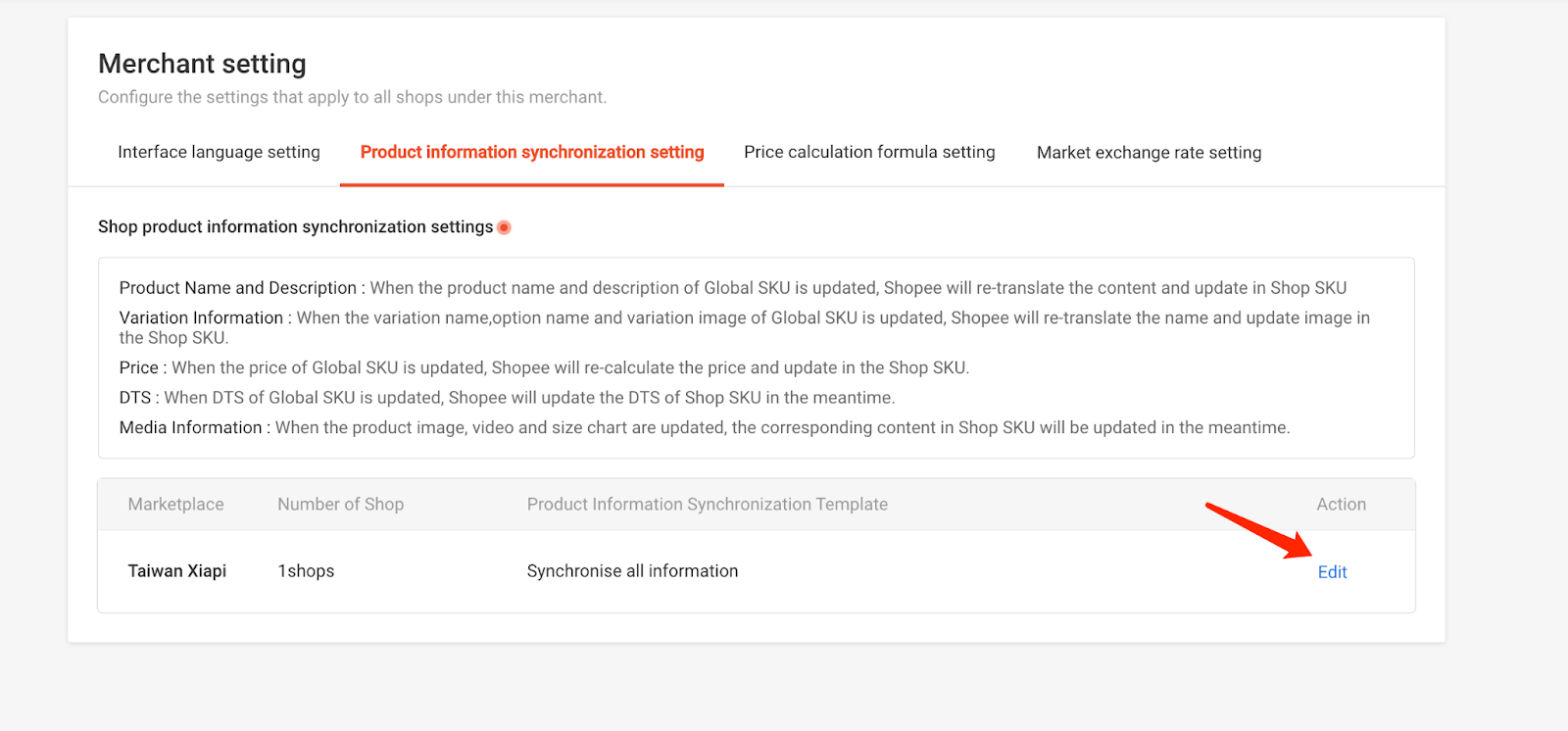
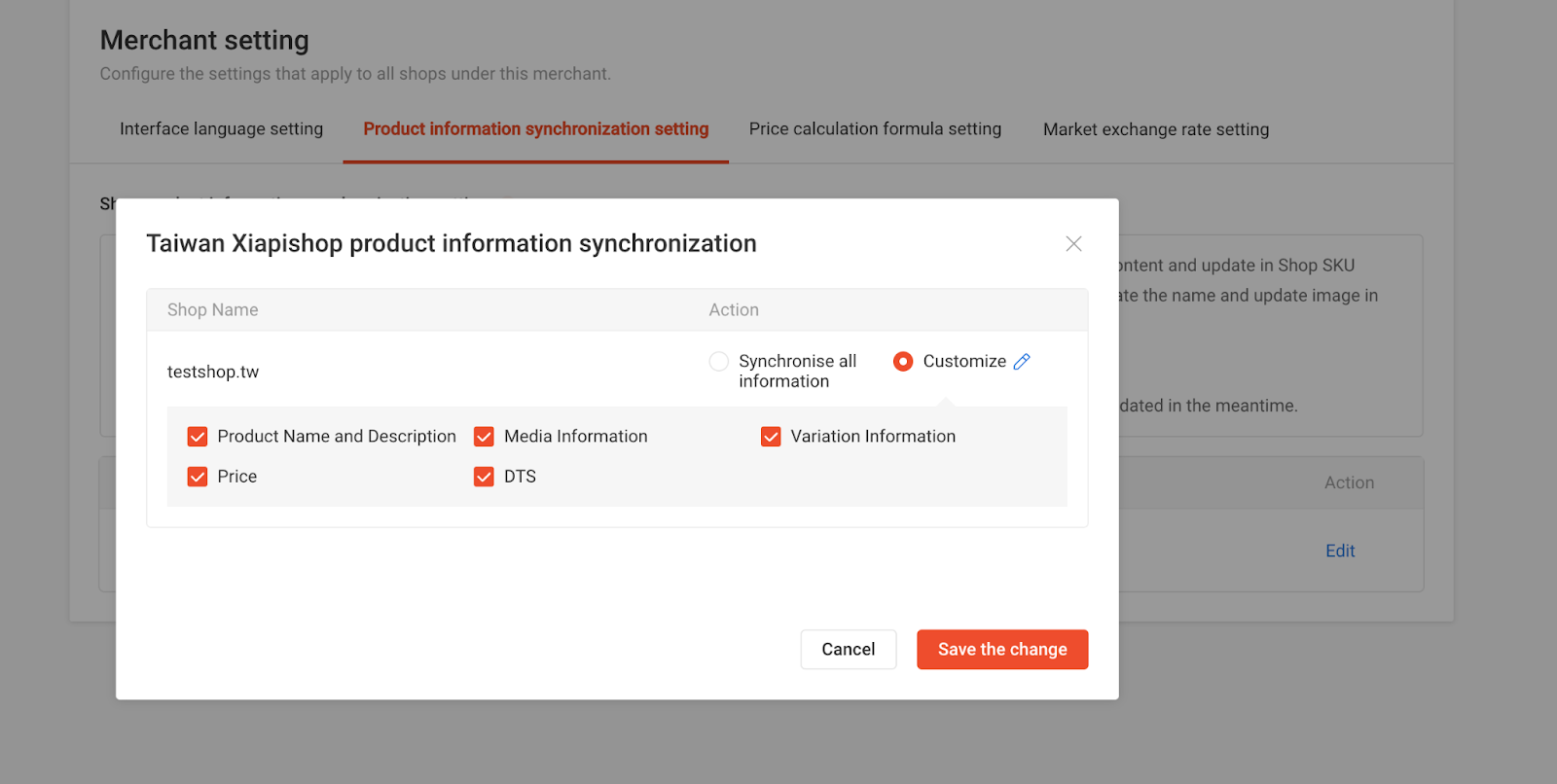
*checked means sync, unchecked means no sync.
Set by v2.global_product.set_sync_field API, “true” means sync, “false” means no sync.
4.5 Uploading global product
4.5.1 Uploading media files
Images and videos of products need to be pre-stored in Shopee's media space, so you need to call media_space related API to upload first. For more details, please refer to the article "Uploading media files" section.
After uploading images and videos, you can call v2.global_product.add_global_item API to create global products.
4.5.2 Uploading category and category attributes
- Uploading category
Category id is required for global products. You can only select the category id that returns “has_children”=false from v2.global_product.get_category API.
2)Uploading attributes
Global products must upload the required attributes. You can learn about the various attribute types through the article "Product creation preparation". For details on how to upload various attribute types for products, please refer to the article "Creating Products".
4.5.3 Uploading global product name
The global_item_name can only be uploaded in plain Simplified Chinese or plain English and numbers. Please do not mix English and Chinese in the name, as this may result in some words not being translated into local language, then the item being banned.
4.5.4 Uploading global product description
Global product descriptions can only be filled in simplified Chinese, English, and numbers.
Please note that:
We currently support whitelisted sellers to insert the image to description, please refer to the FAQ for details on how to upload.
4.5.5 Uploading global product price
Chinese cross-border sellers can use RMB or USD for pricing, Korean cross-border sellers can use USD for pricing, you need to check the merchant_currency field in the v2.merchant.get_merchant_info API, then upload the price of the corresponding currency according to the currency selected by the seller.
4.5.6 Uploading global product stock
Please note that the stock logic:
For example, if MTSKU publishes 3 MPSKU, there are MPSKU1, MPSKU2, MPSKU3, then when MTSKU stock is set to 100, stock MPSKU1=MPSKU2=MPSKU3=100, when MPSKU1 sells one item, stock MTSKU=MPSKU1=MPSKU2= MPSKU3=99.
4.6 Creating variants
When you create a global product successfully, v2.global_product.add_global_item API will return the global_item_id, which is a unique identifier for the global product. If you also need to define specifications and create multiple variants, you can call the v2.global_product.init_tier_variation API then you will get the global_model_id from v2.global_product.get_global_model_list API for each variations as a unique identifier for the variations.
4.6.1 Creating 1-tier variation
Assuming that the product has a size specification, the size includes XS, S, and M. We call this a 1-tier variation product.
| tier_index | size | price | stock | sku |
| tier_index[0] | XS | 100 | 10 | sku1 |
| tier_index[1] | S | 200 | 20 | sku2 |
| tier_index[2] | M | 300 | 30 | sku3 |
v2.global_product.init_tier_variation API request example:
Json
{

    "global_item_id": 800188562,

    "tier_variation": [

        {

            "name": "size",

            "option_list": [

                {

                    "option": "XS",

                    "image": {"image_id":"82becb4830bd2ee90ad6acf8a9dc26d7"}

                },

                {

                    "option": "S",

        "image": {"image_id":"72becb4830bd2ee90ad6acf879dc26d7"}

                },

                {

                    "option": "M",

      "image": {"image_id":"92becb4830bd2ee90ad6acf8a9dc26d7"}

                }

            ]

        }

    ],

    "model": [

        {

            "tier_index": [0],

            "original_price": 100,

            "global_model_sku": "sku1",

            "normal_stock": 10

        },

        {

            "tier_index": [1],

            "original_price": 200,

            "global_model_sku": "sku1",

            "normal_stock": 20

        },

       {

            "tier_index": [2],

            "original_price": 300,

            "global_model_sku": "sku3",

            "normal_stock": 30

        }

    ]

}
4.6.2 Creating 2-tier variants
Assuming that the product has color and size specifications, the color includes red and blue, and the size contains XL and L. We call this a 2-tier variations product, so there are at most 2*2=4 variants in this example.
| tier_index | color | size | price | stock | sku |
| tier_index[0,0] | Red | XL | 100 | 10 | sku1 |
| tier_index[0,1] | Red | L | 200 | 20 | sku2 |
| tier_index[1,0] | Blue | XL | 300 | 30 | sku3 |
| tier_index[1,1] | Blue | L | 400 | 40 | sku4 |
v2.global_product.init_tier_variation API request example:
Json
 {

  "global_item_id": 100917481,

  "tier_variation": [

    {

      "name": "color",

      "option_list": [

        {

          "image": {"image_id": "82becb4830bd2ee90ad6acf8a9dc26d7"},

          "option": "Red"

        },

        {

          "image": {"image_id": "72becb4830bd2ee90ad6acf879dc26d7"},

          "option": "Blue"

        }

      ]

    },

    {

      "name": "size",

      "option_list": [

        {

          "option": "XL"

        },

        {

          "option": "L"

        }

      ]

    }

  ],

  "model": [

    {

      "tier_index": [0,0],

      "original_price": 100,

      "normal_stock": 10,

      "global_model_sku": "sku1"

    },

    {

     "tier_index": [0,1],

      "original_price": 200,

      "normal_stock": 20,

      "global_model_sku": "sku2"

    },

    {

      "tier_index": [1,0],

      "original_price": 300,

      "normal_stock": 30,

      "global_model_sku": "sku3"

    },

    {

     "tier_index": [1,1],

      "original_price": 400,

      "normal_stock": 40,

      "global_model_sku": "sku4"

    }  ]

}
Please note that:
- The options you define will be displayed on the Shopee mall side in order. Shopee currently only supports the definition of up to 2-tier variation.
- You can define an image for each variant. If it is a 2-tier variation product, you can only define the first layer of options, that is, in the example, you can define variant images based on color, but not based on size. Once you want to add variant images, all the options in the first layer need to define the image. The image needs to be uploaded by calling the v2.media_space.upload_image API first.
- The tier_index must start from 0 and not overflow, otherwise an error will be reported.
- It is recommended that you create variants after an interval of 5 seconds after creating an item, because there may be a delay in creating item data.
Next, please review how to publish global product